
Your customer's portal is a single scrolling page — not a site with menus. There is no login prompt: the link opens straight onto their project. This article walks through what they see, in order.
The page, top to bottom
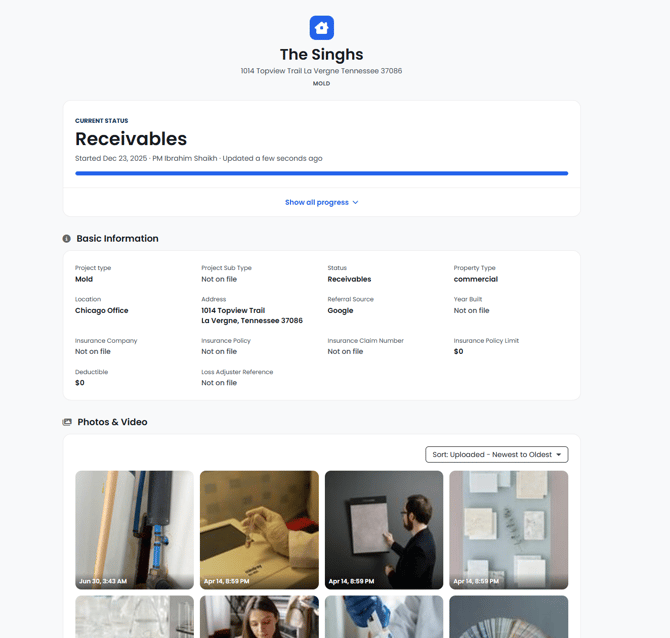
Header: A house icon, your customer's name, the property address, and the project type. This is shown at all times, including on the restricted-access screen when the portal is off.
Current status: The current phase in large type, followed by the start date, the project manager's name, and a relative timestamp such as Updated 2 hours ago that refreshes itself, above a progress bar.
Show all progress: expands the full phase timeline: green checkmarks and dates for completed phases, a pulsing dot on the current phase, and grey for upcoming phases. This is driven by your project's real phases — nobody has to maintain it by hand.
Basic Information: A grid of 14 project fields. This section is always visible while the portal is on — see the section below.
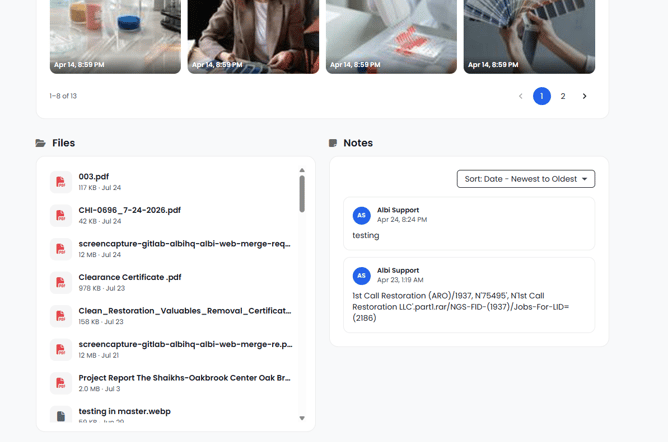
Photos & Video: A sortable, paged grid of thumbnails with capture dates. Tapping a thumbnail opens a lightbox that can be navigated with arrow keys, and navigation continues across pages. Videos play inline, and 360° images open in the panorama viewer.
Files: A scrollable list showing file type, size, and date. Tapping a file opens a preview with a Download button.
Notes: Cards showing the author, a timestamp, and the note body shortened to four lines behind Read more.
Sections that hide themselves
Photos & Video, Files, and Notes disappear entirely when the category is switched off or when nothing in it is shared. Your customer sees no empty section and no indication that the category exists.
Basic Information is always visibleWhenever the portal is on, your customer sees all of the following fields:
- Project Type
- Sub Type
- Status
- Property Type
- Location
- Address
- Referral Source
- Year Built
- Insurance Company
- Insurance Policy
- Insurance Claim Number
- Insurance Policy Limit
- Deductible
- Loss Adjuster Reference
There is currently no way to hide this section or any individual field within it. Turning the whole portal off for that project is the only control available.
Empty fields display as Not on file rather than disappearing. On a self-pay project with no insurance details recorded, your customer will see six blank insurance rows. The section only disappears if the project has none of these fields filled in at all.
If you do not want policy limits and deductibles visible to a particular customer, do not enable the portal on that project. Let us know if per-field control matters to your workflow.
Branding
The portal does not currently display your logo, company name, or company colors — your customer sees a generic house icon on Albi blue. Your company name appears in one place only: the restricted-access screen shown when the portal is off, which reads Please contact [your company name].
Payment and e-signature pages are separate features and do show your logo, which is why the two can look inconsistent to a customer.
Currency formatting
Currency values are formatted using your company's regional settings, not your customer's browser language or location.
Word, Excel, and PowerPoint previews
When your customer previews a Word, Excel, or PowerPoint file, the preview is rendered by Microsoft's public Office viewer, which requires the file's address to be sent to Microsoft. Bear this in mind before sharing sensitive material as an Office document — sharing it as a PDF avoids the third-party preview.
On mobile
Your customer's page is fully responsive and designed for a phone browser, so there is nothing they need to install. Note that managing a portal is available in the Albi web app only.
Related articles- Customer Portal: Overview and Access
- How to Set Up and Publish Your Customer Portal
- Customer Portal: Troubleshooting and FAQ
Contact Albi Support and we'll be glad to help.