
Setting up a Customer Portal is a sequence — the steps depend on each other, and the two most common problems are skipping the publish step or forgetting the master toggle. Follow the order below and both are avoided.
Before you start
Open the project you want to share, in the Albi web app. You need nothing else — there is no company-level setup and no permission to request.
Set up the portal in six steps- Open the project and click the Customer Portal button in the project header.
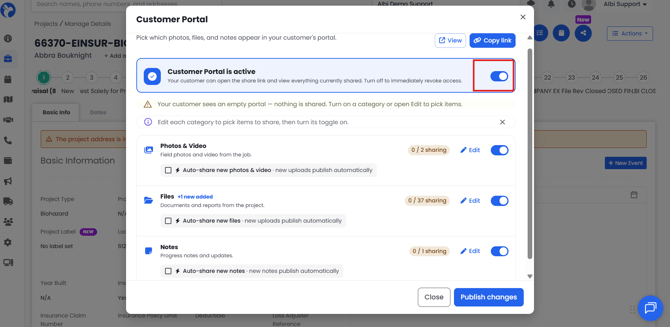
- Turn the master toggle on. The card changes to read Customer Portal is active.
- Click Edit on a category and choose which items to share, then click Back. If you want to share everything in that category, you can leave it as is.
- Optionally tick that category's auto-share checkbox so future uploads publish on their own.
- Click Publish changes and confirm. Nothing is visible to your customer before this step.
- Click Copy link and send it to your customer yourself, by text or email.
Turning a category on for the first time
When you switch a category on for the first time, everything in it is shared and the badge reads Sharing All. If you only want some items visible, click Edit and make your selection before you publish.
Reading the Publish changes dialog
The confirmation dialog is the fastest way to check what your customer will actually receive. It lists each category with its result.
| What the dialog says | What it means |
|---|---|
| 8 of 8 sharing (green dot) | Working as intended. Your customer will see all eight items. |
| 0 of 14 — section will be empty (warning triangle) | The category is on but nothing is selected. Go back into Edit and share some items. |
| Sharing is off, 6 ready (warning triangle) | You have selected items but the category switch is off, so your customer sees none of them. Turn the category on. |
| Nothing to share yet | The category is on, but the project has no items of that type at all. |
Category status badges
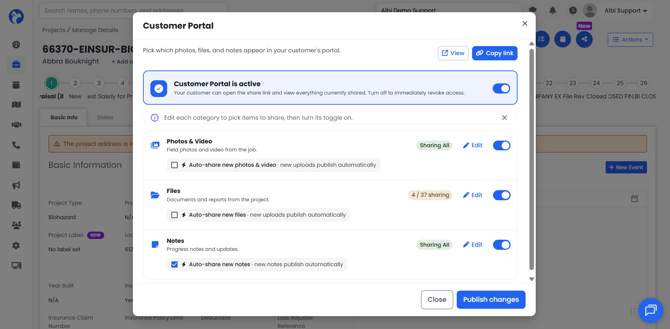
Each category row in the main modal carries a badge showing its current state.
| Badge | Meaning |
|---|---|
| Sharing All | The category is on and every item in it is shared. |
| 3 / 12 sharing | The category is on, but only some items are shared. |
| 5 sharing when on (grey) | Items are selected and ready, but the category switch is off. Your customer sees none of them. |
| +4 new added (blue) | Four items have been added to the project by your team since anyone last opened this selection screen. This is not a count of anything your customer has done. |
| Row greyed out | The master toggle is off, so category switches are disabled. Your saved selections return when you turn the portal back on. |
Preview before you go live
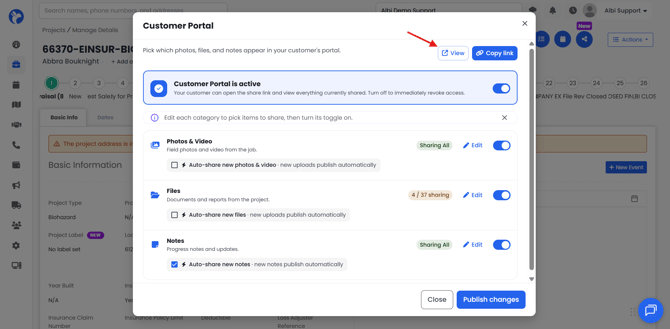
The View button next to Copy link opens your customer's version of the page in a new tab. It reflects your current selection and it works even while the portal is switched off, so you can check your curation before anyone else can see it. Your customer still gets the restricted-access screen until you turn the portal on and publish.
Choosing what to share
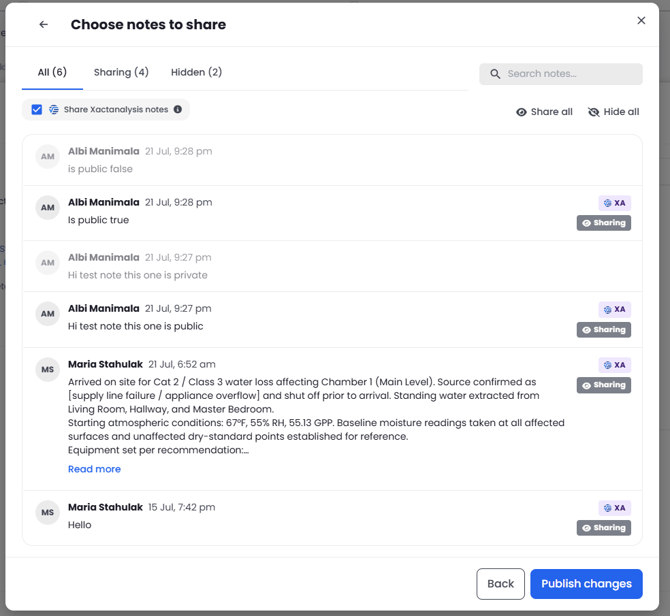
Clicking Edit on a category opens its selection screen. All three work the same way: All, Sharing, and Hidden tabs with live counts, click an item to toggle it, and Share all / Hide all buttons. Hidden items appear dimmed so you can see their state without switching tabs, and anything added since your last visit carries a New pill.
- Photos & Video — a folder sidebar and a three-column tile grid that loads more as you scroll. There is no search box in this picker.
- Files — a folder sidebar plus a Search files box, in four-column tiles showing who added each file and when.
- Notes — no folders. Search and sorting, with each note's body shortened to six lines behind Read more.
Share all and Hide all respect your current filter
Share all and Hide all apply only to the items currently on screen. If you have a folder selected or a search typed, Share all shares that folder or those search results — not the entire category.
To share an entire category, click All in the folder sidebar and clear any search first, then click Share all.
Restricted documents and photos
Documents flagged as Restricted are excluded from the Files selection screen and filtered out again when your customer's page loads, so they cannot reach the portal.
Images and videos flagged as Restricted are handled differently. They are not excluded from the Photos & Video selection screen, which means a restricted image can be selected and shared. If you are working with sensitive imagery, review your photo selection directly rather than relying on the Restricted flag.
Auto-share for new uploads
Each category has an auto-share checkbox, visible only while both the master toggle and that category's switch are on. With it ticked, new uploads publish as soon as the upload finishes. With it off, new items arrive hidden and wait for you under the Hidden tab.
- Auto-share only ever affects future items. Ticking it does not share the backlog already on the project, and unticking it does not un-share anything already published.
- The checkbox is a staged change like any other — it needs Publish changes to take effect.
- Restricted documents never auto-share, regardless of this setting.
Notes, and XactAnalysis notes
Notes work a little differently, because a note can be written after you have set your sharing rules.
Writing a note while auto-share is on
If a new note would publish automatically, Albi asks Share the note in customer portal? before saving, with an opt-out checkbox: Keep this note out of the customer portal. Ticking it hides that one note and leaves auto-share on for everything else. The same prompt appears when you mark a note public or private for XactAnalysis.
The Share XactAnalysis notes checkbox
- It appears in the Notes selection screen only when the project actually has XactAnalysis notes. On a project with no XactAnalysis connection it is not shown at all — that is expected.
- It shares or hides every XactAnalysis note at once, and it sets the starting visibility for any note marked as XactAnalysis later.
- It never affects regular Albi notes, and regular notes never affect it.
- While the screen is open it updates live: it stays ticked only while every XactAnalysis note is shared, and it clears as soon as one is hidden.
- Removing the XactAnalysis marking from a note removes its badge but does not change whether it is shared.
- Notes carry a Shared badge when shared and an XA badge when they are XactAnalysis notes. A shared XactAnalysis note carries both.
If a single XactAnalysis note does not auto-share as expected, open the Notes selection screen and publish again. That resynchronizes it.
Closing without publishing
If you close the modal with unpublished work, Albi asks Discard unpublished changes? and offers Keep editing or Discard changes. There is no autosave, so discarded selections are gone.
Sending the link to your customer
Click Copy link and send it however you normally contact your customer — text message, email, or your own CRM. Albi does not send the link for you. There is no invite feature, no contact picker, and no record in Albi of whether the link was sent.
Related articles- Customer Portal: Overview and Access
- What Your Customer Sees in the Customer Portal
- Customer Portal: Troubleshooting and FAQ
Contact Albi Support and we'll be glad to help.