
Before You Begin
|
Requirement |
Why it matters |
|---|---|
|
AI parsing turned on for your company |
The AI import is only available when AI parsing is active for your company. If you see an Extractor list instead of the AI upload, contact support to turn it on. |
|
Import templates set up |
Your templates decide how each line is named and grouped. They're applied when the estimate is created, so set them before you upload. |
|
A PDF estimate with line items |
The AI needs a PDF that lists line items. A summary page or photo report on its own won't import. |
What the AI Import Does for You
The AI doesn't just copy what it finds. It checks the result against the PDF so you know exactly what to look at.
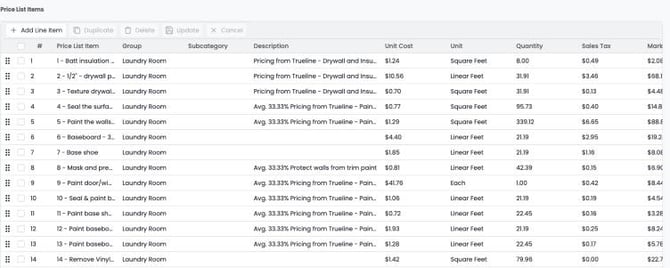
- Every line item, grouped by room. Each room in the PDF becomes its own section of the estimate, in the same order as the PDF.
- Line numbers from the PDF. The estimate shows a # column with each item's line number from the PDF, so you can find any row in the PDF quickly.
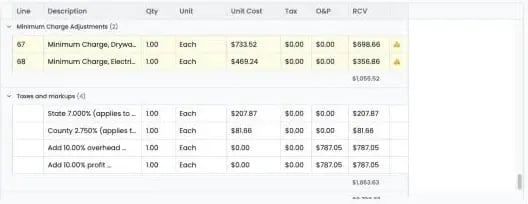
- Additional charges included. Fuel surcharges, permits, and other charges listed after the line items come in as rows in an Additional charges section.
- Taxes and markups included. Tax and O&P that only appear on the PDF's summary page come in as rows in a Taxes and markups section, so your total matches the PDF.
- A total check. Albi compares the imported total with the total printed in the PDF. A difference of more than $0.50 is flagged in red with the amount.
- Room-by-room checks for Xactimate PDFs. Each room's items are checked against the room total and line numbers printed in the PDF. Anything that still doesn't add up is listed as a warning.
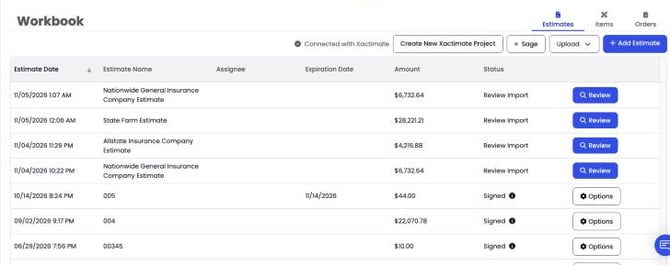
- The estimate is created for you. When processing finishes, the estimate is already in your project with the status Review Import.
- Your templates applied. The estimate uses the Name, Group, Subcategory, and Description templates from your import settings.
- Long estimates handled. PDFs over 20 pages are read in 20-page parts, and rooms that continue across a page break stay together.
Upload an Estimate PDF
- Open the project and go to Workbook, then Estimates.
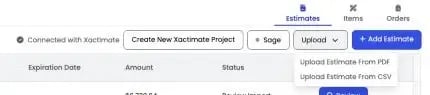
- Click Upload, then Upload Estimate From PDF.
- In the Upload PDF window, choose your PDF. You can upload one file at a time, and it must be a .pdf file.
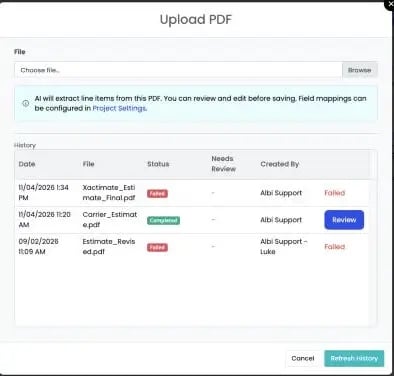
- Your upload appears in the History list. You can close the window; processing keeps going in the background.
- When processing finishes, you'll get an in-app notification and an email telling you how many line items were found and how many need review. If the AI couldn't read the file, the message will say so.
Track Your Upload in the History List
|
Column |
What it shows |
|---|---|
|
Status |
Queued (waiting to start), Processing, Completed, or Failed. |
|
Needs review |
A red ! with a count means the import raised warnings, such as a total that doesn't match. A yellow ▲ with a count shows how many items the AI wasn't sure about. A green dash means no warnings and nothing flagged. |
|
Review button |
Shows on completed uploads and opens the review window. |
Longer estimates can take several minutes, since each 20-page part is read separately.
Check the Import in the Review Window
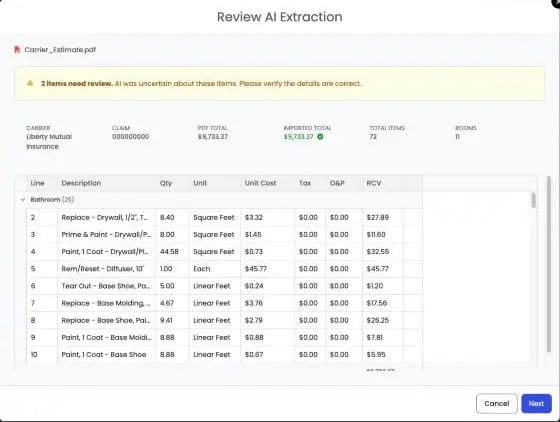
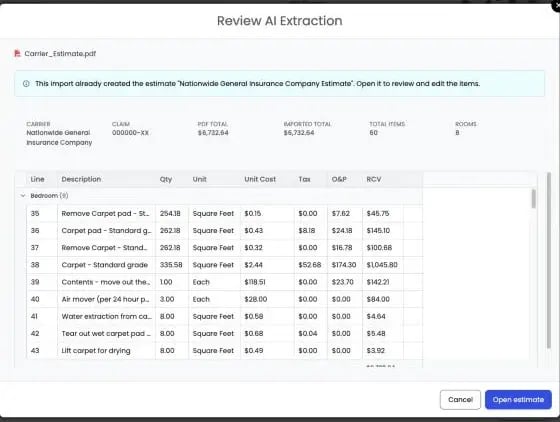
Click Review next to a completed upload in the History list to open the Review AI Extraction window. This is your quick check on how well the import matched the PDF.
|
What you'll see |
What it means |
|---|---|
|
Red Total mismatch box |
The imported total is off from the PDF's total by more than $0.50. The box lists the PDF total, the imported total, and the difference, along with any other warnings. When the totals match, other warnings show in yellow instead. |
|
Yellow "items need review" box |
How many items the AI wasn't sure about. |
|
Blue box with Open estimate |
The estimate has already been created. Click Open estimate to go to it. |
|
Summary |
The carrier, claim, PDF total, and Imported total (green with a check when they match, red when they don't), plus item and room counts. |
|
Items |
Every item grouped by room, with its PDF line number, quantity, unit, unit cost, tax, O&P, and RCV. Additional charges and taxes and markups are labeled. |
Tip: Because the estimate is created as soon as processing finishes, Review opens that estimate rather than importing the items again. This keeps you from getting duplicate items.
If the estimate has already been sent for signature or signed, Open estimate opens a read-only view, the same as it would from your Estimates list.
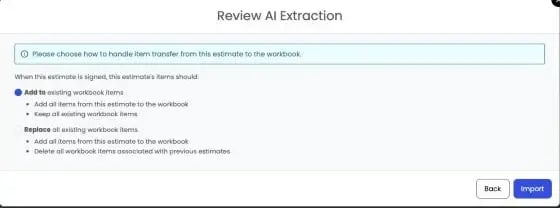
If the estimate created by the import was deleted, the review window walks you through importing again instead: click Next, choose how items should be handled when the estimate is signed, then click Import to create a new estimate.
Fix Flagged Items in the Estimate
Your imported estimate is listed in Workbook, then Estimates, with the status Review Import and a Review button. It's named after the carrier on the PDF (for example, "State Farm Estimate"), or after the file name if no carrier was found.
- Click Review to open the estimate in the editor.
- Read the banner at the top. It repeats any warnings from the import and shows how many items need review.
- Look for highlighted rows. These are the items the AI wasn't sure about.
- Use the # column to find each highlighted row in the PDF, then compare and correct it as needed.
- Save your edit. Saving a highlighted row clears its highlight and lowers the count.
- If the banner lists a total mismatch or missing line numbers, fix or add those rows using the warnings table below as your guide.
- When you're done, dismiss the banner. Total warnings stay on the banner until you dismiss it.
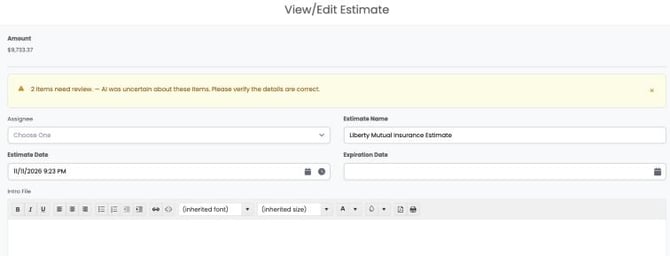
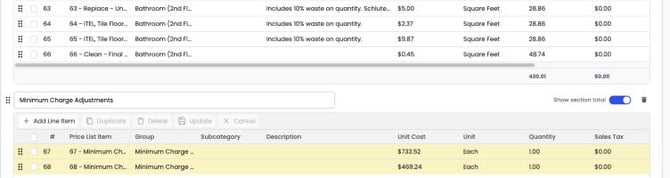
Why an item gets flagged: The AI marks an item for review when it wasn't sure about it, or when something looks off: no description, no room, no line number on a line item, a quantity with no amount, a negative value, or an RCV over $1,000,000.
Note: Your import templates are applied when the estimate is created. If you change your templates afterward, estimates you already imported won't change. Upload the PDF again to apply the new templates.
Finalize the Estimate
Once everything checks out, save the estimate, send it for signature, or mark it Signed as usual. When it's signed, its items move into your project's Workbook Items with their group and subcategory, ready for budgets, work orders, and invoices.
What Each Warning Means
Warnings show in the review window and on the banner at the top of the estimate. When you see a total mismatch, check the other warnings first. They usually point to the exact room or line numbers to fix.
|
Warning |
What it means |
What to do |
|---|---|---|
|
The PDF states a total of X but the imported items add up to Y |
The imported total is off by more than $0.50. |
Check the other warnings for the room or line numbers. Then compare the estimate with the PDF room by room and fix or add rows. |
|
{Room}: the items add up to X but the PDF prints Y for that section |
That room's items don't match the room total printed in the PDF (Xactimate PDFs only). |
Compare that room's rows with the PDF and correct them. |
|
Line items {numbers} are printed in the PDF but are missing from the import |
Those line numbers are in the PDF but didn't come in (Xactimate PDFs only). |
Add the listed lines to the estimate by hand. |
|
Expected approximately N line items but extracted only M |
A long PDF came back with far fewer items than expected. |
Check the estimate for missing rooms. If large parts are missing, upload the PDF again. |
|
An error occurred while processing a chunk of the document |
One 20-page part of the PDF couldn't be read, so its items are missing. |
Upload the PDF again. If it keeps happening, contact support. |
|
The document chunk was truncated and may be incomplete |
One part of the PDF was too long to read in full. |
Check the end of that part of the estimate for missing rows. |
|
Could not extract carrier name |
No carrier name was found on the PDF. |
Nothing to fix. The estimate is named after the file instead. |
|
No line items could be extracted |
The AI didn't find any line items. |
Make sure the PDF is an estimate with line items, not just a summary or photo report. |
Note: Non-Xactimate PDFs (such as other estimating platforms or carrier-specific layouts) and scanned PDFs still get the total check and flagged items, but not the room-by-room checks or missing line number warnings.
Troubleshooting and Common Questions
|
Question |
Answer |
|---|---|
|
The upload window asks me to pick an Extractor instead of doing an AI import. |
AI parsing isn't turned on for your company. Contact support to turn it on. |
|
My upload has said Processing for a long time. |
Long estimates can take several minutes. If it's still processing after an hour, contact support with the project and file name. |
|
My upload shows Failed. |
The PDF couldn't be read. Try uploading it again. If it fails a second time, contact support with the project and file name. |
|
The imported total doesn't match the PDF. |
Check the warnings in the review window or on the estimate banner. They name the room or line numbers to fix. Correct those before you send the estimate. |
|
Clicking Review opens the estimate instead of letting me import. |
That's expected. The estimate is created when processing finishes, so Review opens it instead of importing the items twice. |
|
Open estimate opens a read-only view. |
The estimate has been sent for signature or signed, so it can no longer be edited. |
|
Why are there Additional charges and Taxes and markups sections? |
Your PDF lists charges, tax, or O&P outside the line items. They're imported so your estimate total matches the PDF. |
|
Why does Group show the room name? |
The default Group template is the room. You can change it in your import settings. |
|
Why is Subcategory empty? |
The default Subcategory template is empty. Subcategory is meant for cost type (such as Labour, Material, or Equipment), not the trade. |
|
I changed my templates, but my estimate didn't change. |
Templates apply when the estimate is created. Upload the PDF again to apply the new ones. |
|
Can I upload the same PDF twice? |
Yes. Each upload creates its own estimate, so delete the one you don't need. |
|
The line numbers don't start at 1 or skip numbers. |
They're the PDF's own line numbers. Xactimate numbers lines across the whole estimate, and some lines are notes without a number. |
|
Does this work with non-Xactimate or scanned PDFs? |
Yes. They get the total check and flagged items, but not the room-by-room checks. |
|
A room shows up twice or a room name looks wrong. |
The AI misread a heading. Rename or merge the sections in the estimate. If it keeps happening with the same carrier's PDFs, contact support and send the PDF. |
|
Who gets notified when an import finishes? |
The person who uploaded the PDF, in the app and by email. |
Tip for Sage Intacct users: Subcategory maps to your Intacct cost types. Avoid setting the Subcategory template to the Category token, since every trade code would become a new subcategory that needs its own cost-type mapping before the project can sync.
Related Articles
- Configure AI Estimate PDF Import Workflow — set up AI parsing, map your import templates, and upload your first estimate.
- Xactimate Integration — how line item fields like Category, Selector, and Action map into Albi.