
Albi can send the floor plans you draw in a project straight into Xactimate. Once a push finishes, you can open your Xactimate project and see the same rooms, walls, doors, and windows there — ready to estimate. Each floor plan becomes its own story/level in Xactimate, ordered by the date it was created (earliest first).
One term worth knowing: every Xactimate project has an MFN (Main File Number) — a short code like 00BDB2R. You can see it inside Xactimate, and Albi shows it too, so the two sides can be matched up. How to find your MFN
What this feature does
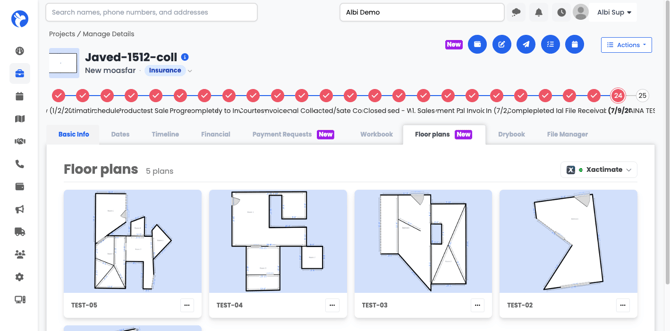
You draw floor plans in Albi under Project → Floor plans. From that same page you can send those drawings into Xactimate in one of two ways:
- Push floor plans — send your drawings into a Xactimate project that already exists for this Albi project.
- Create Project and Push — create a brand-new Xactimate project and send your drawings into it in a single step.
Before you start: who can use it?
The Xactimate push panel appears on the Floor plans page on both web and mobile. For it to show up, your company needs to be integrated with Xactimate and have floor plan push enabled. If you don't see the panel at all and think you should, contact Albi Support.
If the panel appears but shows Not connected, your company has the feature but hasn't linked its Xactimate account yet. Connect it under Settings → Integrations → Xactimate, then come back and try again.
The panel, piece by piece
Opening the panel shows a side panel with:
- Connection badge — shows Connected or Not connected.
- Your projects — the Xactimate projects already tied to this Albi project. Each row shows a name and, underneath, its push history — for example Never pushed, Version 3 · Pushed Jul 16, 12:53 PM, Version 5 · Push failed, or Pushing version N while a push is running.
- Push floor plans — pushes into whichever project you've selected in the list. This button only appears once at least one Xactimate project is tied to the Albi project.
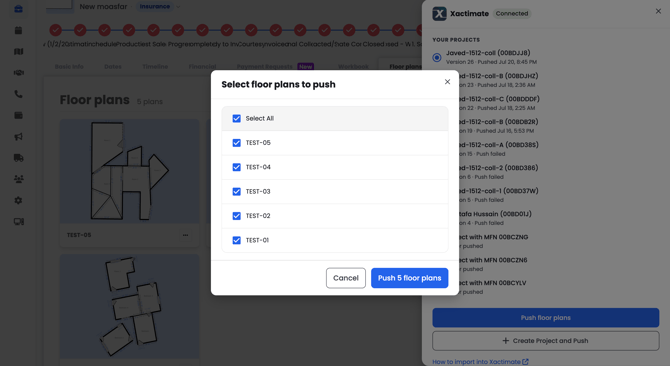
- Create Project and Push — opens a dialog to name a new Xactimate project and choose which floor plans to send.
- Version history — a timeline of every past push, with its steps and result.
Only seeing "Create Project and Push"? That's expected. If no Xactimate project is tied to this Albi project yet, the panel shows "No Xactimate projects yet. Create one to push your floor plans." and only the Create button. The Push button appears once you have a project to push into.
Panel — normal state, no active push 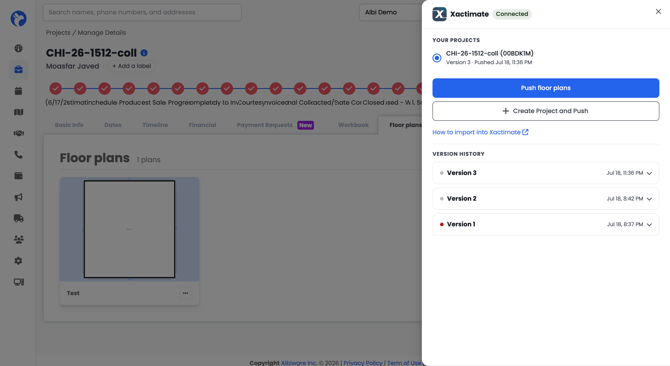
Create new project and push plans (create action same as workbook)
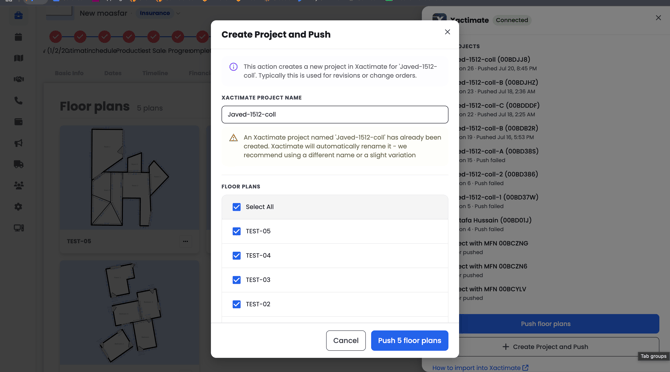
Push to an existing Xactimate project
Normal case - active push in progress 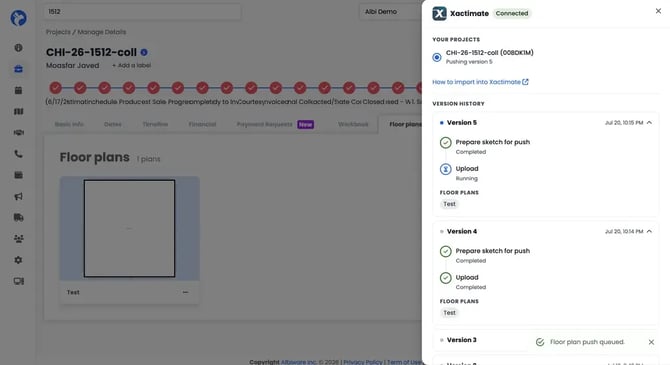
Why do some rows show "Project with MFN 00XXXXX" instead of a name?
When Albi knows the name your Xactimate project was given, the row shows it — for example "Roof Job (00BD38S)". Albi only started storing that name for projects created through newer flows, and Xactimate doesn't send the name back afterward. For older projects (or ones created outside the push flow), the name was never saved and can't be recovered, so the row falls back to "Project with MFN 00XXXXX." This is expected — the project still works normally.
What happens after you click Push?
A push runs in the background, and the version history shows its steps live as they happen. Which steps appear depends on the situation:
| Situation | Steps you'll see |
|---|---|
| Create Project and Push | Create project → Prepare sketch for push → Link to Xactimate → Upload |
| Push into an existing project not yet linked to Albi | Prepare project → Prepare sketch for push → Link to Xactimate → Upload |
| Push into a project already linked to Albi | Prepare sketch for push → Upload |
What each step means, in plain terms:
- Create project — Albi asks Xactimate to create the new project.
- Prepare project — the Xactimate project already exists but isn't linked to Albi yet, so Albi connects to it before sending anything.
- Prepare sketch for push — Albi converts your floor plan drawings into the file format Xactimate understands.
- Link to Xactimate — Albi waits for Xactimate to confirm the project is ready to receive files. Xactimate sends this on its own, usually within a few minutes (about 2–10).
- Upload — Albi sends the floor plans.
Versions Explained
Every push gets a version number (Version 1, 2, 3…). Pushing again sends a fresh copy of the floor plans you select.
The version counter belongs to the Albi project as a whole, not to each Xactimate project. Every push — including failed ones — advances the same sequence, no matter which Xactimate project it targeted.
One push at a time
Only one push per project can run at once. While a push is in flight, the panel hides both push buttons and grays out every project row except the one being pushed. They come back when the push completes, fails, or times out.
So if the push buttons "disappear," a push is almost always already running — check the version history for one before assuming something is broken.
Automatic time-outs
- A push that's running but hasn't made progress for 30 minutes is marked Failed, which frees up the "one at a time" lock so you can retry.
- A push waiting on the Link to Xactimate step (waiting for Xactimate's confirmation) is given 2 hours before it's marked Failed.
Importing your plans into Xactimate
After a successful push, open Xactimate to import the plans into your project.
Note: the pushed data can take a few minutes to appear inside Xactimate.
- Open your project from the list in Xactimate.
.webp?width=670&height=319&name=image%20(1).webp)
- Go to Estimate → Sketch. If you haven't imported before, the sketch will be empty.
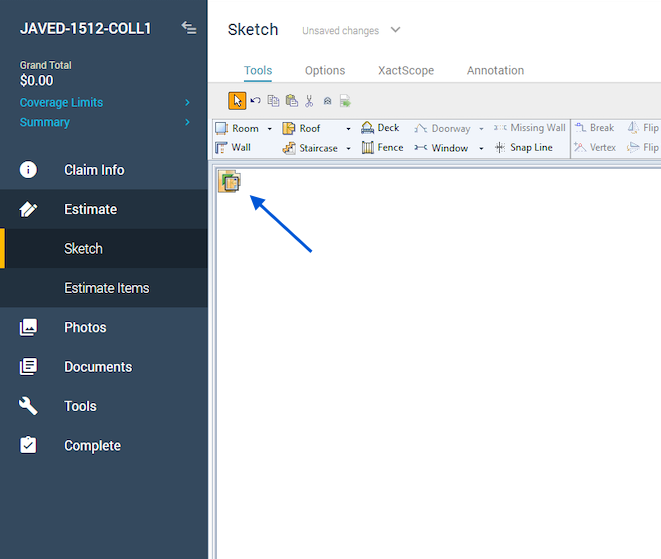
- Click the import icon. You'll see a dialog listing all of your Albi pushes to this project. Select the most recent one and click Import.
.webp?width=670&height=304&name=image%20(2).webp)
- Your floor plans load in. Along the bottom you'll see each floor plan as a level, and you can switch between them.
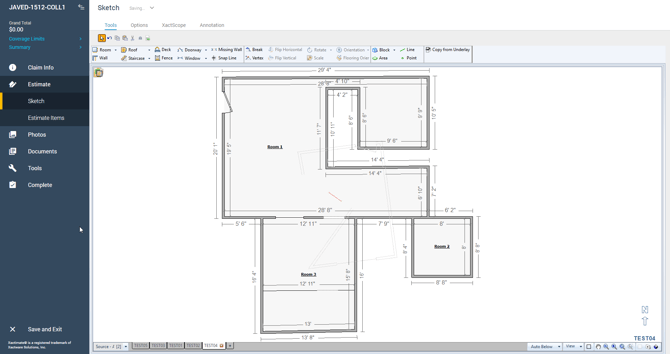
Good to know: each push is a point-in-time copy from when it was sent. Xactimate keeps track of them, so you can select an earlier push if you ever need to.
How Albi drawings become Xactimate sketches
The conversion has one main goal: the wall measurements you see in Xactimate should match what you drew in Albi. A few rules make that work, and they explain some small differences you may notice:
- Solid walls export at a standard 4-inch thickness. Albi measures rooms by their inside faces, while Xactimate measures walls by their center lines. The converter does the math so your room labels in Xactimate still read the same as your Albi drawing.
- Interior partition walls export as zero-thickness dividers. This is intentional — a 4-inch partition in Xactimate would cut chunks out of the wall it touches. As a zero-thickness divider, the partition reads exactly as drawn and the neighboring wall keeps one clean measurement.
- A few label differences are unavoidable, because solid walls are physically 4 inches thick:
- Where two rooms' walls meet in a T-shape, Xactimate trims about 2 inches per side from the labels at the joint.
- At a notched (reflex) corner, a label can read up to 2 inches long.
- An open wall shared across rooms can read up to 2 inches long where it reaches into a solid wall.
- Doors, windows, and openings transfer onto their walls — including door swing direction and hinge side, window sills, and pass-throughs.
Using this on mobile
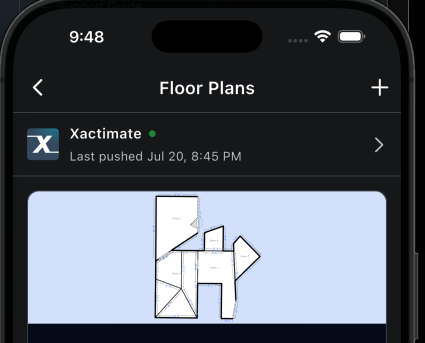
The mobile app has a simpler version of the push workflow, reached from the project's Floor plans page. On mobile you can see your Xactimate projects, create a new one, and push plans. You won't see the version history or the live step-by-step status that the web app shows — once you push, the app confirms that the push has been queued.
You can find a step-by-step article here.
If a push doesn't go through
Problems come in two kinds:
- Messages that appear the moment you click Push. The push never started, so no version is created and nothing shows in version history.
- Failed pushes that actually started. These show as a Failed version in the history, with a red X on the step where they stopped.
Here's what the most common messages mean and what to do. In almost every case a retry is safe.
| What you see | What it means | What to do |
|---|---|---|
| "This company is not connected to Xactimate." | The Xactimate connection was removed or expired. | Reconnect under Settings → Integrations → Xactimate, then retry. |
| "Select an existing Xactimate project to push the floor plans into." | You clicked Push without selecting a project. | Pick a project row in the list first, then push. |
| "A name is required to create a new Xactimate project." | You used Create and Push without entering a name. | Enter a name (up to 20 characters) and try again. |
| "A floor plan push is already in progress for this project." | Only one push per project can run at a time. | Wait for the current push to finish or fail, then retry. |
| "There was an error queueing the floor plan push to Xactimate." | The push couldn't be scheduled. | Retry once. If it keeps happening, contact Albi Support. |
| "There was an error creating the Xactimate project." | Xactimate rejected the new project. The most common cause is an invalid or unsupported ZIP/postal code on the project's address — Xactimate can't match a price list to it. | Check that the ZIP/postal code on the project address is valid, correct it, and retry. If it still fails, contact Albi Support. |
| "There was an error preparing the Xactimate project." | Linking an existing Xactimate project to Albi failed. | Retry. If it keeps happening, contact Albi Support and include the project's MFN. |
| "There was an error generating the floor plan file." | The selected floor plans couldn't be loaded — most often because they were deleted after the push was queued. | Confirm the plans still exist, reselect them, and retry. If they exist and it repeats, contact Albi Support. |
| "There was an error authenticating with Xactimate." | A temporary login issue between Albi and Xactimate. | Retry. If it persists, contact Albi Support. |
| "There was an error starting the Xactimate upload." / "…uploading the floor plans…" | Xactimate's file service rejected the transfer. | Retry. If it keeps happening, contact Albi Support with the project name (or MFN) and the version number so we can look into it. |
| "The floor plans were uploaded but Xactimate did not confirm completion." | The file arrived, but the final confirmation didn't. The sketch may already be in Xactimate. | Check Xactimate — if the sketch is there, you're all set. If not, retry. |
| "An unexpected error occurred during the floor plan push." | Something went wrong mid-push. | Retry once. If it repeats, contact Albi Support with the project name and the approximate time it happened. |
| "Floor plan push timed out — Xactimate did not confirm in time. Push again to retry." | Xactimate didn't send its confirmation within the time-out window. The push is permanently failed — a late confirmation can't revive it. | Push again. If Xactimate's confirmation arrived late, the retry usually skips the wait and finishes quickly. If a second attempt also times out on Link to Xactimate, contact Albi Support. |
Frequently asked questions
The push buttons disappeared. Where did they go? A push is running. The panel hides both buttons while a push is queued, running, or waiting. Check the version history — the buttons come back when the push completes, fails, or times out.
What is an MFN? It's Xactimate's file number for a project (for example 00BDB2R). Albi shows it so you and Support can match a project across both systems.
Why does one row say "Roof Job (00BD38S)" and another just "Project with MFN 00BCZNG"? Albi shows the name when it knows it. For Xactimate projects created before Albi started storing names (or created outside the push flow), the name was never saved and Xactimate can't send it back, so the MFN shows on its own. This is expected.
The push has been sitting on "Link to Xactimate" — is it stuck? Give it a minute. Xactimate's confirmation usually lands quickly and the push resumes on its own. If it waits 2 hours, it auto-fails with "Floor plan push timed out — Xactimate did not confirm in time. Push again to retry." That's final — a confirmation arriving after the time-out won't revive it. Just push again (the retry usually skips the wait if the confirmation came in late).
A push showed "timed out" — could it still finish on its own later? No. Once a push times out, it's permanently failed and nothing revives it. If you still need the sketch, push again — a fresh push is always safe.
Why can't I start a second push? Only one push per project can run at a time, by design. The lock frees up when the current push completes, fails, or times out.
A measurement in Xactimate is about 2 inches short where two rooms meet. Is that a bug? No — that's expected behavior at T-junctions between two rooms' walls. See How Albi drawings become Xactimate sketches above.
I renamed the project in Albi — why didn't the Xactimate project rename? The push is one-way, and the Xactimate project name is set once, when it's created. Renaming on either side doesn't sync to the other.
A push completed but I can't find the sketch in Xactimate. Give it a little time to appear under your Xactimate project. (NEEDS VERIFICATION: confirm the exact window — see the note in the Importing section.)
The push failed — did anything half-finish that I need to clean up? No. It's safe to retry in all cases.
If I delete a floor plan in Albi, does it delete anything in Xactimate? No. Pushes are one-way snapshots. A deleted plan is simply left out of your next push.
Related articles
- Connecting Xactimate to Albi
- Drawing floor plans in Albi
- Push Floor Plans to Xactimate from the Albi Mobile App