
Albi has a redesigned Work Order experience inside the Workbook. It adds a separate Budget view, new ways to view your scope, line-item budget control, and percentage complete tracking. The new Work Order experience is on the web app only. The mobile app doesn’t include the Workbook.
The new experience is turned on for all companies. If you’d rather keep using the original Work Order experience, contact Albi Support and we can switch your company back.
What's different in the new experience
- Budget and Scope views: Each work order has two top-level views, Budget and Scope. Scope has four ways to view your items.
- Line-item budgets: Set a budgeted amount for each line item instead of relying only on the estimate amount.
- Budget by percentage: Apply a percentage to a whole sub-category, or to the entire estimate, in one step.
- Percentage complete: Enter how complete an order is and see the revenue that matches it.
- More accurate Sage budgets: If you use the Sage integration, Sage now receives each sub-category's budget based on the line-level amounts you enter.
The Orders tab
The Orders tab lists every work order on the project. Each order card shows the order name, a summary of its sub-categories, and its key budget and revenue numbers.
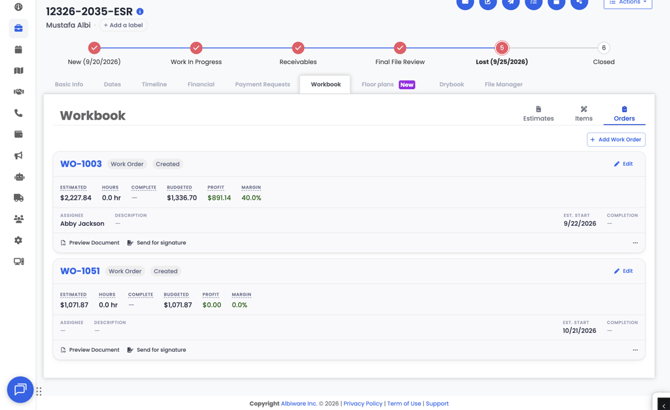
How to create a work order
- Open the project and go to Workbook → Orders.
- Click Add Work Order.
- The new work order opens ready to edit, with the Scope → List view showing.
- Fill in the required fields. Required fields are marked with an asterisk (*). Use the Order note field to add a note that appears on the signature page.
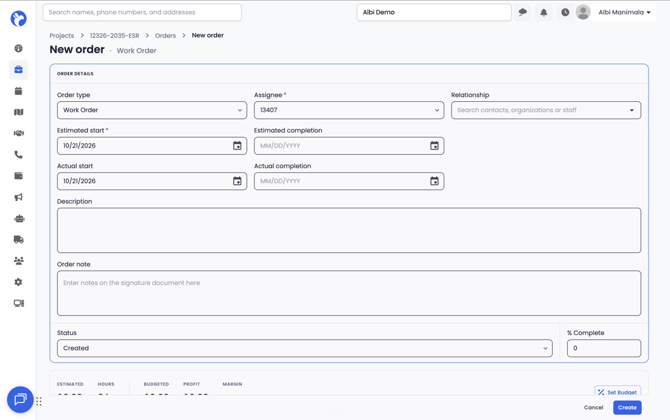
- Click Create to save the work order and return to the Orders list.
To throw away a new work order instead, click Cancel. Nothing is saved, and you go back to the Orders list.
Note: The Revenue complete section and the Preview Document button appear only after the work order is saved. The save button reads Create on a new work order and Save on one that already exists.
Views inside a work order
When you open a work order to edit it, the order details collapse into a compact summary so the items are easier to work with.
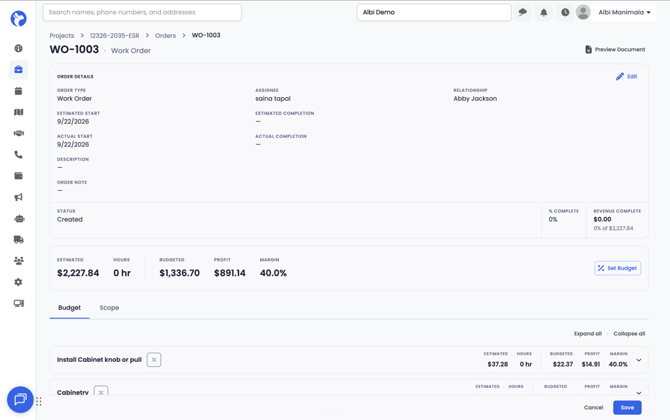
Two tabs sit at the top of the work order: Budget and Scope. Budget is covered in the next section. Scope shows your line items, and you can switch between four views of them:
|
View |
What it shows |
|---|---|
|
List |
All items in one list |
|
By group |
Items organized by Workbook group, such as Main or Kitchen |
|
By sub-category |
Items organized by subcategory, such as Labor or Material |
|
Custom |
Sections you create and name yourself |
Budget and Scope work independently. If you switch to Budget and then back to Scope, you return to whichever Scope view you were using.
How to track percentage complete
You can enter a percentage complete for a work order. Albi then shows how much of the estimated revenue that percentage represents. For example, an order with $10,000 in estimated revenue that's 40% complete shows $4,000.
To enter percentage complete:
- Open the work order and click Edit in the header area.
- Enter the percentage in the field next to Status.
When you set the work order's status to Complete, Albi sets it to 100% complete automatically.

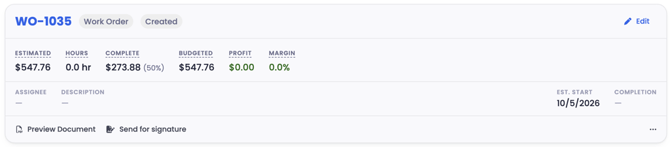
How to set budgets in the Budget view
The Budget view lets you set what you plan to spend on each part of the work, separate from the estimate amount. Items are organized by sub-category, such as Labor, Material, Equipment, Market Condition, and Lump Sum.
If an estimate line covers more than one sub-category, such as both Labor and Material, it shows as a separate line under each one.
Until you change it, each line's budget starts at its amount from the estimate. That's the same figure shown in the Amount column, including sales tax and overhead and profit (O&P).
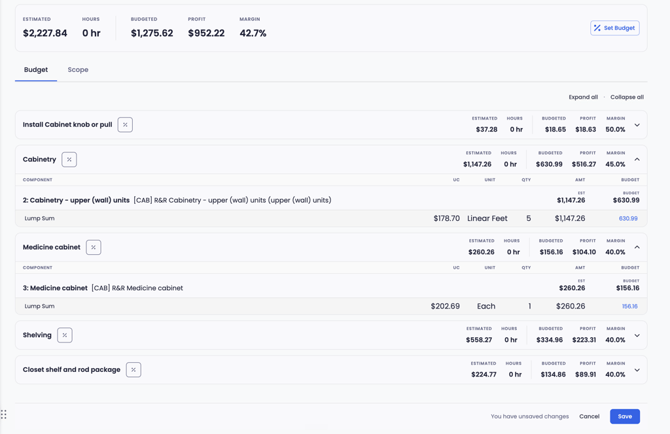
Change the budget for one line
- Open the work order and click the Budget tab.
- Click into a line's Budget field and enter the new amount.
- Press Enter or click outside the field. The change saves right away.
The sub-category's Budgeted, Profit, and Margin totals update automatically.

Set a budget percentage for a sub-category
- Click the % icon on the sub-category's header.
- Enter a percentage.
- Click Save.
Every line in that sub-category gets a budget equal to that percentage of its estimate amount. For example, at 60%, a line with a $1,000 estimate amount gets a $600 budget.
Set a budget percentage for the whole estimate
- Click Set Budget at the top of the page.
- Enter a percentage.
- Click Save.
Every line across all sub-categories gets a budget equal to that percentage of its estimate amount, and the page totals update.

Important: When you click Save, a percentage replaces the budget on every line it covers, including any budgets you changed by hand.
The work order document you send to vendors works the same way as in the original experience.
Sage integration budgets
If your company uses the Sage integration, Albi now sends Sage the budget for each work order sub-category as the total of that sub-category's line-level budgets. Before, one budget for the whole work order was spread evenly across sub-categories, so the sub-category budgets in Sage didn't match the breakdown in Albi.
If Sage budget amounts don't look right:
- Open the work order's Budget tab and check that line-level budgets are entered, not left at their starting amounts.
- Sync the project with Sage again.
- Compare the sub-category totals in Sage with the totals in the Budget view. If they still don't match, contact Albi Support.
Frequently asked questions
I don't see a Budget tab in my work order. Your company has been switched back to the original Work Order experience. To turn the new experience back on, contact Albi Support.
I don't see the Add Work Order button. Your company has been switched back to the original Work Order experience. To turn the new experience back on, contact Albi Support.
Why does the button say Create instead of Save? That's expected. Create appears on a new work order that hasn't been saved yet. After it's saved, the button reads Save.
Where is the Preview Document button? It appears after you save the work order for the first time.
Related articles