
The Customer Portal gives each of your projects its own shareable web page. You choose what to share — photos, files, and notes — and your customer opens a link to watch the project progress from their phone or computer. The status timeline updates itself from the project's real phases, so there is nothing to maintain by hand.
This article covers what the portal is, how the link works, and what it does not yet do. To set one up, see How to Set Up and Publish Your Customer Portal.
What the Customer Portal is
- One portal per project. Every project has its own portal and its own link. There is no company-wide customer login and your customers do not create accounts.
- Read-only for your customer. They can view and download. They cannot upload, comment, sign, or pay in the portal.
- You control everything. Nothing reaches your customer until you turn the portal on and publish your changes.
- One shared view. Everyone who has the link sees exactly the same content.
- Managed in the web app. Setting up and curating a portal is done in the Albi web app. Your customer's page is designed for a phone browser and works well on mobile.
Where to find it
Open any project and look for the round blue button with the share icon in the project header, labeled Customer Portal. It sits between the calendar button and the Actions dropdown, and it is available from every tab of the project.
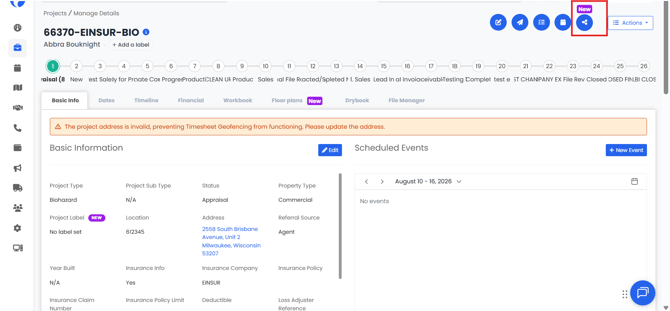
That button is the only entry point. There is no separate settings page and no company-level setup to complete first — everything happens in the modal that opens when you click it.
Key rules at a glance
| Topic | How it works |
|---|---|
| Access | A link unique to that project. There is no account, login, or password — anyone who has the link can open it. |
| Link lifetime | Created automatically when the project is created, and it does not expire. |
| Customer permissions | View and download only. |
| Master switch | Off by default. While it is off, the link shows a restricted-access screen instead of the project. |
| What you can toggle | Three categories: Photos & Video, Files, and Notes. Each has its own switch and its own item-by-item selection. |
| What is always shown | The project status timeline and the Basic Information section publish whenever the portal is on. Neither has a switch. |
| Publishing | Every change is staged. Nothing reaches your customer until you click Publish changes. |
| Who on your team can use it | Any user who can open the project can turn the portal on, choose what is shared, and copy the link. |
How the portal link works
The link itself is the only credential. There is no password to set, no expiry date, no limit on how many times it can be opened, and no way to generate a replacement link for a project.
Two practical consequences are worth understanding before you send a link.
Anyone your customer forwards the link to has the same access. That includes the Basic Information section, which contains insurance and deductible fields. See What Your Customer Sees in the Customer Portal for the full field list.
Turning the portal off does not delete the link. The link still opens, but it shows a restricted-access screen instead of the project. That screen still displays your customer's name, the property address, and your company name. Everything else — status, Basic Information, photos, files, and notes — is withheld.
If a portal link has reached someone it should not have, turn the portal off for that project right away and then contact Albi Support so we can help you assess it.
What the portal does not do
| Capability | Status |
|---|---|
| Seeing whether your customer opened the portal | Not available. There is no view count, last-opened date, timeline entry, or notification. |
| Sending the link from inside Albi | Not available. You copy the link and send it yourself. |
| Notifying your customer when new photos are shared | Not available. The portal never sends an email or push notification. |
| Password-protecting a portal | Not available. Access control is the link plus the on/off switch. |
| Setting a link to expire | Not available. |
| Hiding the Basic Information or insurance fields | Not available. Turning the portal off is the only way to hide them. |
| Different views for a homeowner and an adjuster | Not available in this release. One link, one view. |
| Customers uploading, commenting, signing, or paying in the portal | The portal is read-only by design. Payments and e-signatures use their own separate links. |
| Managing the portal from the mobile app | Not available. Portal setup is in the web app. Your customer's page works on mobile. |
| Limiting which team members can enable a portal | Not available. Anyone who can open the project can enable and share it. |
If any of these matter to your workflow, let us know — feature requests from this list help us prioritize.
Related articles
- How to Set Up and Publish Your Customer Portal
- What Your Customer Sees in the Customer Portal
- Customer Portal: Troubleshooting and FAQ
Still need help?
Contact Albi Support and we'll be glad to help.