
Connect a 360 camera to the Albi mobile app to capture 360 photos straight into a project folder. You and your team can view those photos in the mobile app and on the web.
You only set a camera up the first time you use it. After that, Albi connects to it on its own.
Supported cameras
These cameras have been tested with Albi:
- RICOH THETA X
- RICOH THETA Z1
- RICOH THETA SC2
- Insta360 X5
Other Insta360 models may work, but they aren't officially supported yet. If you're using a camera that isn't on this list and it won't connect or take photos, switch to one of the tested cameras above.
Before you start
- 360 Capture needs to be turned on for your company. If you don't see 360 in the camera, contact your Account Manager or our Support team.
- Activate your Insta360 X5 first. A new X5 has to be activated once in the Insta360 app before you can use it with Albi.
- Allow permissions the first time you use it. Albi will ask for Bluetooth (called Nearby devices on some Android phones) so it can find cameras near you. On iPhone, also allow Local Network so Albi can talk to the camera.
Where to find the 360 camera
- Open a project, or a folder inside the project.
- Tap the camera icon.
- Swipe the capture modes at the bottom of the screen to 360.
Photos save to the folder shown at the top of the camera screen. To save to a different folder, tap the folder name and choose another one.
How the connection works
Albi finds your camera over Bluetooth, and then your phone joins the camera's own Wi-Fi network. That network doesn't have internet, so while the camera is connected:
- Your phone leaves your usual Wi-Fi. It goes back to it when you leave the 360 camera.
- The photos you take upload to the project once your phone is back online.
Connect your camera for the first time
Get ready:
- Turn the camera on and make sure its Wi-Fi is on.
- Turn on Bluetooth on your phone.
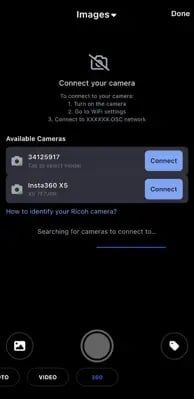
- Open the camera in Albi and swipe to 360. Albi starts searching for cameras near you.
RICOH THETA
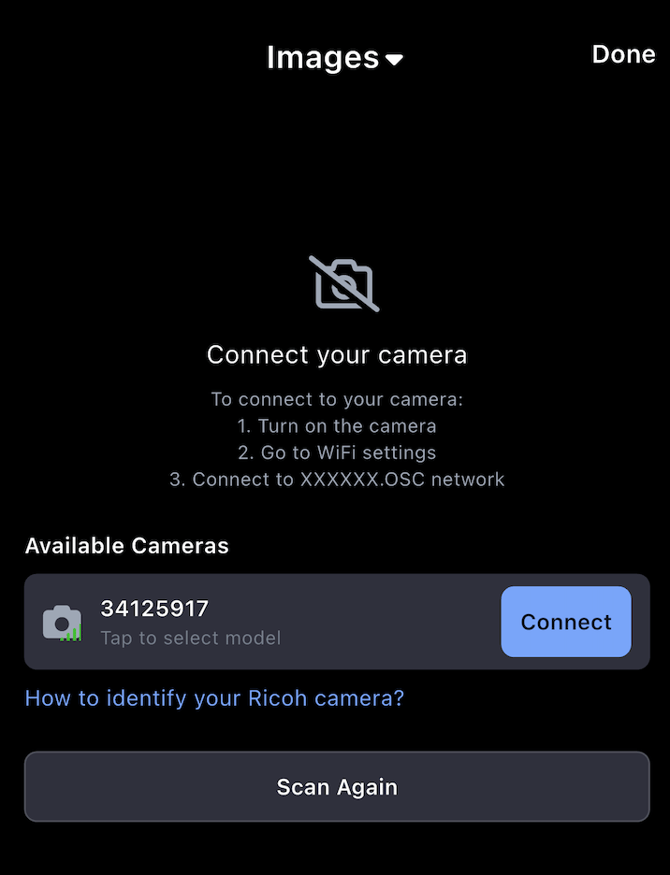
- Find your camera under Available Cameras. RICOH cameras are listed by the 8 digits of their serial number, which is printed on the bottom of the camera and on its box.
- Tap Connect.
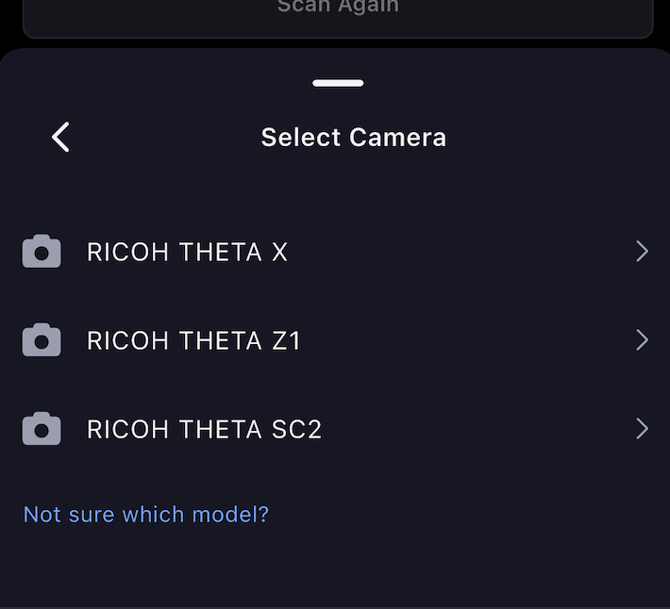
- On Select Camera, choose your model. If you're not sure which model you have, check the first two letters of the serial number: YR is the THETA X, YN is the Z1, and YP is the SC2.
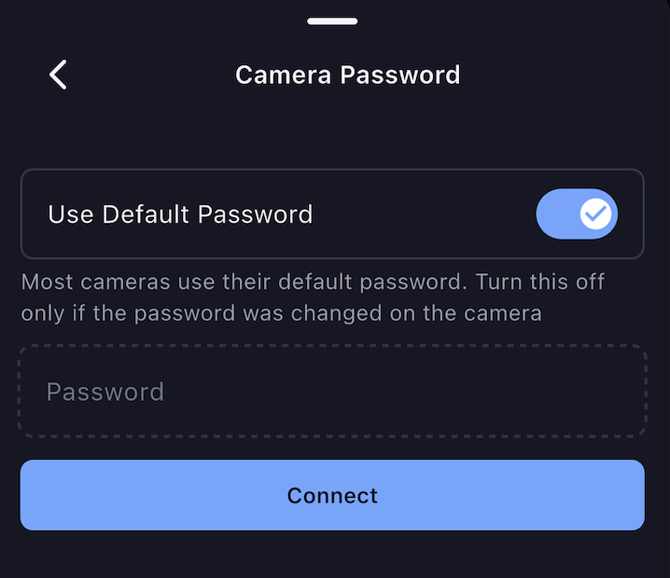
- On Camera Password, leave Use Default Password turned on. Only turn it off and type a password if the password was changed on the camera.
- Tap Connect, then allow your phone to join the camera's Wi-Fi when it asks.
Insta360 X5
- Find your camera under Available Cameras and tap Connect.
- Check the Wi-Fi name. Albi fills it in for you, so only change it if the network was renamed on the camera.
- Enter the Password. Every X5 has its own password. To find it, go to Settings > Wi-Fi Settings on the camera.
- Tap Connect, then allow your phone to join the camera's Wi-Fi when it asks. [
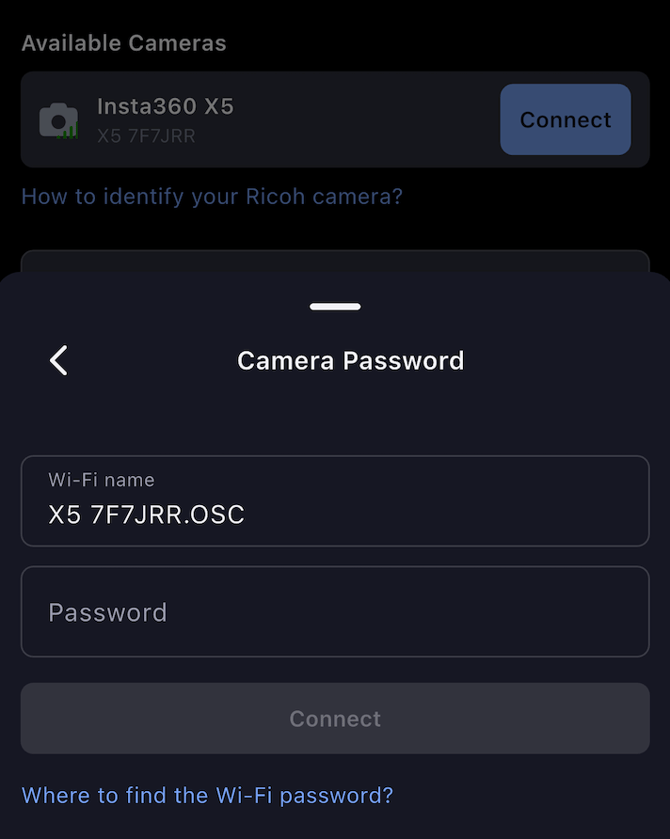
Once the camera is connected, its live preview appears on the screen.
Connecting again
Albi remembers every camera you've connected to. The next time you swipe to 360, it connects to a camera you've paired before on its own, without asking for the model or password again.
Switch cameras or forget a camera- To switch cameras, tap Cameras under the preview, or Switch in the camera settings. The list shows the camera you're using, any Previously Paired cameras nearby, and other Available Cameras. Tap Connect on the one you want.
- To forget a camera, tap Forget next to it. Albi will ask for its details again the next time you connect to it.
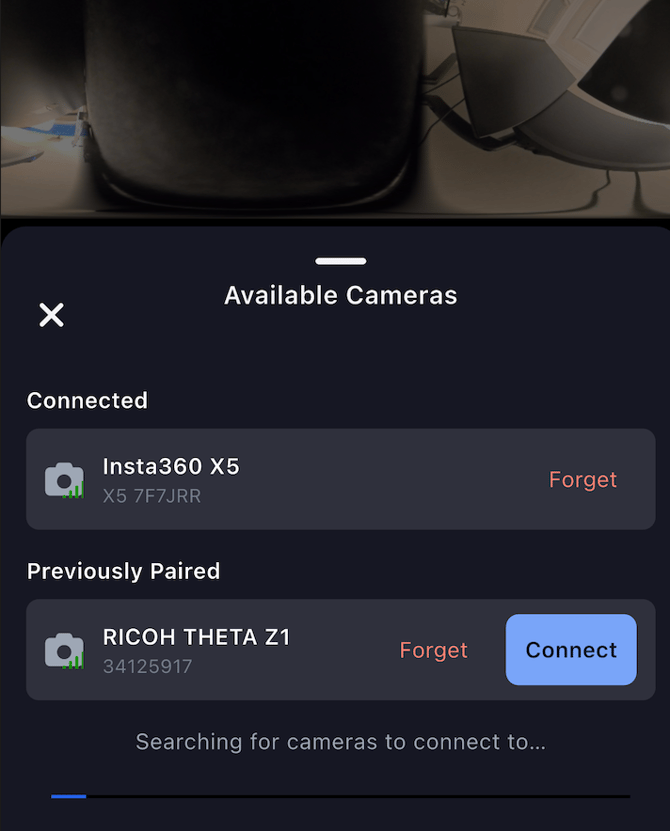
When you leave the 360 camera, Albi disconnects from it and your phone goes back to its usual Wi-Fi.
Troubleshooting
I don't see 360 in the camera.
360 Capture isn't turned on for your company yet. Contact your Account Manager or our Support team.
"Bluetooth permission is required to discover cameras"
Albi wasn't allowed to use Bluetooth. Open your phone's Settings, find Albi, and turn on Bluetooth (or Nearby devices).
"Turn on Bluetooth to find nearby cameras"
Turn on Bluetooth on your phone, then tap Scan Again.
"No cameras found nearby"
Make sure the camera is on, its Wi-Fi is on, and it's close to you, then tap Scan Again. If it still doesn't show up, go to your phone's Wi-Fi settings and join the camera's network (its name ends in .OSC). Then come back to Albi and tap Retry.
"The camera did not respond. Check the camera model and password, and that the camera is on"
This usually means the wrong model was selected. Albi takes you back to Select Camera, so check the first two letters of the serial number and choose again.
"That password was not accepted…" or "Connected to the network but the camera did not respond…"
Enter the password again. If you have a RICOH camera and its password was never changed, turn Use Default Password back on.
"Activate this camera in the Insta360 app, then try again"
A new Insta360 camera has to be activated once in the Insta360 app before Albi can use it. Activate it there, then connect again in Albi.
"Connection to camera lost…"
The camera turned off, went to sleep, or is out of range. Turn it back on and connect to it again from the camera list.
Albi connected to the wrong camera.
Tap Cameras under the preview and connect to the one you want.
My camera isn't on the supported list.
It may still work, but it isn't officially supported. If it won't connect or take photos, use one of the tested cameras listed above.
Need more help?
Next, learn how to take and view photos in 360 Camera: Capturing and Viewing 360 Photos. Still stuck? Reach out to our Support team and we'll help you get connected.