
Once your 360 camera is connected, you can take 360 photos right from the camera screen in Albi and open them in a viewer that lets you look all around the room. If you haven't connected your camera yet, start with 360 Camera: Setting Up and Connecting Your Camera.
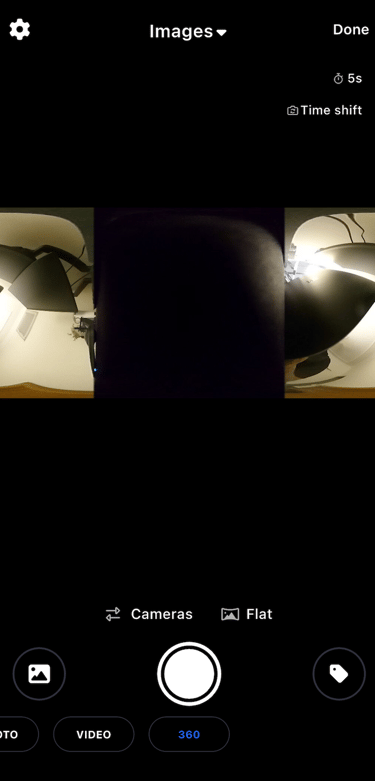
The camera screen- Live preview: tap Flat or 360 to switch between a flat view of the whole scene and a view you can drag to look around.
- Cameras: switch to a different camera.
- Badges: the icons in the top right of the preview show when a capture delay or time shift is turned on.
- Gear icon: at the top of the screen, opens the camera settings.
Camera settings
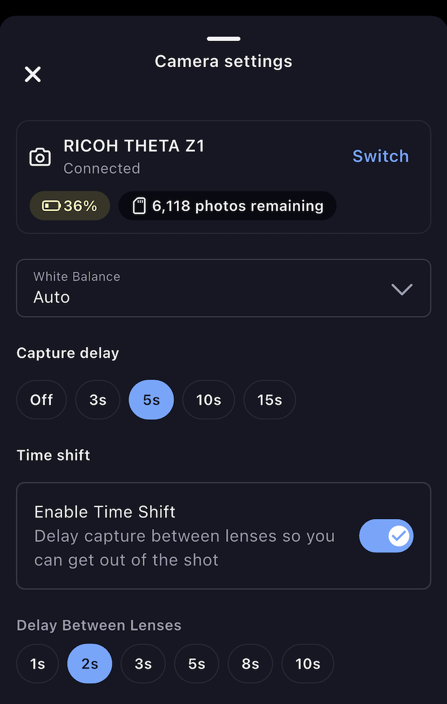
Tap the gear icon to open the camera settings.
- Camera status: shows which camera is connected, its battery level, and how many photos (or how much storage) it has left.
- White Balance: choose from the options your camera supports.
- Capture delay: Off, 3, 5, 10, or 15 seconds. This gives you time to leave the room before the photo is taken.
- Time shift (RICOH THETA X and Z1 only): turn on Enable Time Shift, then choose the Delay Between Lenses, from 1 to 10 seconds. See the time shift section below for how it works.
Albi remembers these settings for the next time you connect.
Take a photo
- Place the camera where you want to take the photo.
- Tap the shutter button.
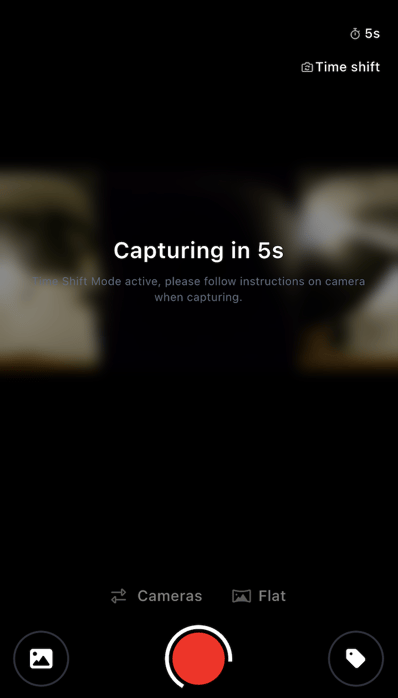
- If you set a capture delay, a countdown appears (for example, Capturing in 5s). Move out of view. If you leave the camera screen during the countdown, the photo is canceled.
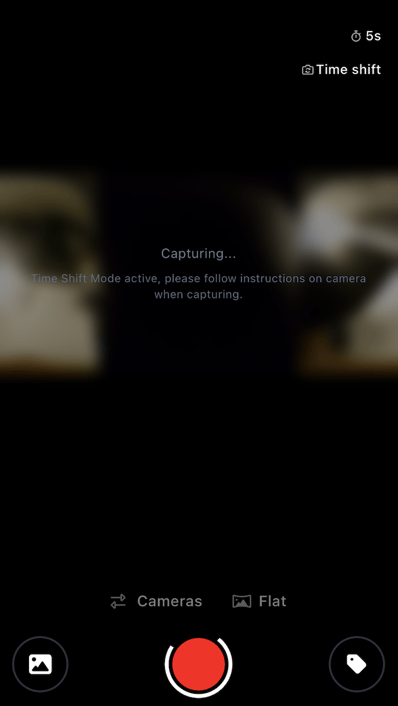
- The screen shows Capturing… while the camera takes the photo and sends it to your phone.
Use time shift to stay out of the photo
Time shift is available on the RICOH THETA X and Z1. With it turned on, the camera's two lenses shoot one after the other, so you can move out of each lens's view in turn. Here's the order:
- The front lens (the side with the shutter button) shoots first. Stand behind the camera, on the screen side.
- The camera waits for the Delay Between Lenses you chose. Move around to the front of the camera.
- The rear lens shoots, and the camera joins both halves into one photo.
If you also have a capture delay set, the delay only happens once, before the first lens shoots.
After you take a photo
The photo saves to the folder shown at the top of the camera screen. It uploads to the project once your phone is back online, which is usually right after you leave the 360 camera.
View your 360 photosRight after you take it
In the camera, tap the thumbnail, then tap the photo to open it in the 360 viewer. From here you can also add a comment or tags, or delete the photo.
Later, in the mobile app
- Open the project and go to its Folders.
- Open the folder the photo was saved to and tap the photo.
- Tap Open in Viewer.
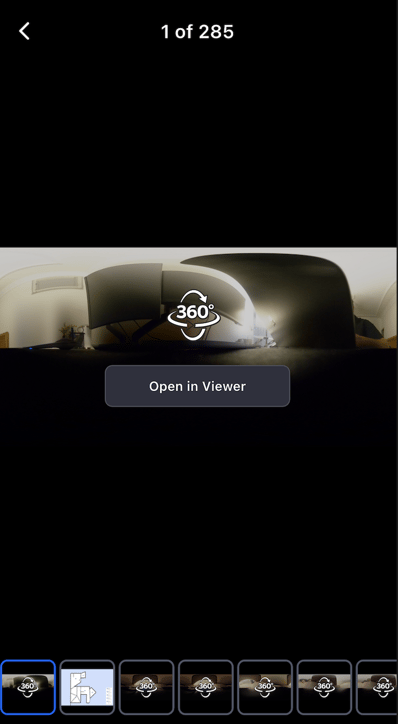
On the web
Open the project and go to File Manager. Your 360 photos are in the folder they were saved to.
Using the viewer
- Drag to look around, and pinch to zoom.
- Auto-Rotate slowly turns the view on its own.
- Gyroscope lets you look around by moving your phone.
- The controls hide after a few seconds. Tap the screen to bring them back.
Troubleshooting
"Not enough storage on this device to capture. Free up space and try again"
Your phone is full. Free up some space on it, then take the photo again.
The camera is running out of space or battery.
Check the camera status at the top of the camera settings. Free up space on the camera, or charge it.
"There was an unexpected error that occurred while trying to save image."
Check that the camera is still on and connected, then take the photo again.
"Preview isn't available for this camera, please continue on the camera"
You can still take photos. Check the framing on the camera itself instead of in Albi.
"Failed to start camera preview, please retry"
Leave the 360 camera and open it again.
I don't see Time shift in the settings.
Time shift is only available on the RICOH THETA X and Z1.
I'm still showing up in my time shift photo.
Stand behind the side of the camera that's shooting, and choose a longer Delay Between Lenses so you have more time to move.
Need more help?
Having trouble connecting your camera? See 360 Camera: Setting Up and Connecting Your Camera. Still stuck? Reach out to our Support team and we'll help you out.