Skip to content
  • There are no suggestions because the search field is empty.

Where Can I Use Snippets in Albi and How Do I Insert Them?

This article explains where Snippets are supported in Albi and how to use them while writing notes. It covers inserting Snippets within project timelines, using the top navigation note shortcut, and triggering Snippets with the hashtag (#) to automatically insert saved text into your notes. This helps teams save time and maintain consistent communication.

Where You Can Use Snippets

You can use Snippets in Project - Timeline - Notes and other areas where notes are created.

To use a Snippet:

  1. Go to the Projects tab and open the project where you want to add a note.
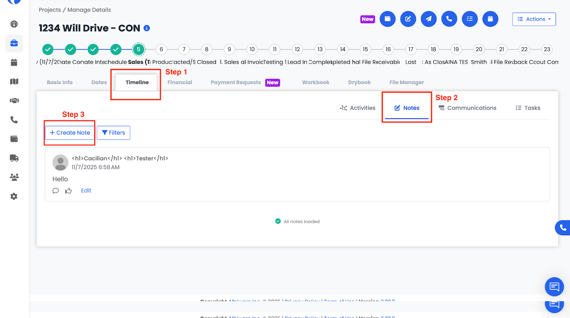
  2. Select the Timeline tab at the top of the project page.
  3. In Timeline, go to Notes (next to Activities, Communication, and Tasks).
  4. Click Create Note.


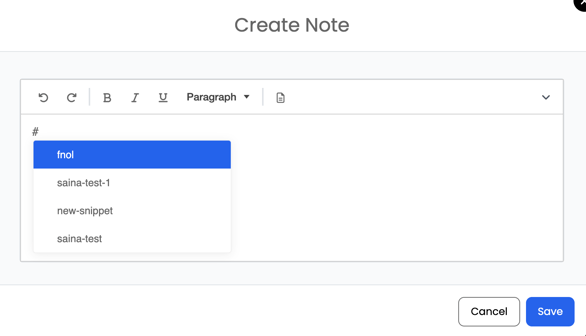
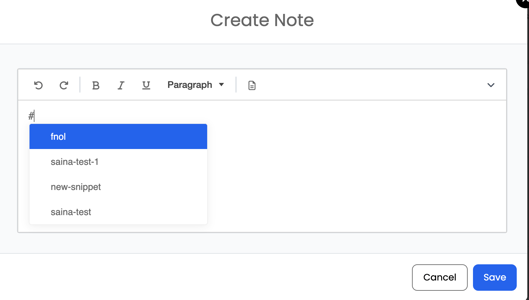
      5.   In the note text field, type a hashtag (#) — a list of your saved snippets will                          appear.

      6.   Choose the snippet you want to use, and it will automatically insert the saved                    text into your note.

      7.   Click Save to finalize your note.


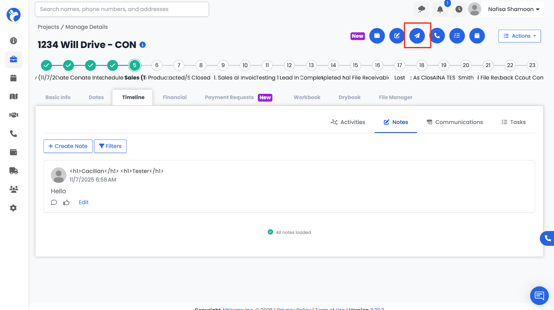
 📘Note: You can also create a note from the top navigation bar by clicking the Create Note icon — snippets work the same way here too.