
Each project displays its related scheduler events directly within the project view, making it easy to see upcoming and past scheduled work without leaving the project.
Where to Find Scheduled Events
- Open a Project
- On the right-hand side, locate the Scheduled Events section
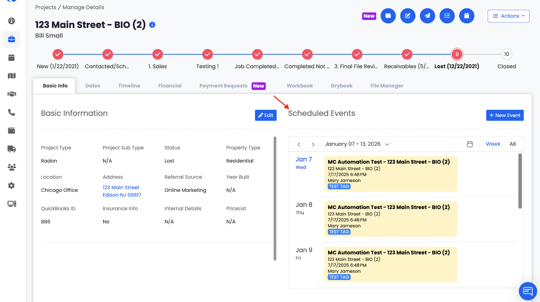
This section shows all scheduler events associated with the project.
Viewing Scheduled Events
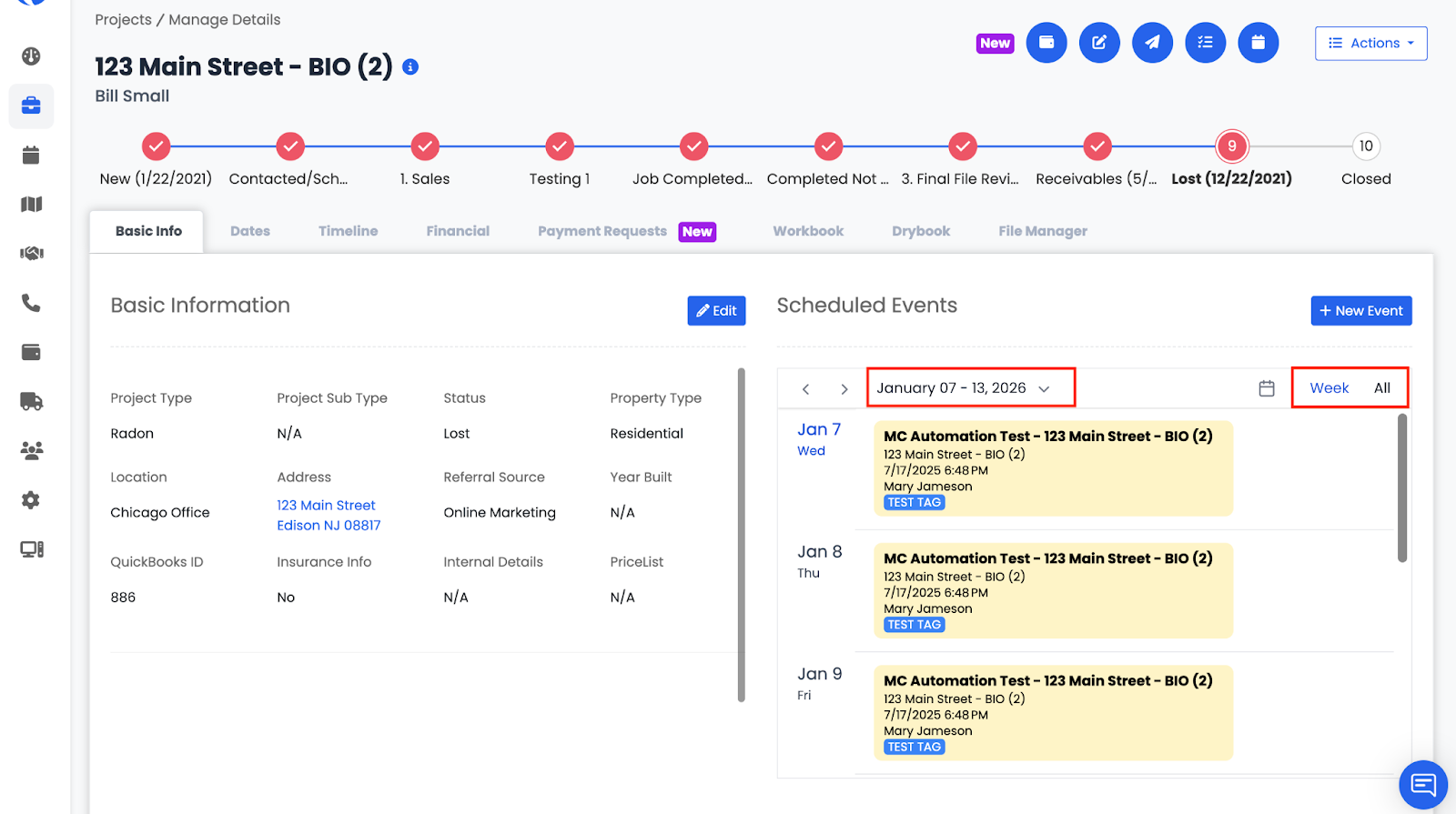
The Scheduled Events section includes two viewing options:
Week View
- Displays events scheduled for a selected week
- The date range (for example, January 7–13, 2026) appears at the top
- Click the dropdown next to the date range to:
- Select a different week
-
- Choose specific dates within that week
- Choose specific dates within that week
- The list updates to show only events scheduled during the selected week
All View
- Displays all scheduled events for the project
- Includes past, current, and upcoming events
Event Cards
Each scheduled event appears as a card. Clicking on a card opens the event details.
Event Details Include:
- Project name, Project address, Event date and time, Organizer, Notes (if added), Tags (if assigned)
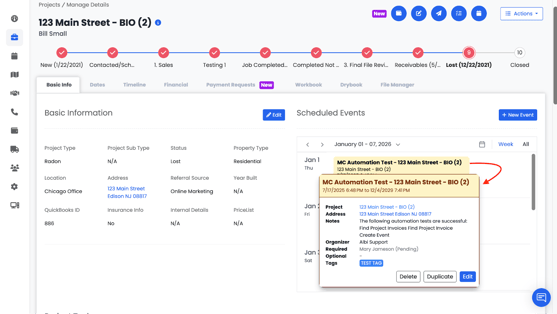
Actions Available on a Scheduled Event
From the event details, you can:
- Edit the event
- Opens the Edit Meeting screen
-
- Allows you to update date, time, notes, attendees, and other details
- Allows you to update date, time, notes, attendees, and other details
- Delete the event
- Permanently removes the scheduled event
- Permanently removes the scheduled event
- Duplicate the event
- Creates a copy of the event with the same details
- Creates a copy of the event with the same details