
The Projects Dashboard in Albi is the central hub for managing all company jobs. Each project brings together key details such as basic information, relationships, tasks, timeline activity, financials, payment requests, workbook items (estimates, work orders, purchase orders), DryBook documentation, and file storage—making it easy to track progress, manage communication, and keep all project activity in one place.
How to Create a New Project
To create a new project:
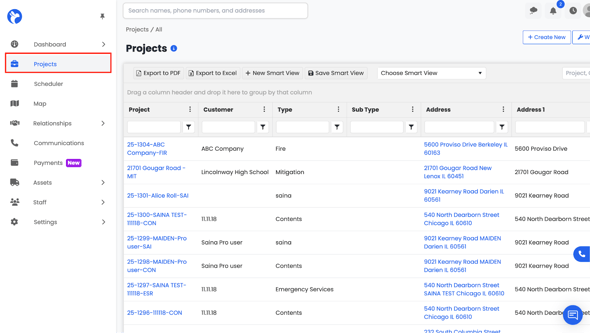
- Go to the Projects tab.
- Click Create New in the top-right corner.
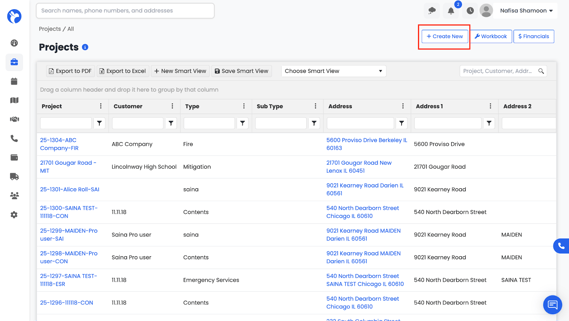
- Choose Create New
A form will open with required (bolded) fields and optional details.
Basic Information (Required Fields)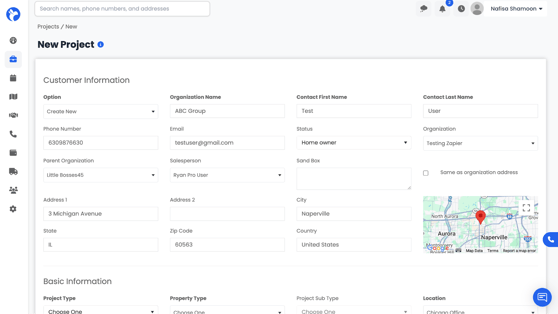
Fill In:
- Customer Information
Select the customer linked to the project by Creating a New one or Adding existing one(typically the homeowner or primary client).
Note: If an existing contact/organization is linked to an insurance company it will auto-populate the price list and insurance company name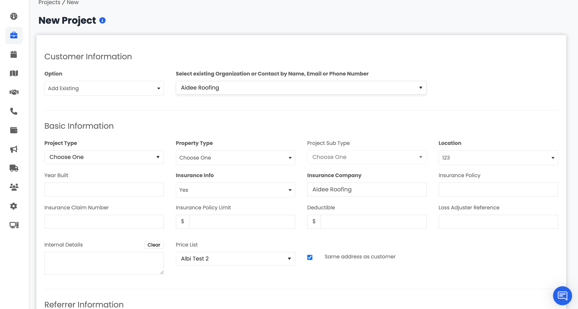
- Property Type
Select whether the property is Residential or Commercial. - Project Type
Choose the type of work being performed, such as Emergency Services, Fire, Mitigation, or Construction. - Location
Select the office or branch responsible for the project. - Price List
Choose the price list that will be used for estimates, invoices, and billing. - Insurance Details
Indicate Yes or No if the project is insurance-related. If yes, enter the policy information. - Organization
Select the organization associated with the project (for example, a property management company, insurer, or referral partner). - Customer
Select the customer linked to the project (typically the homeowner or primary client).
Referrer Information
Choose an existing referrer or create a new referrer.
Fields include:
- Referring company
- Referral source (Customer, Google, Online Marketing, Plumber, Police Referral, etc.)
- Salesperson

Assigned Staff & Project Roles
Assign one or multiple staff members to the project.
You can also select their Project Role (e.g., Project Manager, Estimator, Technician).

Create the Project
Once all required fields are completed, click Create.
The new project will appear in your Projects Dashboard with all tabs—Timeline, Financials, Workbook, DryBook, File Manager, etc.—ready to use.