
At the top of every project, you’ll find a row of quick-action buttons that allow you to perform important project functions without navigating through multiple tabs. These tools help you communicate, document, and manage project activity efficiently.
Request Payment
Allows you to request payment from the customer directly within the project.
📘 Note: This option only appears if Albi Pay is set up for your company.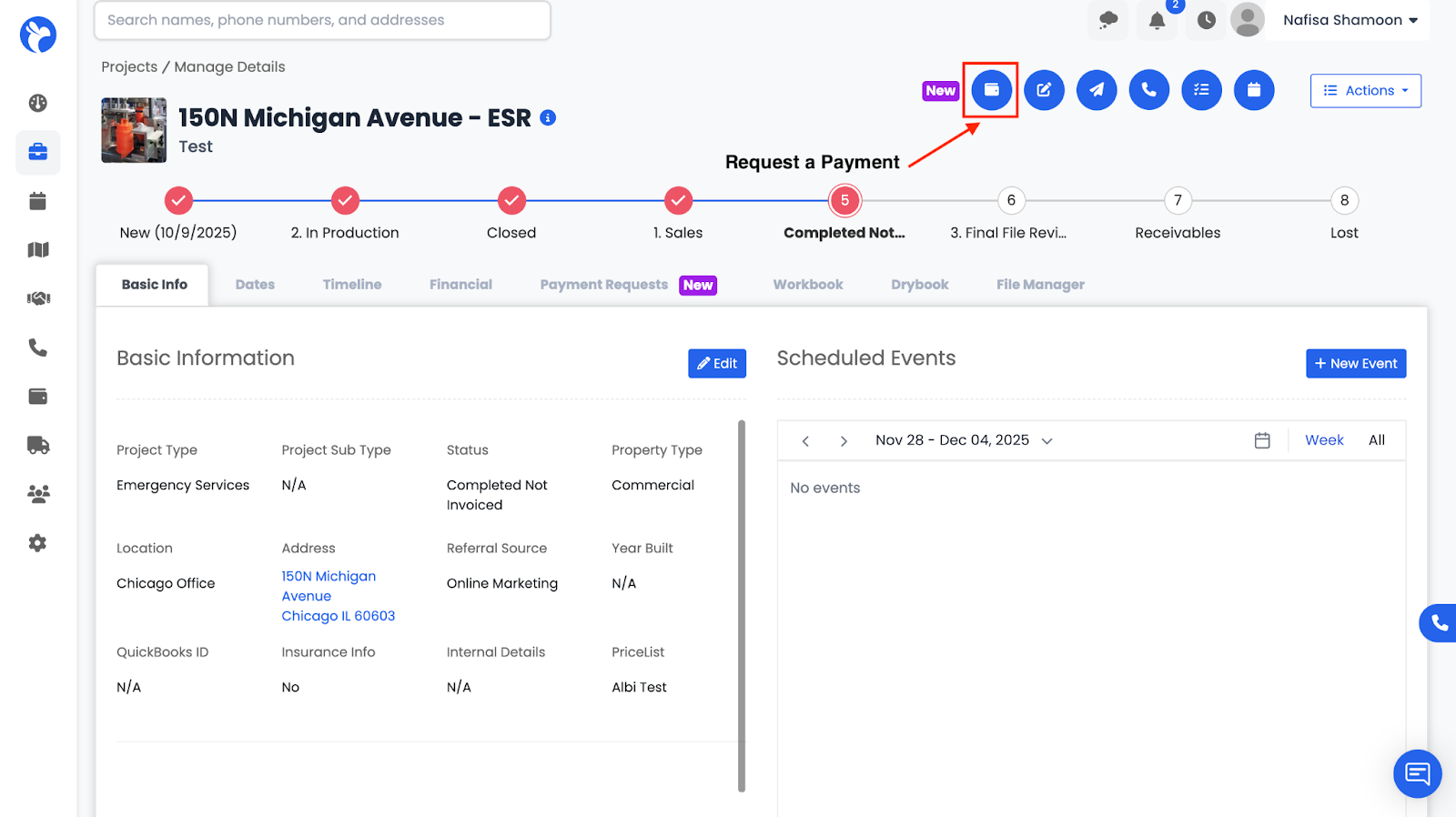
You can choose:
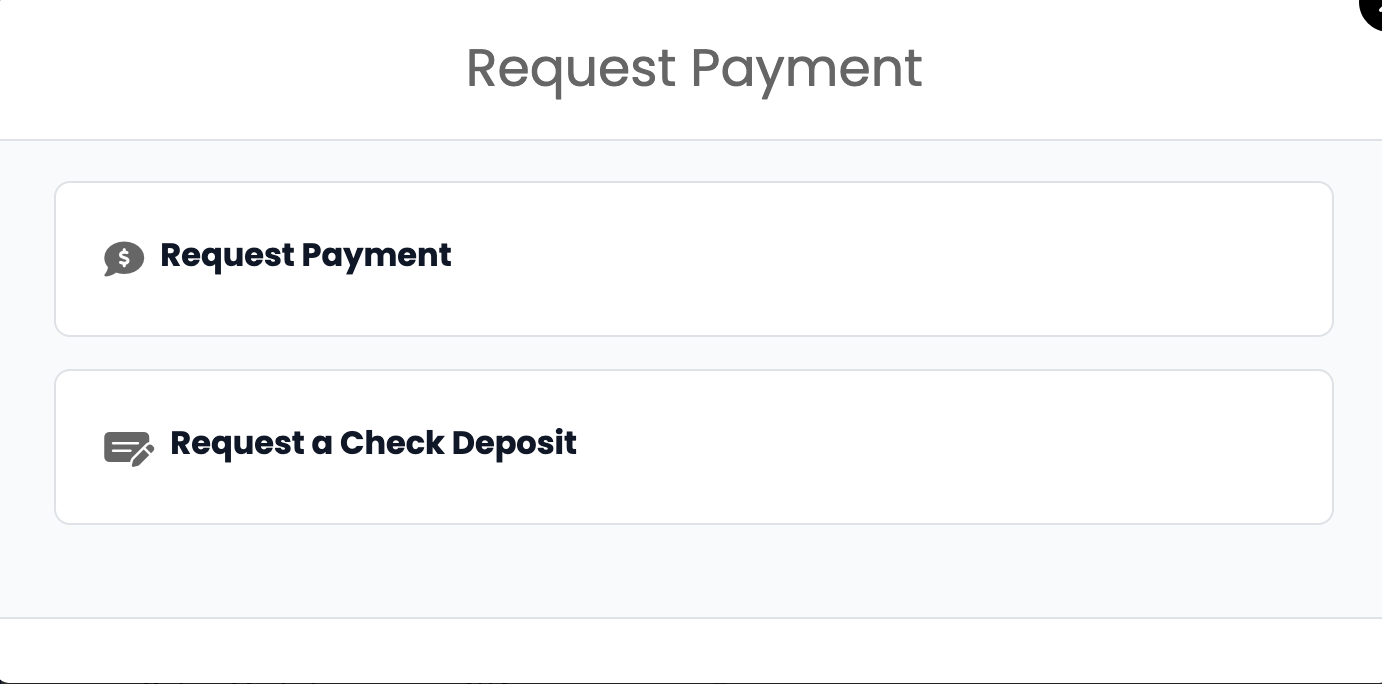
- Request Payment
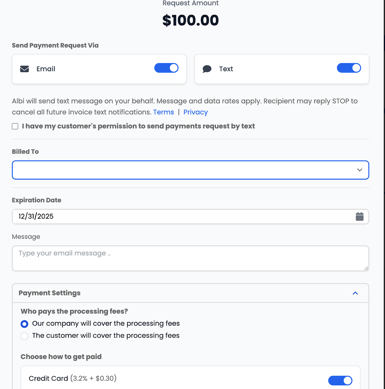
- Request a Check Deposit
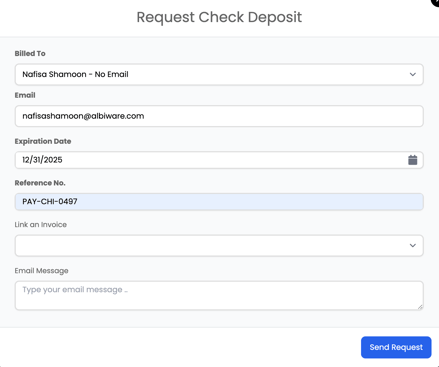
A form will open where you can enter the requested amount, reference number, and link it to an invoice if needed.
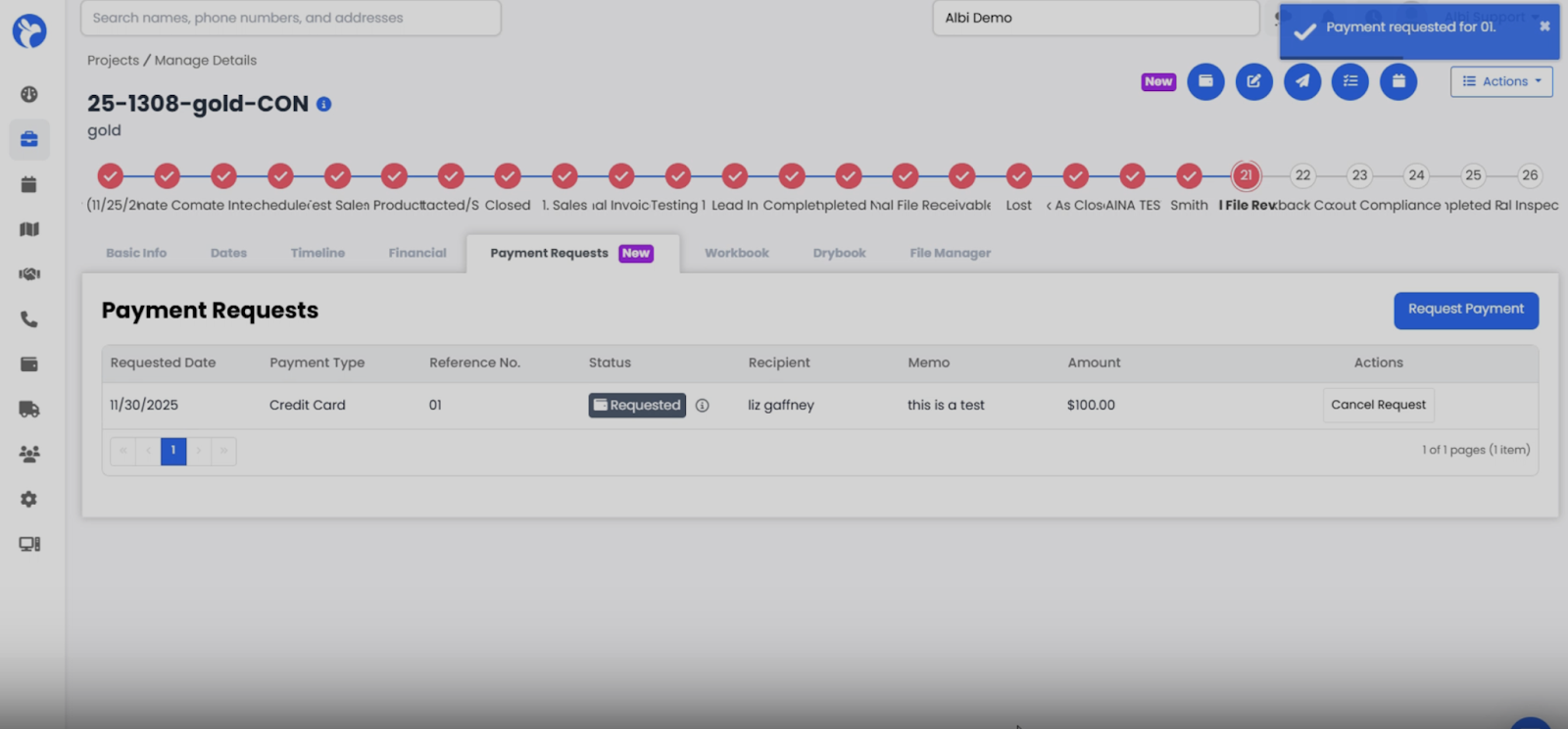
Once the request is submitted, the Albi Pay payment goes through four stages:
- Payment Requested – The customer receives the payment request link.
- Payment Submitted – The customer enters their payment details and submits the payment.
- Processing – The transaction is being verified and transferred.
- Success – The payment clears and the funds are deposited into your Albi-connected account.
These stages help you track the progress of each payment and ensure full transparency during the billing process.
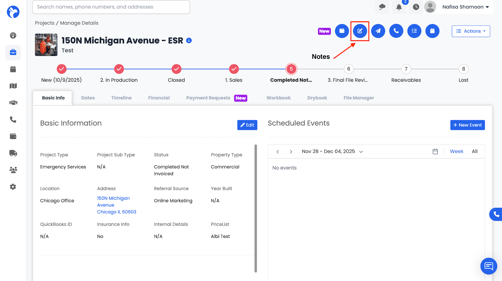
Create Note
Opens a note window where you can document updates, job details, reminders, or internal communication.
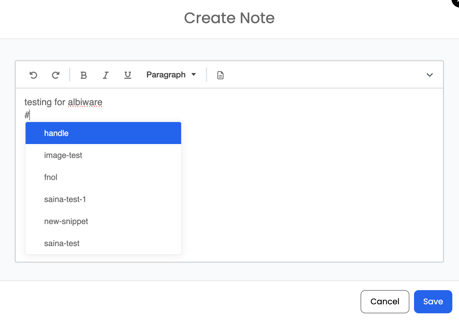
You can also use Snippets by typing #, which will display all saved snippet templates for quick note creation.
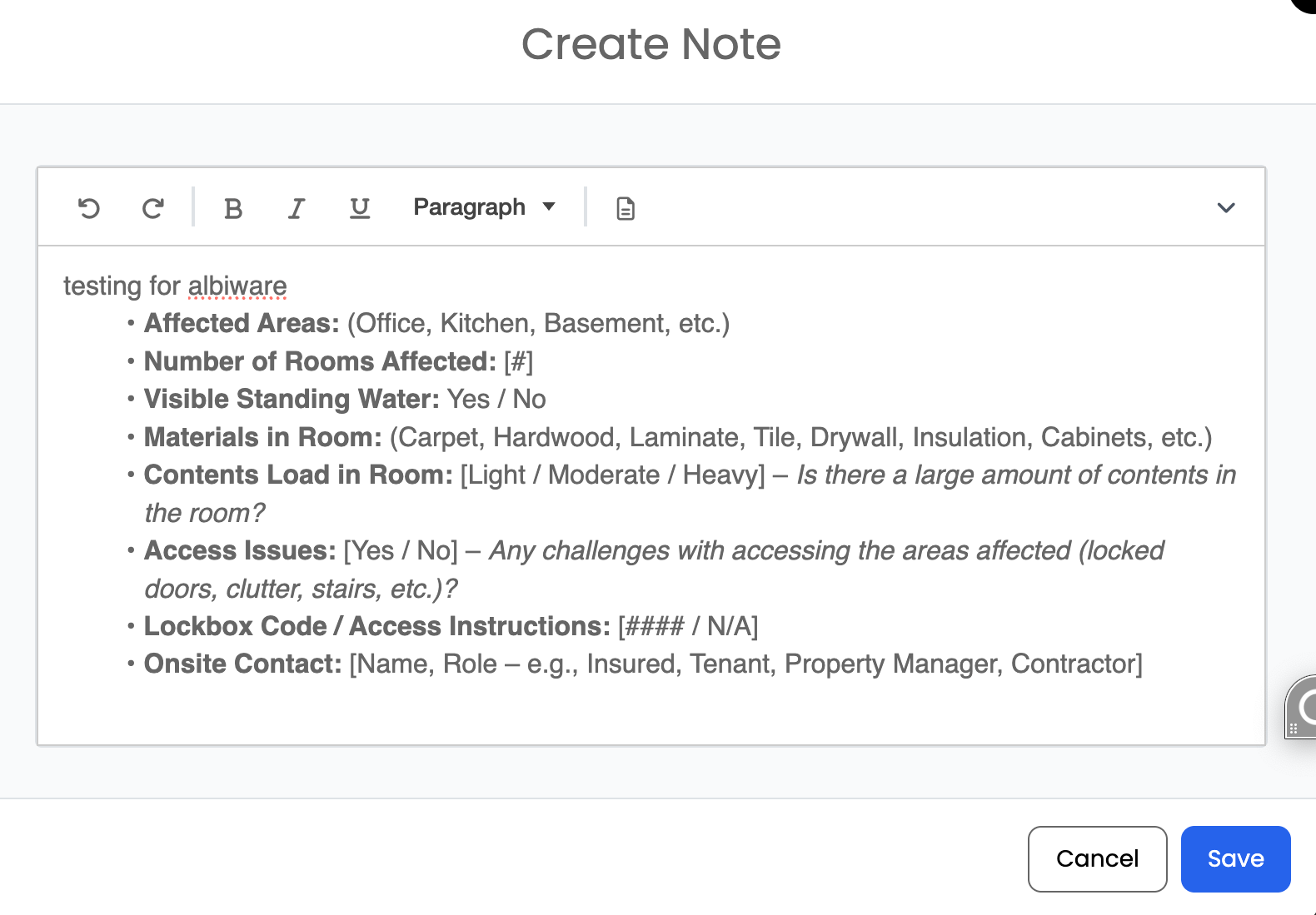
Click Save to add it to the project timeline.
Send Email
Allows you to send an email directly from the project.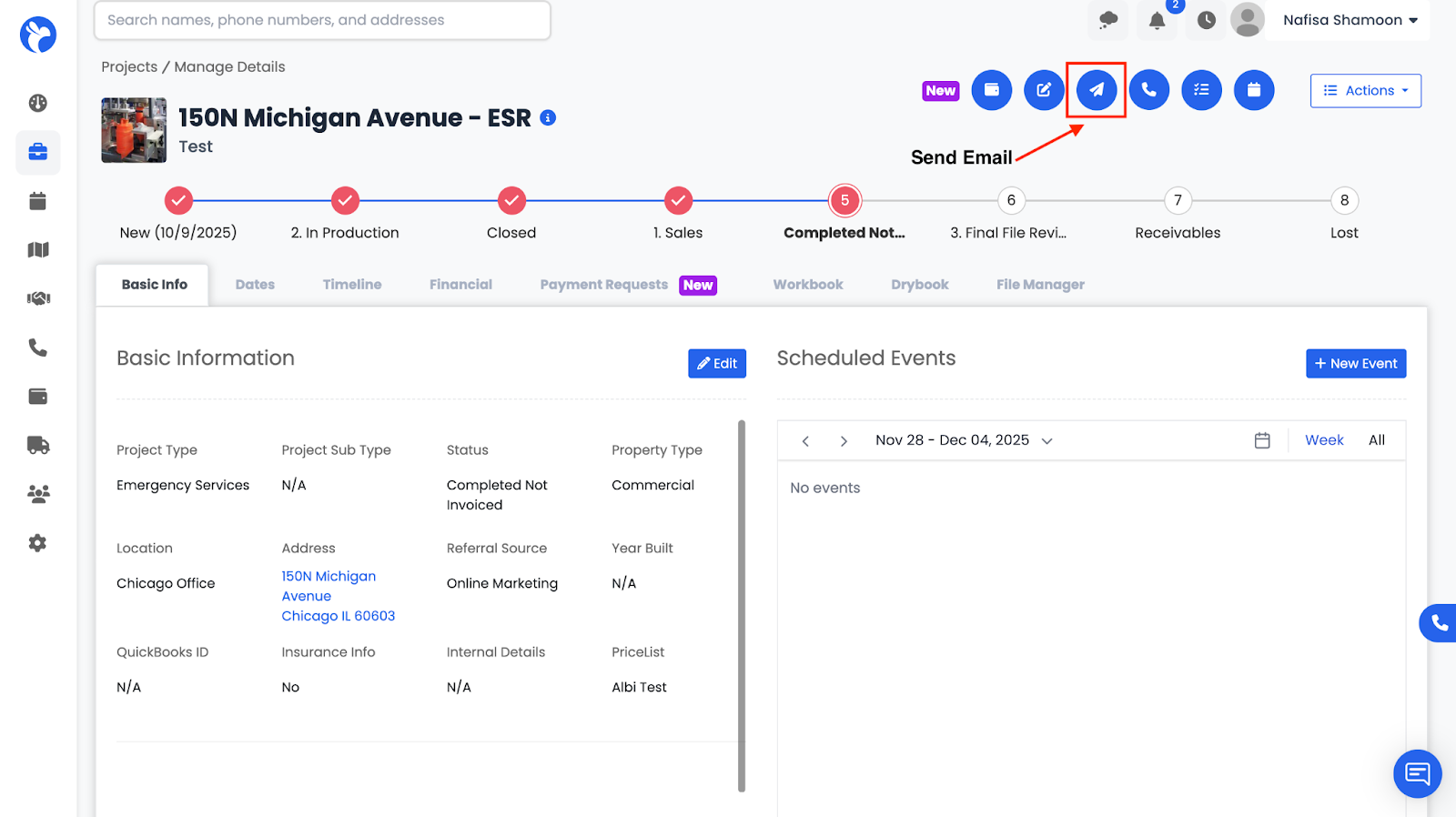
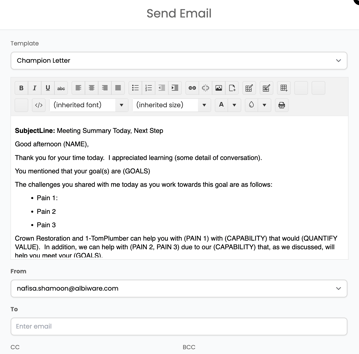
You can:
- Choose an email template
- Select recipients
- Add attachments
- Customize the message
Once sent, the email will appear under the project’s Communication timeline.
Make a Phone Call
Initiates a phone call using the Communications system.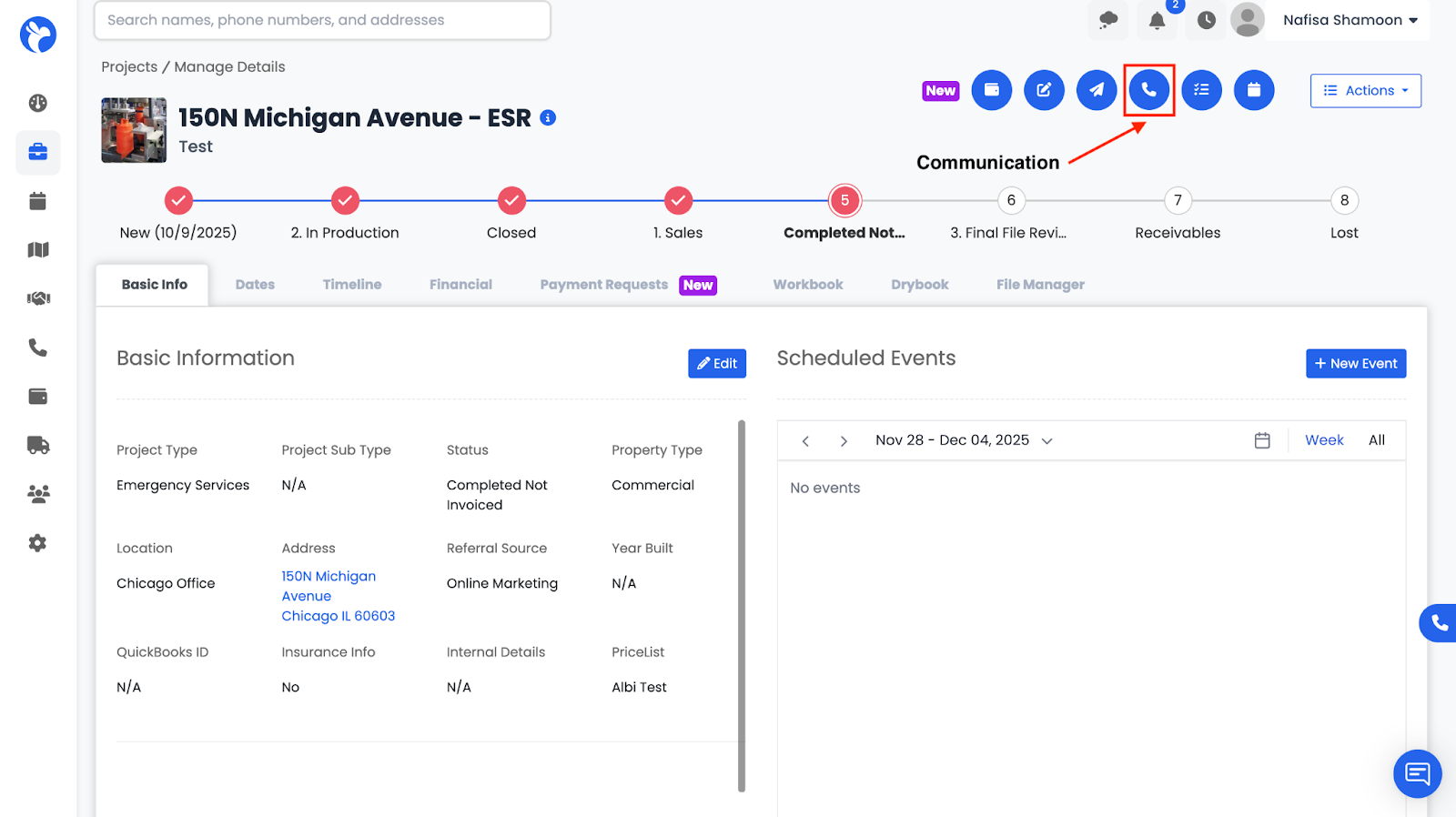
You can log the call, and track call activity directly within the communications tab.
📘 Note: This option only appears if the logged-in user has a phone number set up.
Create Task
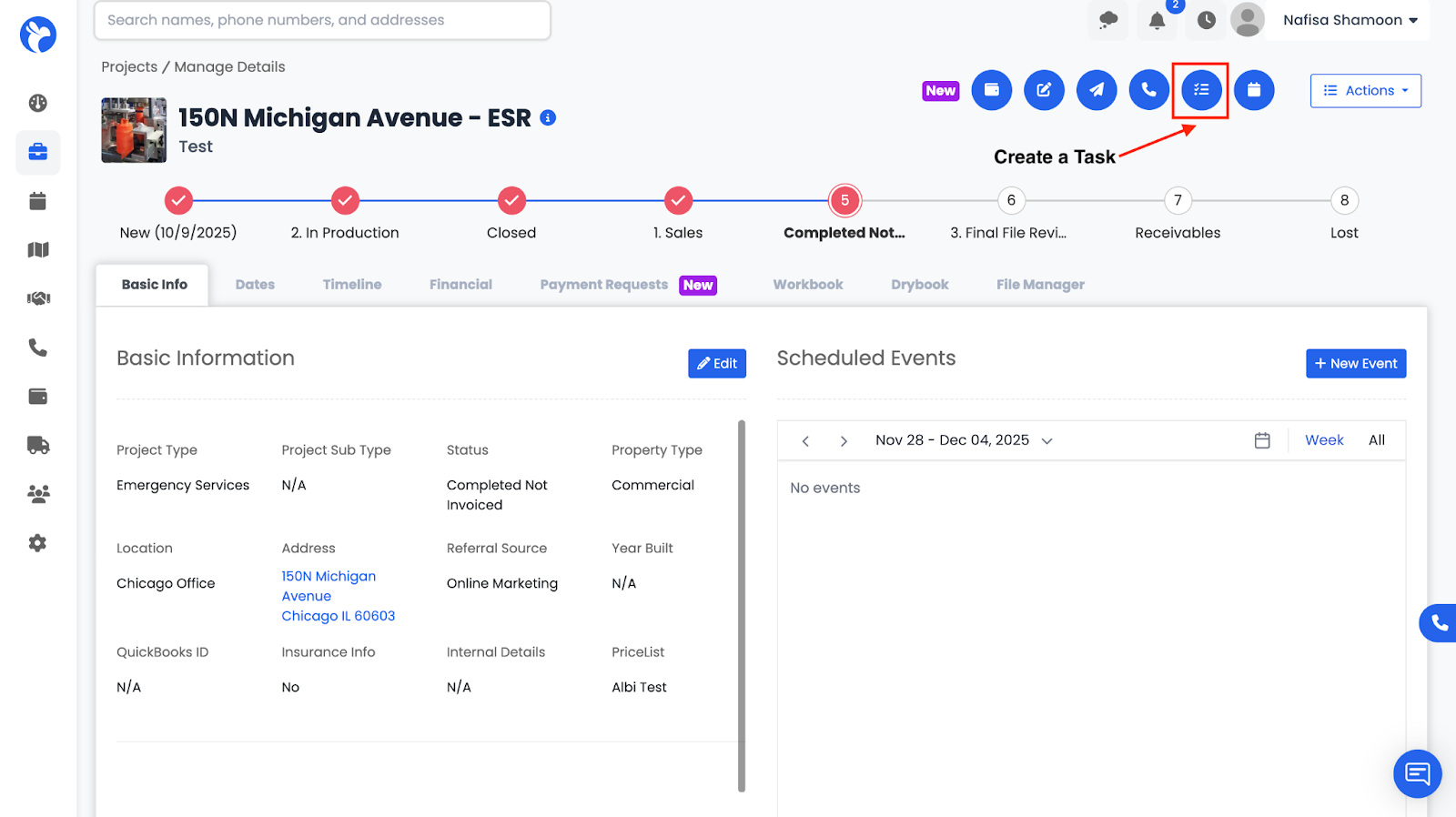
This opens a form where you can assign a task to yourself or another staff member.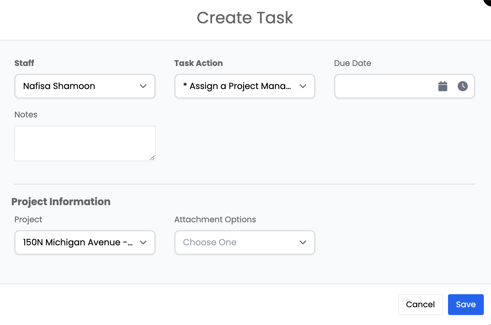
You can set:
- Task type/action
- Assignee
- Due date
- Additional notes
The task will appear under the project’s Timeline → Tasks section.
Schedule Event
This opens a scheduling form connected to your Scheduler settings.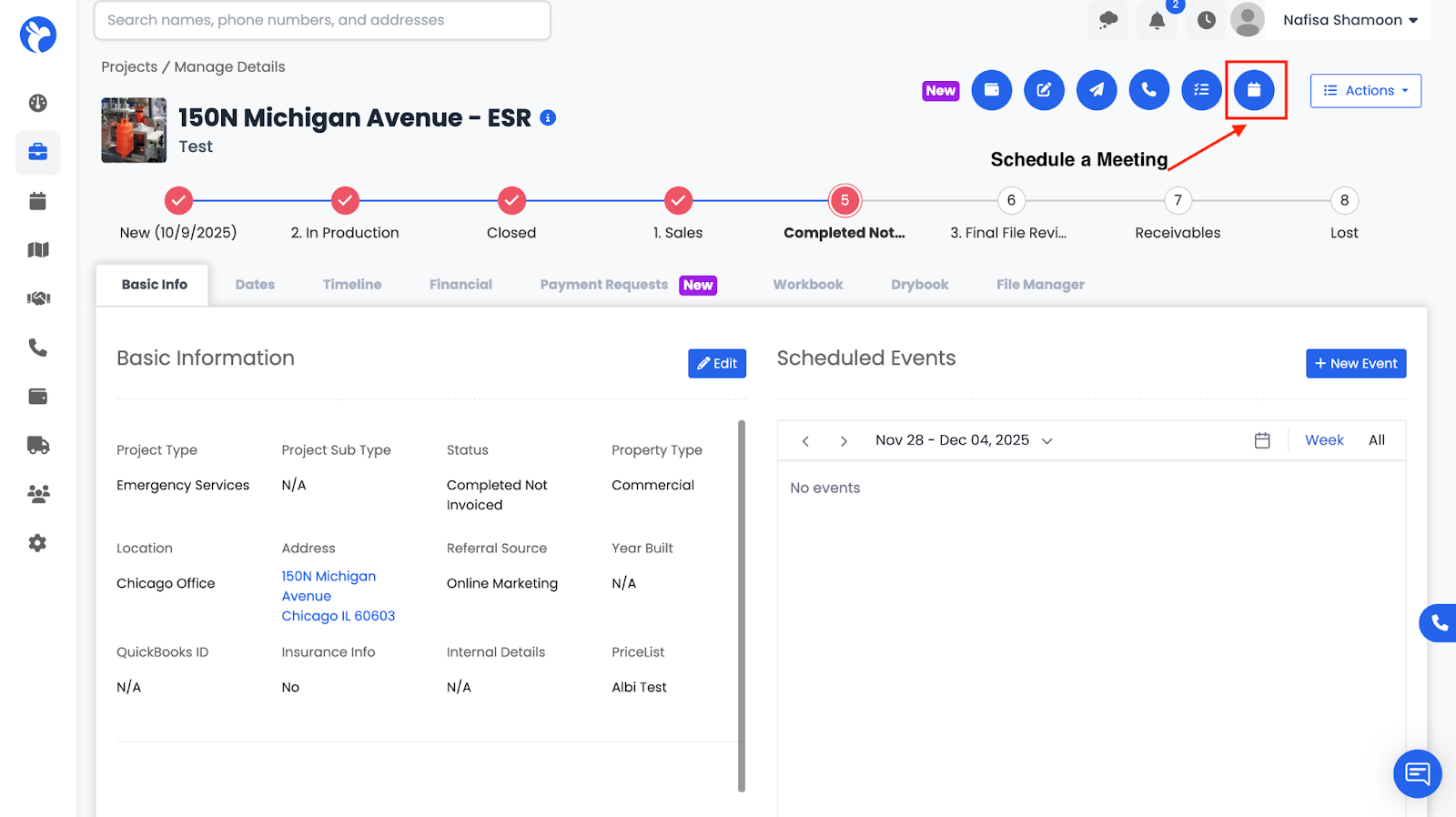
You can:
- Select date & time
- Choose event category (e.g., inspection, emergency, follow-up)
- Add tags
- Link the event to the project
- Set location, notes, and status (confirmed, in-progress, hold, complete)
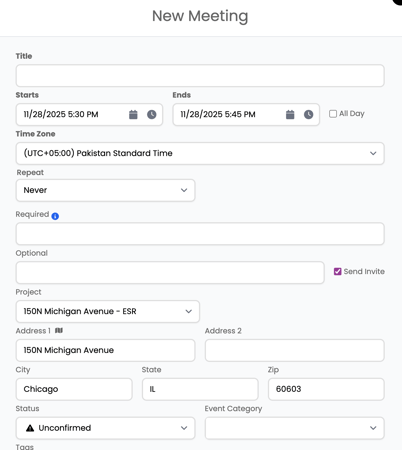
Once saved, the event will appear both in the project and your main Scheduler calendar.