
Stamp Project Files
You can create a project report by going to:
Project → File Manager → Actions → Stamp Project Files
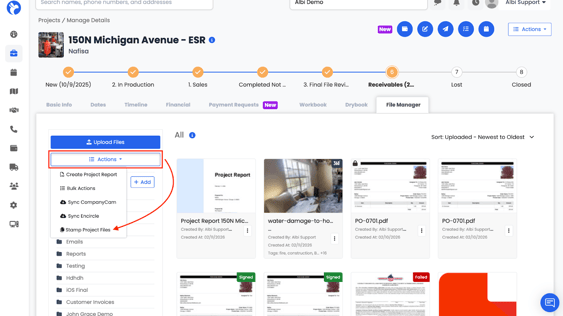
The Stamp Project Files option applies the default files assigned to the project’s selected Project Type in the Project Settings.
How It Works
- New Projects
Default files are added automatically when the project is created. - Existing Projects
You must click Stamp Project Files to apply or re-apply default files.
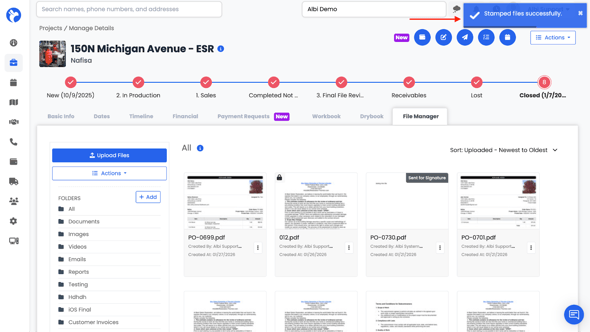
What Happens When You Click “Stamp Project Files”
Stamping will:
- Add any missing default files tied to the Project Type
- Re-add files that were previously deleted (as long as they exist in Project Type settings)
- Add newly created default files that were added to the Project Type after the project was created
Stamping will not duplicate files that already exist in the project.
Example
Re-Adding a Deleted File
If a file was deleted from a project (for example, a signed Work Authorization that is no longer needed), and you need a new copy:
- Click Stamp Project Files
- A new blank version of that file will be added to the project
This works as long as the file still exists in the Project Type settings.
Adding New Default Files to Older Projects
If a new default file is added to a Project Type:
- It will automatically appear in newly created projects
- It will not appear in existing projects automatically
To add it to an existing project:
- Open the project
- Click Stamp Project Files
The new default file will then be added.
Notes
- Stamping is a manual action for existing projects.
- Files must exist in the Project Type settings to be added.
- Stamping only adds missing files — it does not overwrite or duplicate existing ones.