
Roles
In the Roles section of Albiware’s Project Settings, you can create, edit, and manage project-specific roles (such as Account Manager, Admin, Company Administrator, etc.). These roles define what a staff member can access or do within a project.
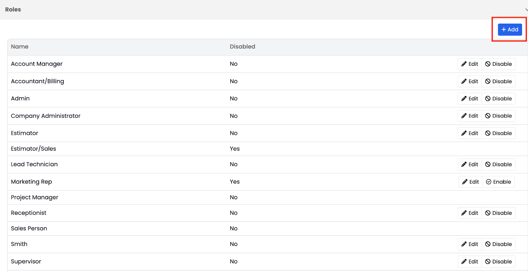
Project Roles:
These can be assigned to staff members by going to Staff -> Manage -> Project Roles:
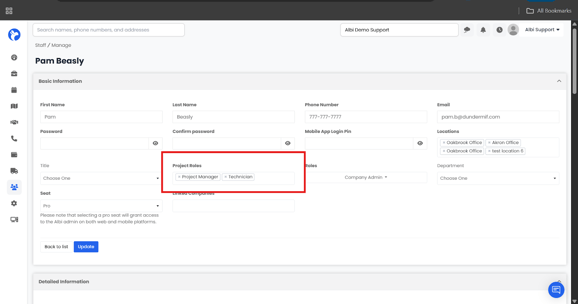
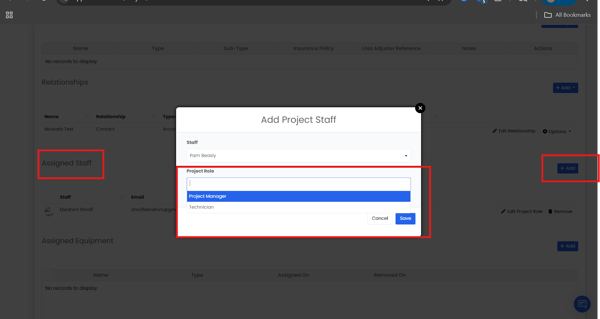
Since pam is only assigned the roles of Project Manager and Technician, when you add her to a project under the Staff, you will only be able to choose those two options:
How to Manage Roles:
- Click the Add button (top right of the Roles tab) to create a new role — enter the name, then click Save.
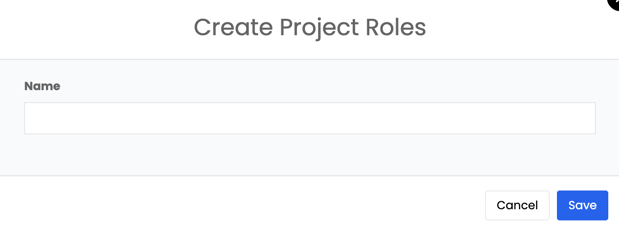
- To edit a role: click Edit next to its name, make your changes, and click Save.
- To disable or enable a role: click Disable/Enable next to it. Changes take effect immediately.
You can use this section to create and manage the project roles that appear inside a project’s Relationships tab.
Note:
- These roles do not control what a user can see or do within a project. Permissions and access levels are determined by the user’s Staff Role (found under Staff → Manage → Roles).
- Project Roles are simply labels used within the project’s relationship assignments, such as Project Manager, Estimator, Consultant, etc.