
General
The General card under Project Settings allows you to configure your company’s default project setup and integration preferences.
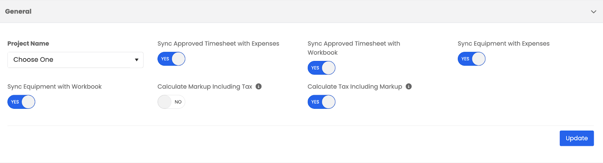
In this section, you can integrate your Project Dashboard with other parts of Albi, such as:
- Sync Approved Timesheets with Expenses
- Sync Approved Timesheets with Workbook
- Sync Approved Equipment with Expenses
- Sync Approved Equipment with Workbook
These integrations help streamline data flow between different modules, ensuring your timesheet and expense data automatically connect with the correct projects.
You can also customize your project naming format to maintain consistency across all projects. When selecting how project names are generated, you can choose from several formats, such as:
- Address – Type – Suffix
- Customer Last Name – Number – Type Suffix
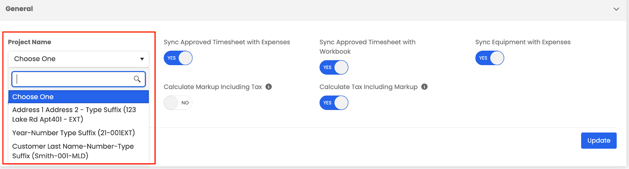
This allows your team to standardize naming projects, making it easier to organize and locate them within the system.
Note: You can also create a customized naming convention for your project types to match your company’s preferred structure.
Sync Toggles
Sync approved timesheets with expenses: when toggled on, all timesheets that have been marked as ‘approved’ will pull into the Financial Tab in the project under the ‘Expenses’ card. This will update the “total actual expenses” KPI on the financial tab.
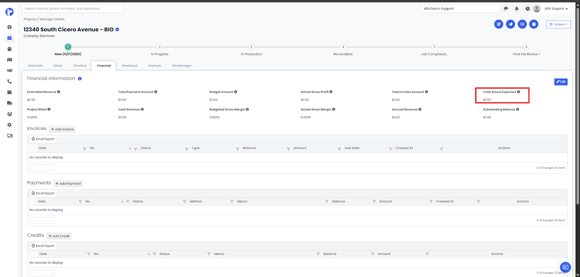
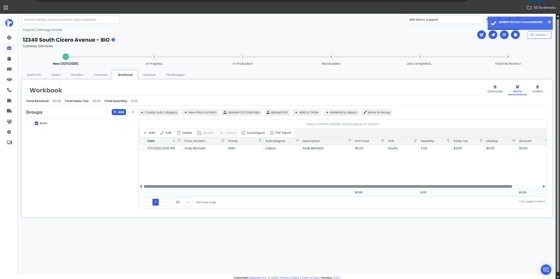
Sync approved timesheets with workbook: when toggled on, all timesheets will be available to add to your items list under the Workbook tab. This allows you to add these expenses to work orders and purchase orders.
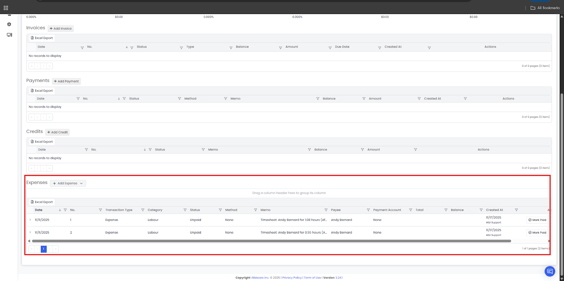
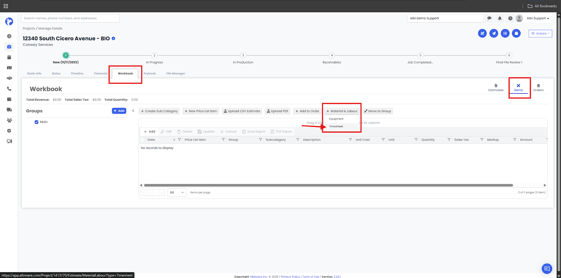
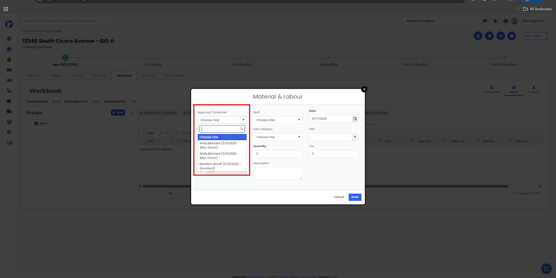
You will only be able to select from the timesheets that are approved and assigned to this project.
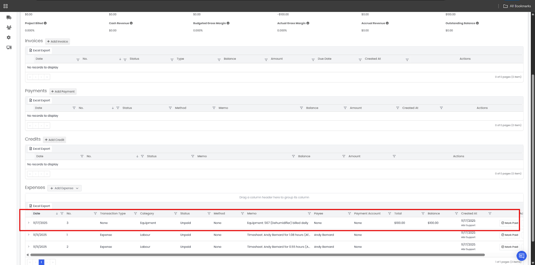
Sync equipment with expenses: When toggled on, equipment assigned to the project will pull into the Financial tab under the expenses card. This is useful if a piece of equipment has a billing type and cost associated with it. This will also update the “total actual expenses” KPI.
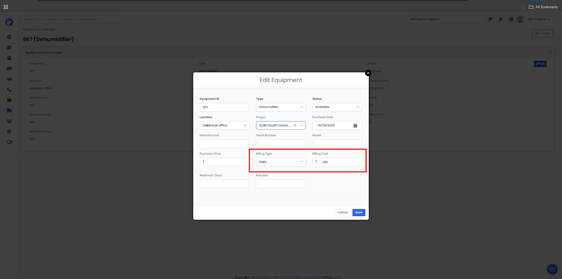
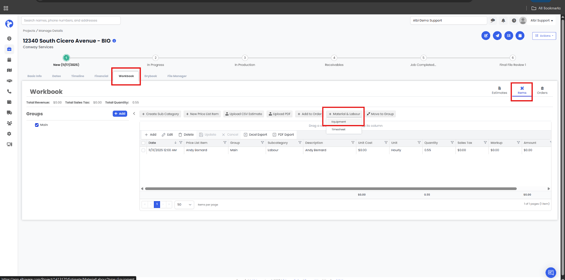
Sync equipment with workbook: when toggled on, all equipment will be available to add to your items list under the Workbook tab. This allows you to add these expenses to work orders and purchase orders.
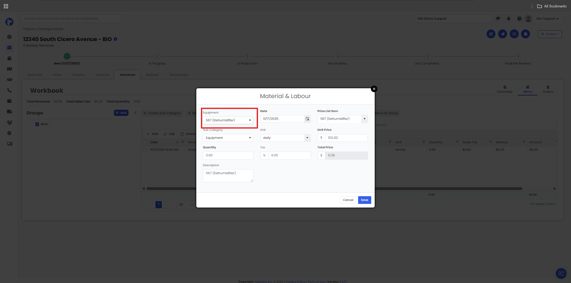
You will only be able to select equipment assigned to the project.
Calculate Markup including tax: Adds sales tax to markup in calculations used in estimates, workbook, and work orders.
Calculate tax including markup: Adds markup to subtotal before adding sales tax used in estimates, workbook, and work orders.