
The Assets section in the Albi mobile app is used to manage and track your company’s equipment and vehicles. It allows field and office staff to quickly see what assets exist, their current status, and key details about each item.
Assets help ensure that:
- Equipment and vehicles are properly tracked
- Availability is clearly visible
- Broken or repair-needed items are identified quickly
- Staff can easily locate and use the right resources on-site
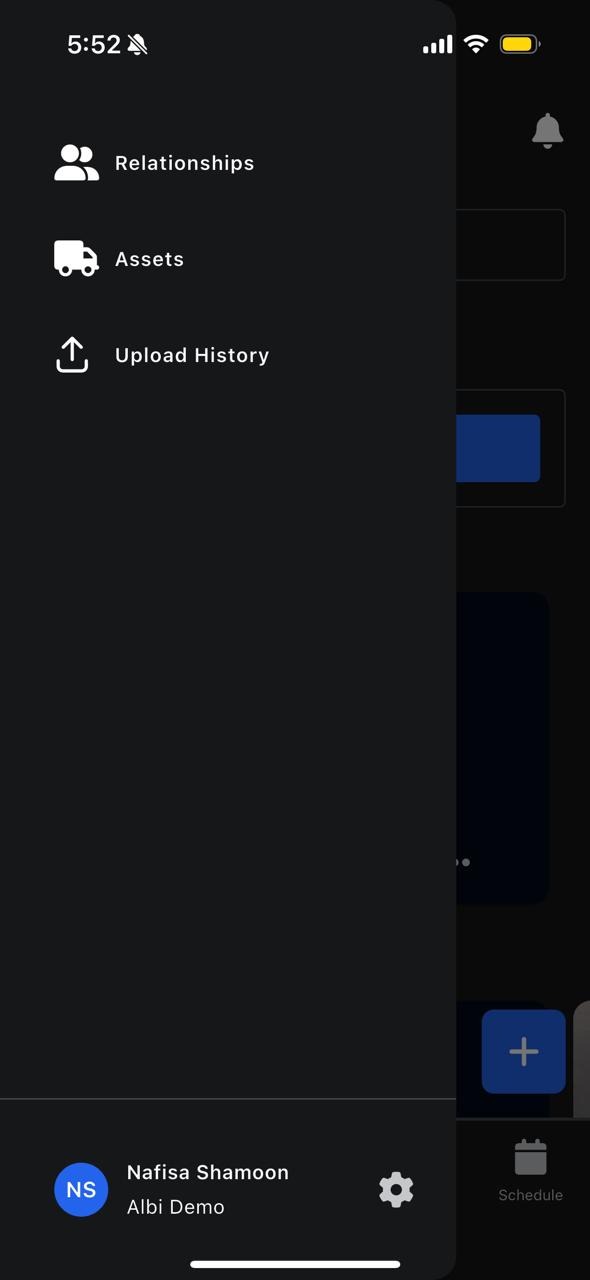
You can access Assets from the hamburger (side) menu
What Are Assets?
Assets are physical items owned or managed by your company that are used during projects. In Albi, assets are divided into two categories:
- Equipment
- Vehicles
Each asset has its own record that includes details, status, and usage information.
What Is Equipment?
Equipment refers to tools and machines used on jobs, such as:
- Dehumidifiers
- Air movers
- Fans
- Meters
- Other job-related tools
Each piece of equipment has a status that shows whether it is ready to be used.
Viewing Equipment
To view equipment:
- Open the hamburger menu
- Tap Assets
- Select Equipment
You will see a list of equipment cards.
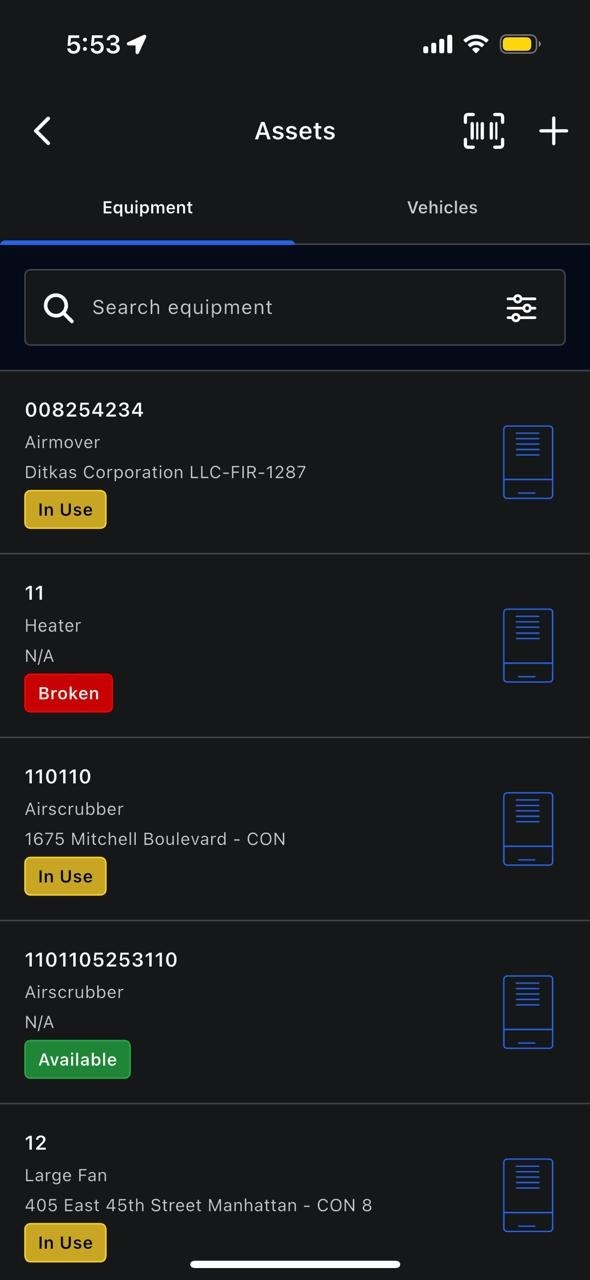
Each equipment card shows:
- Equipment ID or name
- Assigned project (if any)
- Current status
Equipment Statuses
Equipment can have different statuses based on its condition and usage:
- Available – Ready to be used
- In Use – Currently assigned to a project
- Broken – Not usable
- Repair – Under maintenance or being fixed
Statuses help teams quickly know which equipment can or cannot be used.
Viewing Equipment Information
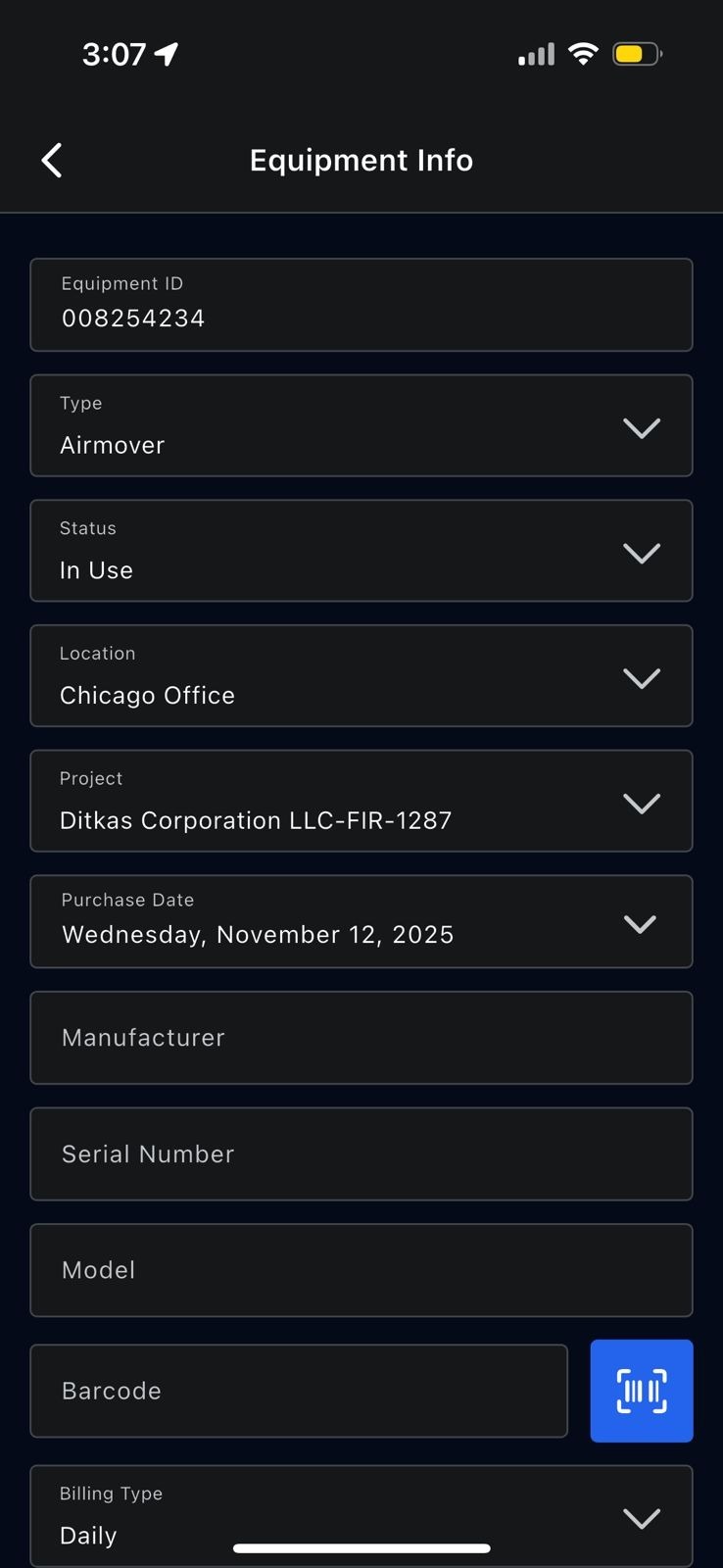
- Tap on an equipment card to open its details
Inside the equipment details, you can see:
- Equipment ID and type
- Current status
- Assigned project (if any)
- Additional information entered during setup
Scanning Equipment Using Barcode
Albi allows you to quickly identify equipment on-site using barcode scanning.
How to Scan Equipment
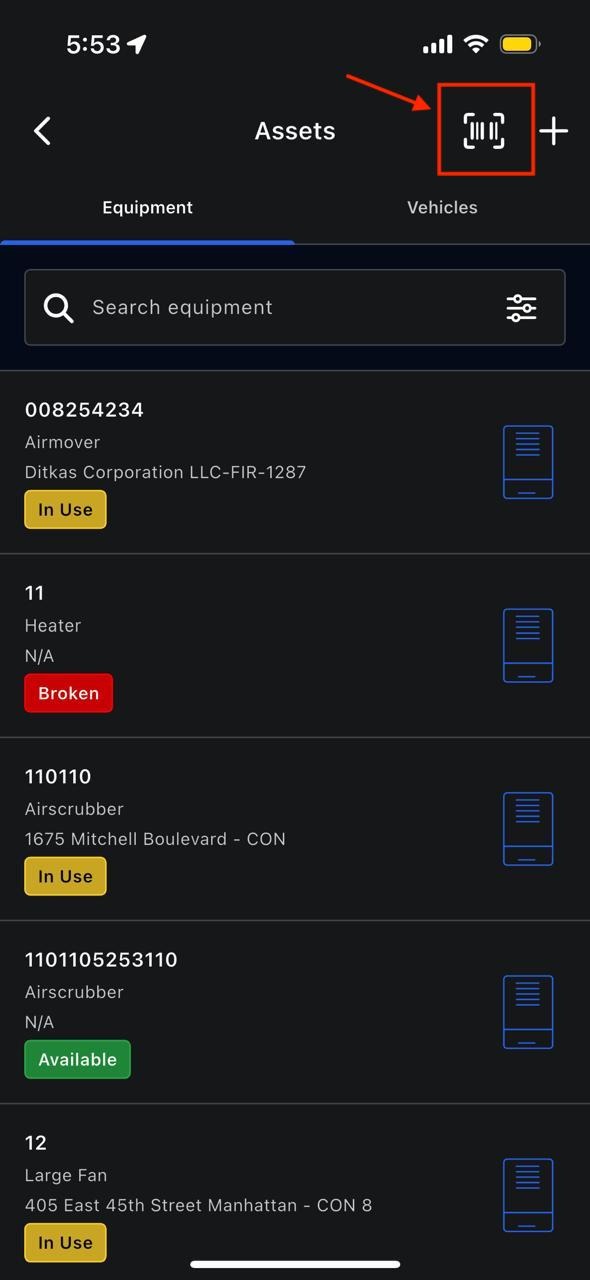
- Go to the Equipment section
- Tap the barcode camera icon
- Use your phone camera to scan the equipment’s barcode
Once scanned:
- The correct equipment record opens automatically
- This helps confirm you are using the right piece of equipment
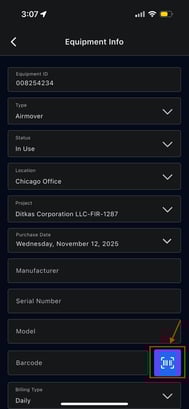
This is especially useful on job sites with multiple similar items.
Adding New Equipment
You can add new equipment directly from the mobile app.
How to Add Equipment
- Tap the + Add button
- Select Add Equipment
- Fill out the required fields in the form
- Tap Save
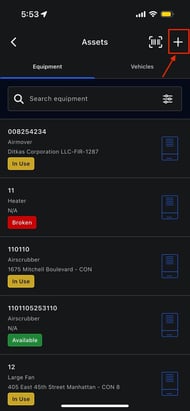
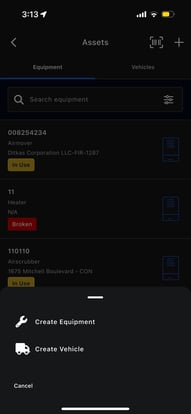
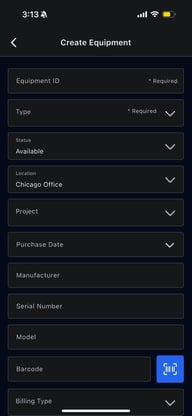
Once saved, the equipment becomes available in the system.
Updating Equipment Status
You can update the status of equipment at any time based on usage by clicking on the equipment card.
For example:
- Mark equipment as In Use when assigned to a project
- Change it to Available when returned
- Set it to Broken or Repair if it is damaged
Keeping statuses updated helps prevent confusion and misuse.