
How to Access Your Profile
- Log in to Albi.
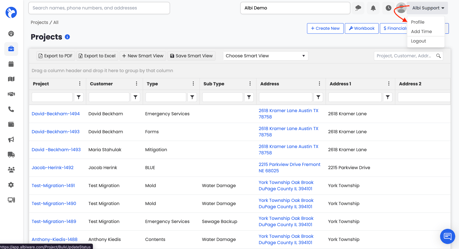
- In the top-right corner of the page, click the dropdown next to your name (for example, Albi Support).
- Select Profile from the menu.
This will open the Manage Profile page, where you'll see four tabs along the top: Information, Timesheet, Preference, and Email.
Tip: You can also click Add Time from this same dropdown to log time without leaving the page you're on.
Timesheet Tab
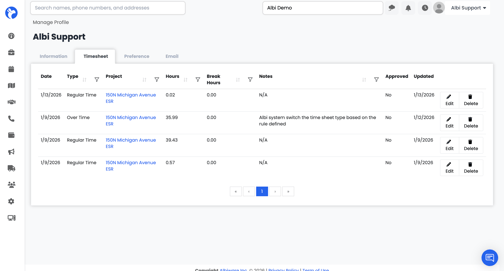
The Timesheet tab shows every time entry you've logged in Albi. You can review what you've already submitted, fix mistakes, or remove entries you no longer need.
What You'll See
Each row in your timesheet shows:
- Date - when the time was worked
- Type - Regular Time, Over Time, etc.
- Project - the job the time was applied to
- Hours and Break Hours
- Notes - any context you added when logging the entry
- Approved - whether your manager has approved the entry yet
- Updated - the last time the entry was changed
Editing a Time Entry
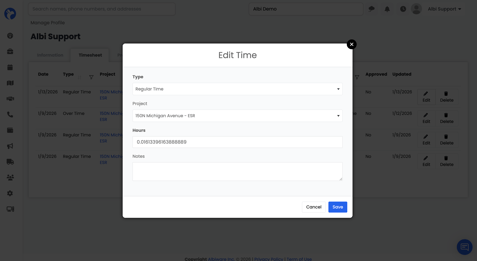
- Find the row you want to update and click the Edit button on the right.
- In the Edit Time pop-up, adjust the Type, Project, Hours, or Notes.
- Click Save to apply your changes, or Cancel to discard them.
Deleting a Time Entry
Click the Delete button next to the row you want to remove. The entry will be removed from your timesheet.
Tip: If an entry is already approved, check with your manager before making changes — edits to approved time may need to be re-approved.