Sort and View Timesheet Data
The Timesheet Dashboard includes filtering and sorting options to help you organize your data:
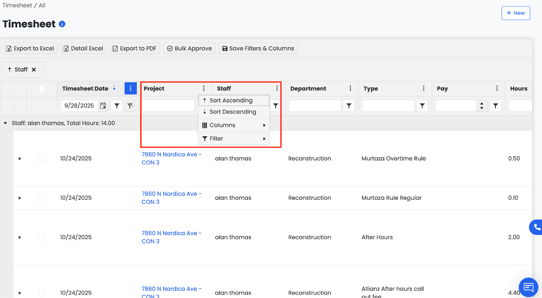
- Click the three dots (⋮) next to a column header to create custom filters.
- You can filter by staff name, project, date, type of hours, or department.
- Save your preferred filters and column views for quicker access later.
These filters make it easy to view exactly the information you need, such as all timesheets for a specific project or time period.
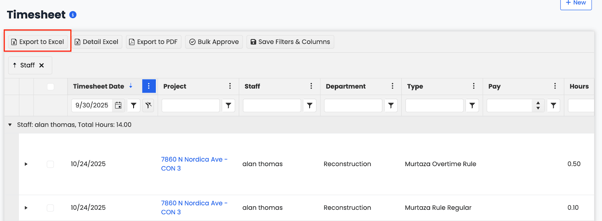
Export to Excel
The Export to Excel option allows you to download all Timesheet data visible in your dashboard, including any applied filters.
The exported Excel file acts as an overview of your timesheets — giving you a clear summary of when staff members clocked in, clocked out, and their overall working hours.
Detailed Excel
You can generate a Detailed Excel Export, which provides a deeper breakdown of time and payroll information. The detailed version shows:
- Exact clock-in and clock-out times for each site location
- Break durations
- Total hours worked
- Pay rate calculations based on time worked
- And other detailed activity records
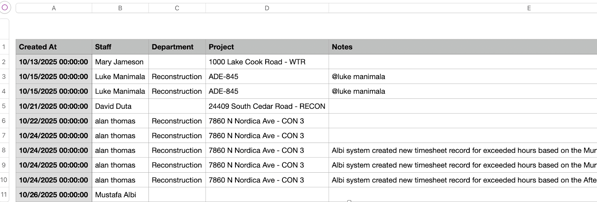
The Detailed Excel export is especially useful for payroll or performance tracking, as it gives you complete visibility into each staff member’s work history. You can also customize your export using filters — for example, viewing timesheets for a specific staff member, department, or project.
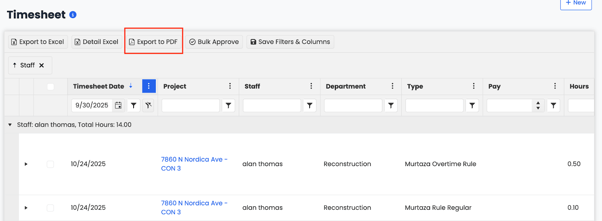
Export to PDF
Creates a downloadable PDF file of your current timesheet view for sharing or printing.
💡 Tip: Apply filters before exporting to make sure your report only includes the data you need.
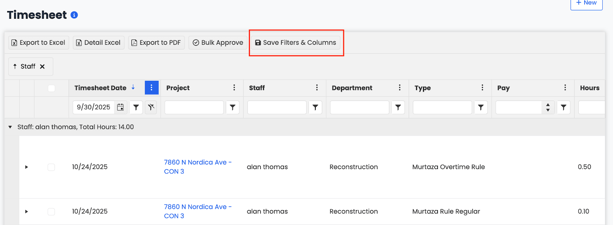
Save Filters and Columns
The Save Filters and Columns feature allows you to customize your dashboard by applying filters and adjusting columns, then save those changes. This way, your preferred view is stored — so you don’t have to reapply the same filters or rearrange columns every time you access the Timesheet Dashboard.
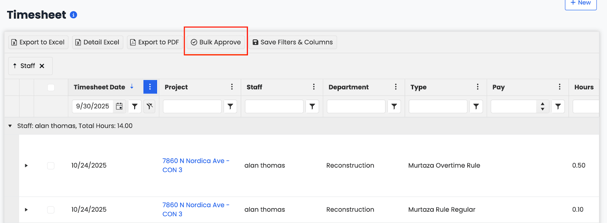
Bulk Approve
Bulk Approve allows you to approve multiple timesheets at once. When you select several timesheets and click Bulk Approve, all selected entries will be approved simultaneously — saving time when reviewing large batches of timesheets.