
Sort and View Tasks
You can organize and filter your dashboard view to easily find specific tasks:
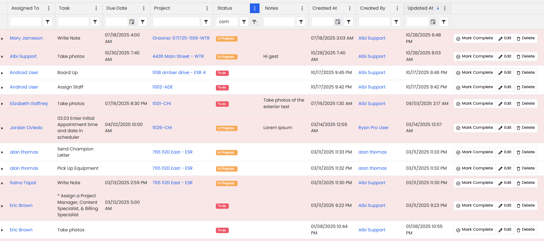
- Use the filter icon (⋮) on top of each column to sort or filter your data by status, staff, project, or due date.
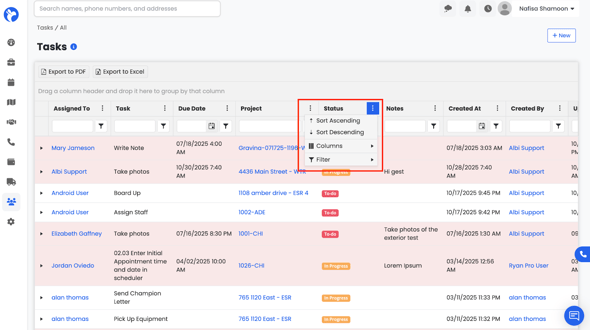
- This helps you quickly locate overdue tasks, tasks assigned to a specific staff member, or tasks linked to a particular project.
💡 Tip: Save your preferred filters and columns to maintain your customized view every time you open the Tasks Dashboard.
📝 Note:
Only users who have the “View Tasks” permission enabled for their Staff Role can see all tasks listed on the project. Most users will only see tasks assigned to themselves, which they can access under Dashboard → Tasks.
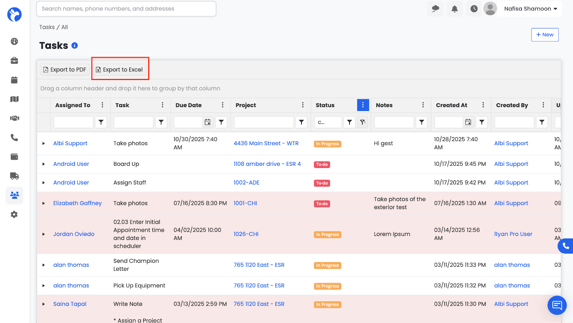
Export to Excel
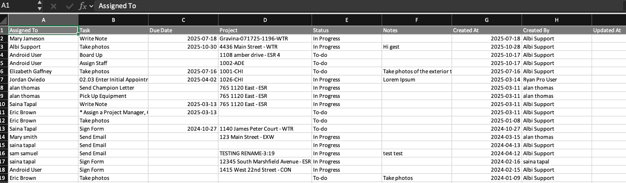
Downloads all visible tasks from your dashboard, including any applied filters. Each row will include task name, due date, staff, project, status, and notes.
The exported Excel sheet will look like:
Export to PDF
Creates a formatted PDF version of your task list for printing or sharing.
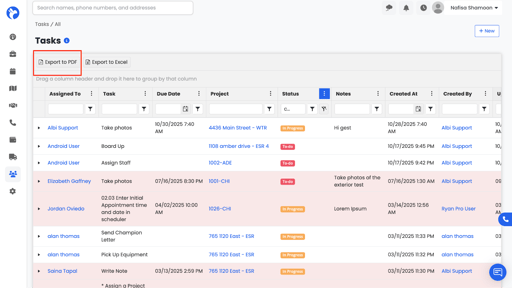
The exported PDF sheet will look like:
💡 Tip: Apply filters before exporting to ensure your report only includes the tasks you want to display.