
Creating a New Task
There are multiple ways to create a task in Albi:
From the Tasks Dashboard:
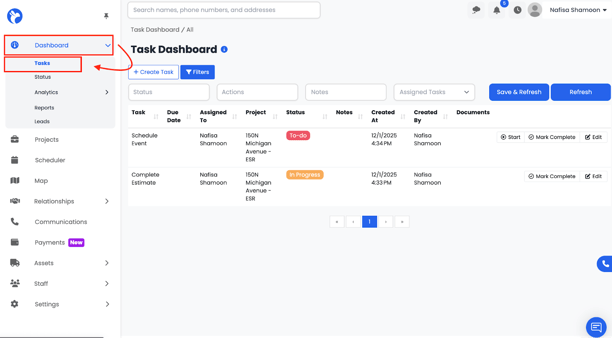
2. Click the Create Task button in the top-left corner.
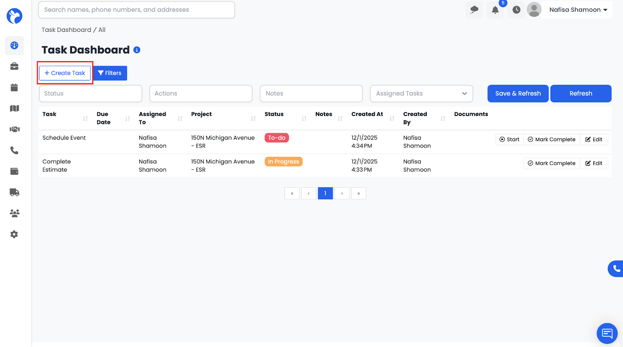
-
- Assigned Staff Member
- Task Action (chosen from the dropdown of predefined actions)
- Assigned Staff Member
-
- Due Date (optional)
-
- Notes
- Linked Project (optional)
- Notes
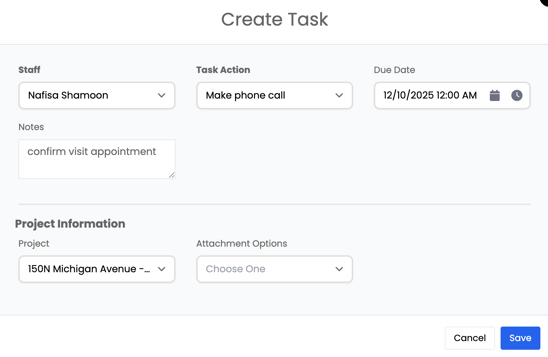
4. Click Save, and the task will immediately appear on the Tasks Dashboard.
From Inside a Project (Timeline Section):
- Open the project.
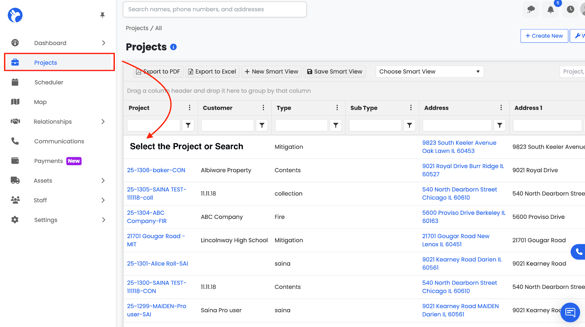
- Go to the Timeline tab.
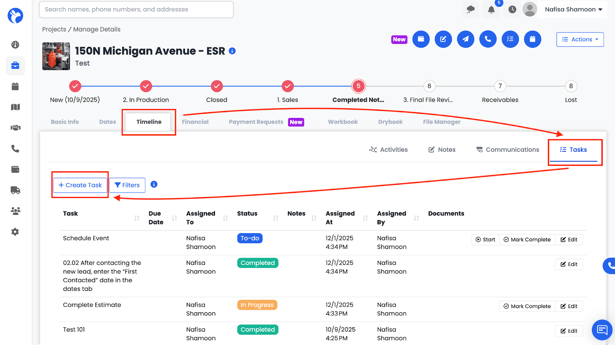
4. Fill out the task form and save.
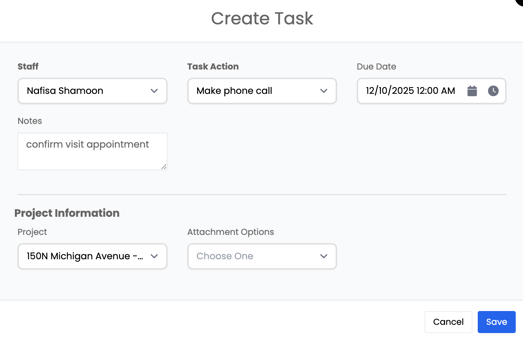
This automatically links the task to that specific project.
From the Task Shortcut:
Every page in Albi shows a small Tasks action button in the top bar.
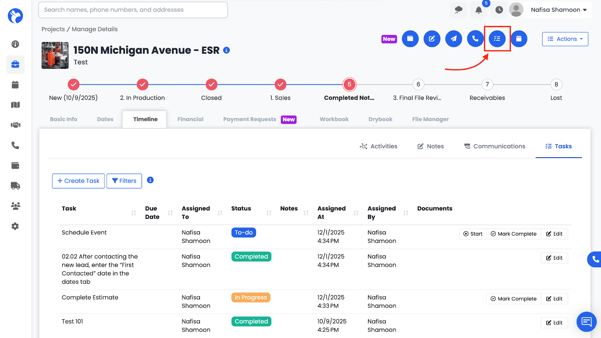
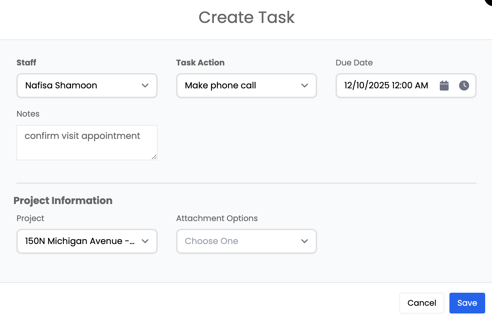
Clicking this allows you to quickly create a new task from anywhere in the system.
Viewing Your Tasks
Tasks assigned to you will appear on your Tasks Dashboard.
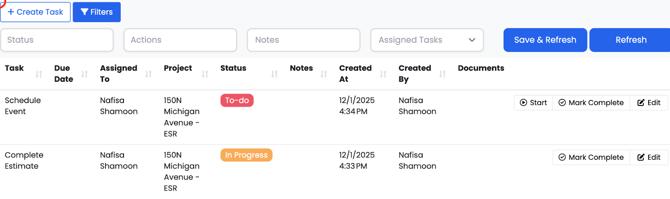
If your user role has the “View Tasks” permission enabled, you may also view tasks assigned to other staff members.
You can filter tasks by:
- Status
- Task action
- Staff member
- Linked project
- Due date
- Notes
Inside Projects: 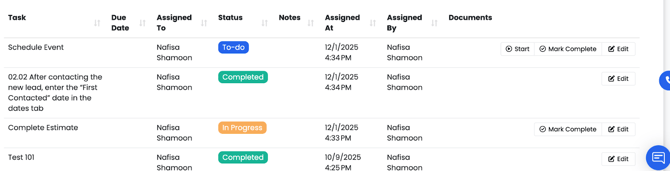
You can also save and refresh filters as needed.
Managing Task Progress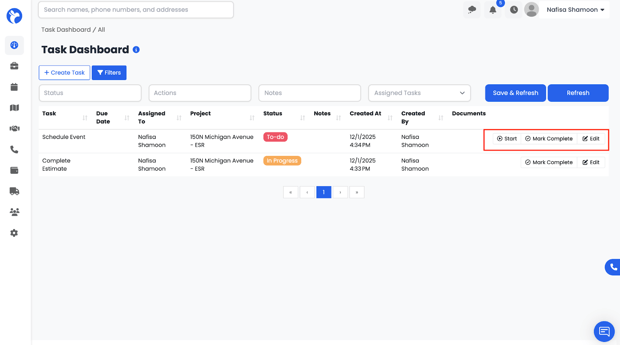
Start a Task
When a task is assigned to you:
- Click Start.
- A confirmation message will appear.
- Once confirmed, the task status changes to In Process.
Mark a Task Complete
When you finish the task:
- Click Mark Complete.
- The task will be removed from the active list and logged as completed.
Note: When a task is assigned to a staff member, Albi automatically sends them a notification so they are immediately alerted to the new task.