
Your email templates are automatically being migrated to Snippets — no action required. Each template's content will carry over as-is, with the same name and a shortcut generated from the template name in lowercase with hyphens (e.g., "Water Damage Follow-Up" → water-damage-follow-up).
Snippets are reusable blocks of text you can insert into emails and project notes with just a few keystrokes. Instead of typing (or copy-pasting) the same language over and over, you save it once and pull it in wherever you need it — and they work across more places in the app than templates did.
What Happened to Email Templates?
Email templates have been replaced by Snippets. Your existing templates are still visible under Settings → Company Settings → Templates for reference, but they can no longer be used to send emails.
Setting Up Snippets
1. Creating a Snippet
-
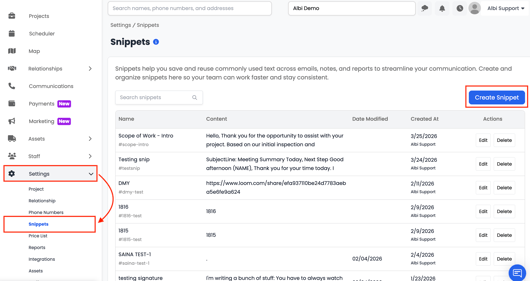
Go to Settings → Snippets
-
Click Create Snippet
2. Fill in the fields:
-
Name — a clear, descriptive label (e.g., "Water Damage Intro", "Estimate Follow-Up")
-
Shortcut — an optional keyword with no spaces (e.g., scope-intro). Used to find the snippet quickly when typing
-
Snippet Text — the content of your snippet, with full rich text formatting (bold, italic, bullet lists, etc.)
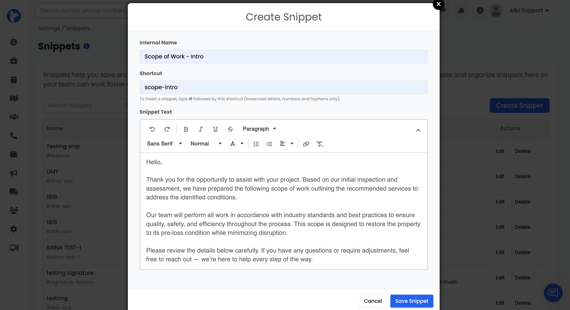
3. Click Save
Using Snippets
Snippets are available in two places: Email Compose and Project Notes.
How to Add snippets for Emails:
-
Go to a Project
-
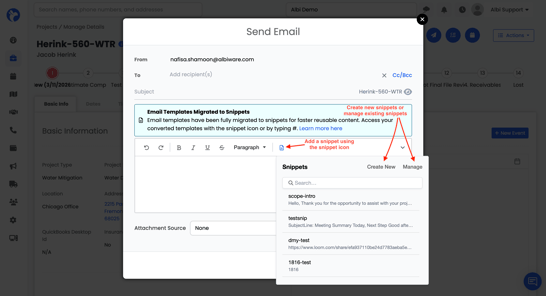
Click on the Timeline → Notes → Create Notes or Click the Send Email icon
-
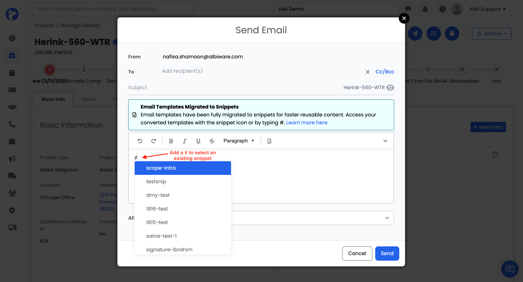
Add a hashtag (#) or use the Snippet icon to insert the snippet
How to add snippets to Notes:
-
Go to a Project
-
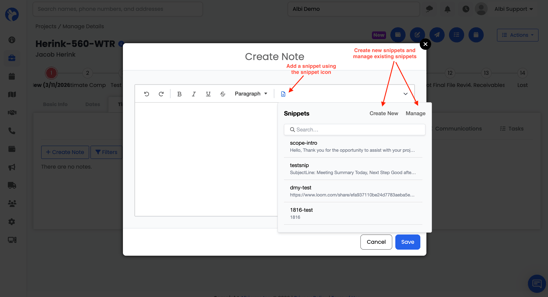
Click on the Timeline → Notes → Create Notes or Click the Create Note icon
-
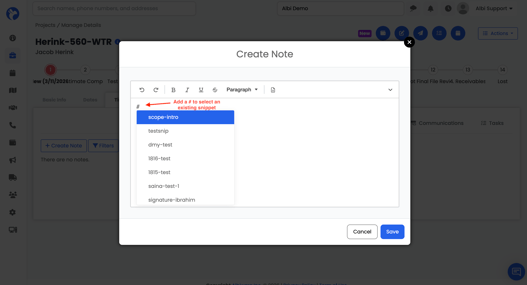
Add a hashtag (#) or use the Snippet icon to insert the snippet
Method 1: Type # to Search
-
Place your cursor where you want to insert the snippet
-
Type # followed by any part of the snippet name or shortcut
-
A list of up to 5 matching snippets appears
-
Use the arrow keys to navigate, then press Enter to insert
Example: Typing #follow would surface a snippet named "Estimate Follow-Up".
Method 2: Toolbar Button
-
Click the snippet icon in the rich text toolbar
-
A snippet picker opens — search or scroll to find what you need
-
Click the snippet to insert it
Editing or Deleting a Snippet
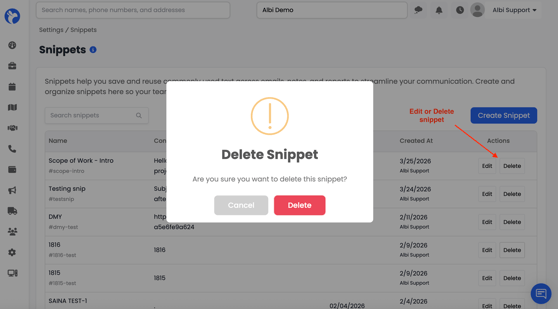
From the Snippets settings page, use the Action menu next to any snippet to Edit or Delete it.
Note: Changes take effect immediately everywhere the snippet is used.
Tips for Naming Snippets
-
Use names that the whole team will understand, not just you
-
Include the context in the name when helpful (e.g., "Email - Scope of Work Intro" vs. just "Intro")
-
Keep shortcuts short and memorable — you'll be typing them in the field (e.g., "Email - Scope of Work Intro" → scope-intro)
FAQ
-
Can I use snippets in both emails and project notes?
Yes. Snippets are available wherever you see the rich text editor — both email compose and project notes.
2. Can multiple users share snippets?
Yes. Snippets are account-wide, so any snippet created by one user is available to everyone on your team.
3. What happened to my email templates?
Templates can still be viewed under Settings → Company Settings → Templates for reference, but they can no longer be used to compose emails. Snippets are the replacement. See the section above on recreating your templates as snippets.
4. Can snippets include formatting like bold, bullet lists, etc.?
Yes. The snippet editor supports full rich text formatting — bold, italic, underline, bullet lists, and numbered lists.
5. Can snippets include images?
Yes. You can paste an image from your clipboard or drag one in from your computer directly into the snippet editor.
6. Is there a limit to how many snippets I can create?
No.