
What is Single Sign-On?
Single Sign-On (SSO) lets you sign in to Albi using your Microsoft or Google account instead of an Albi password. The account can be a work account or a personal one — what matters is that the email on it matches the email on your Albi staff record.
The benefit: one less password to manage. You sign in with an account you already use, and if your company later changes who has access to that Microsoft or Google account, your Albi access stays in sync automatically.
If your company has set up SSO, your admin will let you know which provider to use — Microsoft, Google, or in some cases a choice between the two.
Before you can use SSO
SSO has to be turned on by your company's Albi admin before you can use it to sign in. Specifically:
- Your company admin enables SSO in company settings and chooses which provider(s) to allow (Microsoft, Google, or both).
- Your admin also chooses whether SSO is optional (you can use SSO or your Albi password) or required (everyone signs in with SSO only).
- Until your admin has turned this on, you'll continue to sign in with your Albi email and password as you always have — there's no SSO option to enable for yourself.
If you're a company admin who needs to set this up, see Setting up SSO below.
How signing in works
Once your company admin has enabled SSO, here's what your sign-in experience will look like.
When you go to the Albi sign-in page, you'll be asked for your email address first. After you enter your email and continue, Albi looks up your account and shows you the right sign-in options for your company.
What happens next depends on how your company has set up SSO:
If your company requires SSO
You'll see a button for your provider — for example, Continue with Microsoft or Continue with Google. Click it.
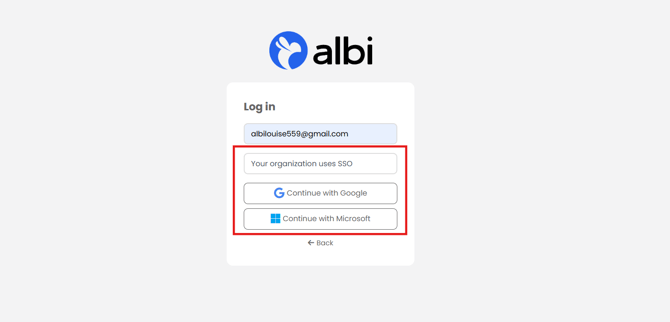
You'll be taken to your provider's sign-in page (Microsoft or Google), where you'll sign in with that account as you normally would.
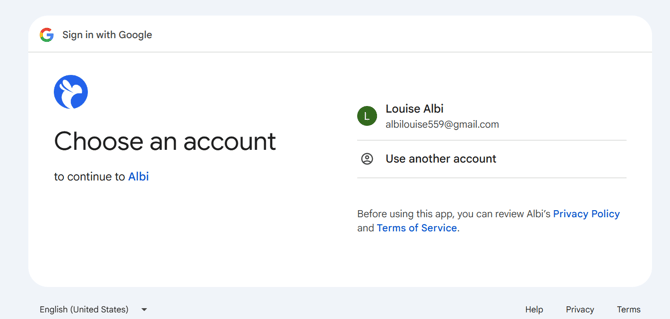
Once you sign in successfully there, you'll be sent back to Albi and logged in automatically.
If your company allows SSO but doesn't require it
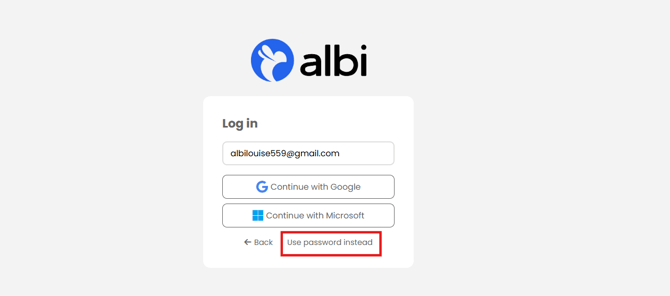
You'll see both options on the second step: a button for your SSO provider and a password field. Choose whichever you prefer. If you've never set an Albi password (or don't remember it), use the SSO option.
After your first SSO sign-in
The first time you successfully sign in using SSO, Albi remembers which provider you used. From then on, when you enter your email on the sign-in page, you'll be sent straight to your provider — you won't see the password option again unless your company changes its SSO settings.
This is by design and means signing in becomes a single step after the first time.
Things to know
- Your email needs to match. The email on your Microsoft or Google account must be the same as the email on your Albi staff account. If they don't match, sign-in will fail with an error explaining which email is expected. If this happens, contact your company admin — they can update your Albi staff record to match.
- You'll still need an Albi staff account. SSO doesn't create your account for you. Before you can sign in, your company admin needs to add you as a staff member in Albi. If you've never been added, signing in with SSO won't work.
- SSO works the same on web and mobile. The Albi mobile app supports the same SSO sign-in flow as the web app.
- If you belong to more than one company in Albi, your sign-in experience reflects the strictest setting across all of them. If any company you're connected to requires SSO, you'll be required to use SSO when signing in.
Need help?
- For sign-in errors, see SSO Troubleshooting.
- For questions about whether your company uses SSO or which provider to use, contact your company's Albi admin — those settings are controlled at the company level.
- For anything else, reach out to Albi Support.
Setting up SSO
This section is for company admins. If you're a staff user, you don't need to do anything here — your admin will handle the setup.
To enable SSO for your company:
- Go to Company Settings → Single Sign-On.
- Toggle SSO on.

- Select at least one provider — Microsoft, Google, or both. You need to select at least one provider before you can save.
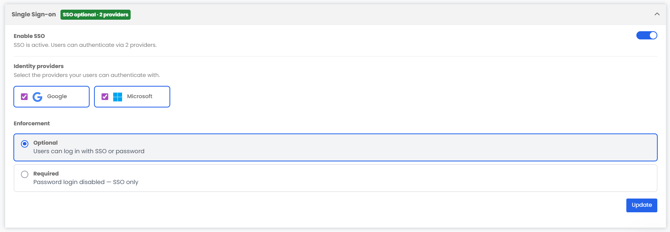
- Choose your enforcement mode:
- Optional — your staff can sign in with SSO or with their Albi password. Use this if you want to roll SSO out gradually or keep a password fallback available.
- Required — your staff must sign in with SSO. The Albi password option is removed from the sign-in screen for everyone in your company.
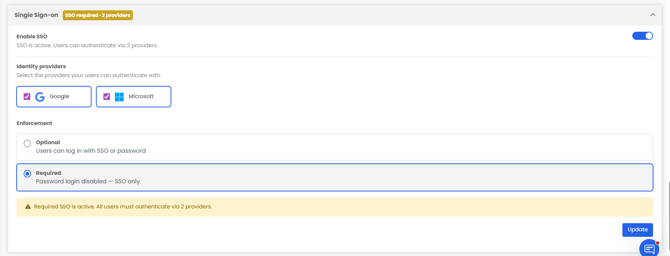
- Click Save.
Important notes for admins
- Your staff still need to be added as staff members in Albi. Enabling SSO doesn't automatically create staff accounts from your Microsoft or Google directory. Make sure each person who needs access has a staff record in Albi with the same email address as their Microsoft or Google account.
- Email addresses must match exactly. If a staff member's Microsoft or Google email doesn't match their Albi staff record email, they'll get an error when trying to sign in. You can update the email on their staff record to fix this.
- Switching from Optional to Required changes which sign-in options users see at the login screen. Their session will be marked as expired and they will be logged out. During the next login they will be prompted to use the SSO option. No password option will appear.
- Disabling a provider you previously had enabled (for example, turning off Google when you previously had both Microsoft and Google) will end the sessions of users who signed in with that provider. They'll be prompted to sign in again using a remaining provider on their next visit.
- SSO settings apply to your company across both web and mobile. You don't need to configure mobile separately.
- Permissions: Anyone in your company with permission to update company settings can change SSO configuration. There's no separate SSO-only permission at this time.