
The Sales Coach is an AI agent that reviews your sales reps' logged activity and call notes each week. It scores each rep against the weekly targets you set, then emails a report with what to coach each rep on next.
This article covers how to set up the Sales Coach, how to set weekly targets, and how to read the coaching report.
Good to know: AI Agents requires a paid subscription. Once your company subscribes, we'll turn AI Agents on for your account and it will appear in your left navigation. It's available in the Albi web app only, not the mobile app, and is currently in early access.
Before you start
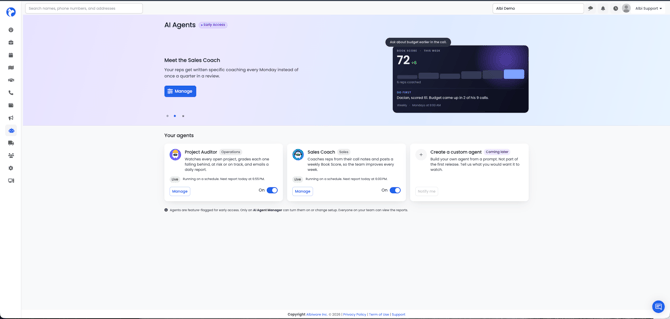
- To find the Sales Coach, go to the left navigation and click AI Agents, then open Sales Coach.
- If you don't see AI Agents in your left navigation, your company doesn't have access yet. Reach out to Albi Support to ask about access.
- Only users with the AI Agent Manager permission can turn the agent on or off or change its setup.
- Everyone else on your team can read the reports. For them, the setup page is read-only and shows the message "Only an AI Agent Manager can turn agents on or change setup."
How the Sales Coach works
Each week, the Sales Coach reads every rep's logged activity, compares it to the targets their group set, scores each rep, and writes what to coach next.
A few terms you'll see throughout:
- Coaching group: A set of reps plus the targets they're measured against. You set up the agent one group at a time, and each group gets its own report.
- Run: One scheduled pass of the agent across all of your ready groups.
- Report: What one group produced in one run. A run that covers three groups makes three reports and sends three emails.
Step 1: Choose the agent's settings
Open Sales Coach. The agent's settings are in the panel on the right.
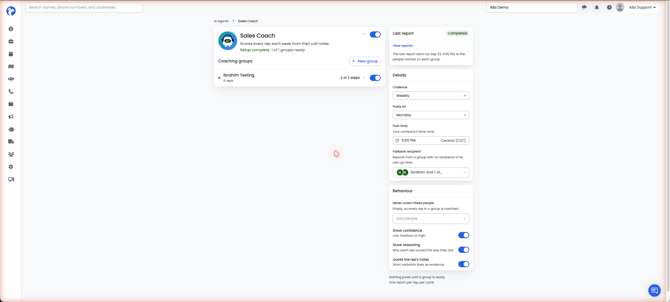
These settings apply to the whole agent:
- Cadence: Weekly.
- Posts on: The day of the week the report goes out.
- Post time: The time of day the report goes out. This always uses your company's time zone.
- Fallback recipient: Who receives a group's report when that group doesn't list its own recipients.
- Never coach these people: Reps the agent leaves out. If this is empty, every rep in a group is coached.
- Show confidence: Shows a low, medium, or high confidence level on each rep's score.
- Show reasoning: Shows why each rep scored the way they did.
- Quote the rep's notes: Includes short lines from the rep's own notes as examples.
Step 2: Set up a coaching group
A coaching group is a set of reps and the weekly targets they're measured against. Add the reps to the group, then complete the setup steps.
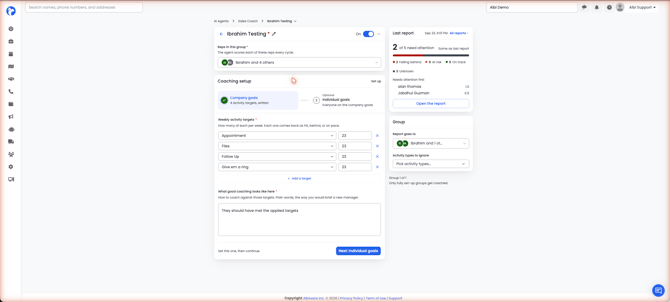
Company goals (required)
Company goals are the weekly targets every rep in the group is measured against.
- Weekly activity targets: Pick an activity type and set a number per week. For example: Appointment 23, Files 23, Follow Up 23. Each target comes back as hit, behind, or on pace.
- What good coaching looks like here: Describe, in plain language, what you want the agent to coach on. Write it the way you'd brief a new sales manager. This is what the agent uses to decide what to coach each rep on.
Individual goals (optional)
Individual goals let you set different targets for specific reps. Any rep without individual goals is measured against the company goals. The report shows which set of goals each rep was measured against.
Group settings
Each group also has its own settings in the panel on the right:
- Report goes to: Who receives this group's report. If you leave it empty, the report goes to the agent's fallback recipient.
- Activity types to ignore: Activity types this group leaves out of scoring.
Only fully set-up groups get coached.
Reading the coaching report
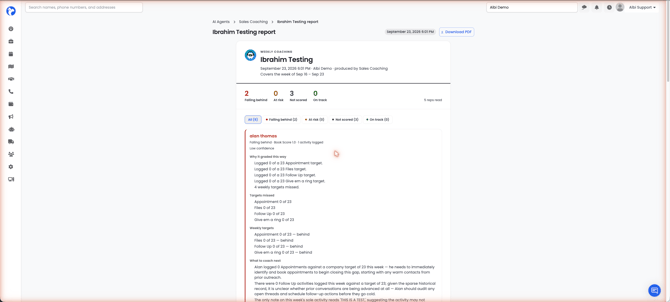
The top of the report shows the week it covers, for example "Covers the week of Sep 16 – Sep 23." Each report is tied to a specific week, not just the day it was sent.
Below that, you'll see a count for each grade, the number of reps reviewed, and filters for each grade. Each rep then has their own section with:
- Their grade, their Book Score, and how many activities they logged. When Show confidence is on, a confidence level appears here too.
- Why it graded this way: The reasons behind the score, for example "Logged 0 of a 23 Appointment target."
- Targets missed: Each missed target, shown as a fraction.
- Weekly targets: Every target and where the rep stands on it: hit, behind, or on pace.
- What to coach next: Practical coaching notes a manager can use in a one-on-one.
Understanding the Book Score
- The Book Score is written by the agent, not picked from a fixed scale. It might look like 7.5, 7.5/10, or B+. Because of this, scores aren't meant to be compared directly between companies, or even week to week. Compare the reasoning, not just the number.
- A blank score means the agent couldn't score that rep. This usually happens when the rep logged nothing that week. A blank score is different from a zero.
- The group average leaves out reps who weren't scored, so it isn't pulled down by reps with nothing to review.
- Reps with individual goals are scored against their own targets. The report shows which goals each rep was measured against.
Reps who weren't scored are labeled Unknown on a group's Last report card and Not scored on the report itself. Both labels mean the same thing: the agent reviewed the rep but couldn't score them.
Past reports
Click View reports on the agent page, or All reports on a group's page, to see your report history. Each finished run has its own card, with the newest first. Runs that didn't produce a report are still listed.
What gets emailed- One email per group, per run. A run that covers three groups sends three separate emails.
- Recipients: The group's own recipients, or the fallback recipient if the group doesn't list any.
- No report, no email. If a group has nothing to report on a run, no email is sent for that group.
Frequently asked questions
I turned the agent on, but nothing happened. Check your coaching groups. Only fully set-up groups get coached. Make sure each group has reps, company goals, and somewhere to send the report.
Nobody got the email. Check the group's Report goes to setting first, then the agent's Fallback recipient.
The report arrived at the wrong time. Post time uses your company's time zone. If you're in a different time zone, the report arrives at your local equivalent of that time.
A rep's score is blank. The agent reviewed the rep but couldn't score them, usually because nothing was logged that week. A blank score is intentional. A zero would suggest the rep did nothing.
Two reps' scores don't look comparable. The Book Score is written by the agent rather than picked from a fixed scale, so its format can vary. Compare the reasoning under each rep instead.
The Last report card says Unknown, but the report says Not scored. They mean the same thing. Both labels refer to reps the agent reviewed but couldn't score.
Can I leave certain reps out? Yes. Add them to Never coach these people in the agent's settings.
Can I see older reports? Yes. Click View reports on the agent page or All reports on a group's page.
Can I use this on mobile? No. AI Agents are only available in the web app.