
The Project Auditor is an AI agent that reviews every open project in your company on a schedule. It grades each project as On track, At risk, or Falling behind, then emails your team a report so you know which jobs need attention first.
This article covers how to set up the Project Auditor, how it grades projects, and how to read the reports it sends.
Good to know: AI Agents requires a paid subscription. Once your company subscribes, we'll turn AI Agents on for your account and it will appear in your left navigation. It's available in the Albi web app only, not the mobile app, and is currently in early access.
Before you start
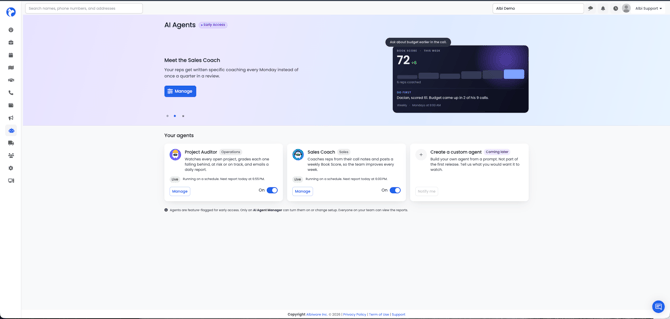
- To find the Project Auditor, go to the left navigation and click AI Agents, then open Project Auditor.
- If you don't see AI Agents in your left navigation, your company doesn't have access yet. Reach out to Albi Support to ask about access.
- Only users with the AI Agent Manager permission can turn the agent on or off or change its setup.
- Everyone else on your team can read the reports. For them, the setup page is read-only and shows the message "Only an AI Agent Manager can turn agents on or change setup."
How the Project Auditor works
Each time it runs, the Project Auditor:
- Reads every open project in your company. Closed and Lost projects are always skipped.
- Matches each project to a project group based on its project type.
- Works out which stage the project is in and how long it's been there.
- Checks for the files that stage requires.
- Grades the project and sends each group's report by email.
A few terms you'll see throughout:
- Project group: A set of project types that share one timeline. You set up the agent one group at a time, and each group gets its own report.
- Stage: One of three phases of a job: Pre-Sales, In Production, and Collections. Every group sets up all three.
- Run: One scheduled pass of the agent across all of your ready groups.
- Report: What one group produced in one run. A run that covers three groups makes three reports and sends three emails.
Step 1: Choose the agent's settings
Open Project Auditor. Your project groups are listed on the left, and the agent's settings are in the panel on the right.
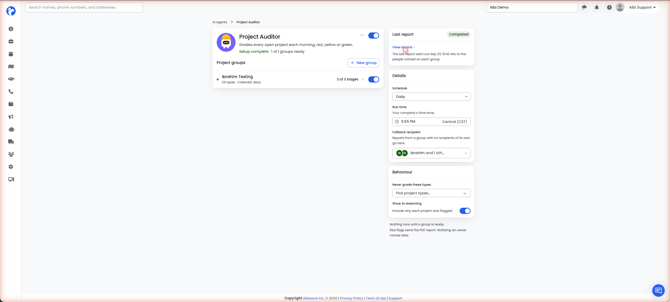
These settings apply to the whole agent:
- Schedule: How often the agent runs: Hourly, Daily, Weekdays, or Weekly.
- Run time: The time of day the agent runs. This always uses your company's time zone, which is shown next to the field (for example, Central (CST)).
- Fallback recipient: Who receives a group's report when that group doesn't list its own recipients.
The Grading card holds these settings:
- Project types to ignore: Project types the agent skips completely, across your whole company.
- Labels to ignore: Project labels the agent skips. Any project with one of these labels isn't graded.
- Show why it was flagged: Whether each report explains why a project got its grade. Turning this off hides the explanations from the report page and the PDF, but the grades stay.
The note under the settings panel tells you where things stand. It reads "Nothing runs until a group is ready" until at least one group is fully set up. Once a group is ready, it shows the next run, such as "Next run daily at 7:00 AM." While the agent is switched off, it reads "Off, so nothing runs yet."
Step 2: Set up a project group
A project group is a set of project types that run on the same timeline. For example, mitigation jobs and reconstruction jobs move on very different clocks, so they belong in separate groups.
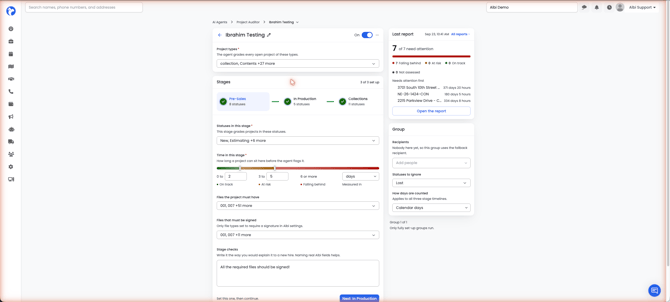
In the group, add the project types it should cover. Then set up all three stages:
- Pre-Sales: Before the work is sold.
- In Production: The work is happening.
- Collections: The work is done and payment is owed.
Stage settings
Each stage has these fields:
- Statuses in this stage: Which of your project statuses belong to this stage.
- Time in this stage: The time ranges for each grade. For example: 0 to 2 is On track, 3 to 5 is At risk, and 6 or more is Falling behind. You choose the numbers.
- Measured in: Days or hours.
- Files the project must have: Documents the project needs at this stage. A missing file is flagged in the report.
- Files that must be signed: Documents that need a signature at this stage. Only file types already set to require a signature in your Albi settings appear here.
- Stage checks: Anything else the agent should check, written in plain language the way you'd explain it to a new hire.
Group settings
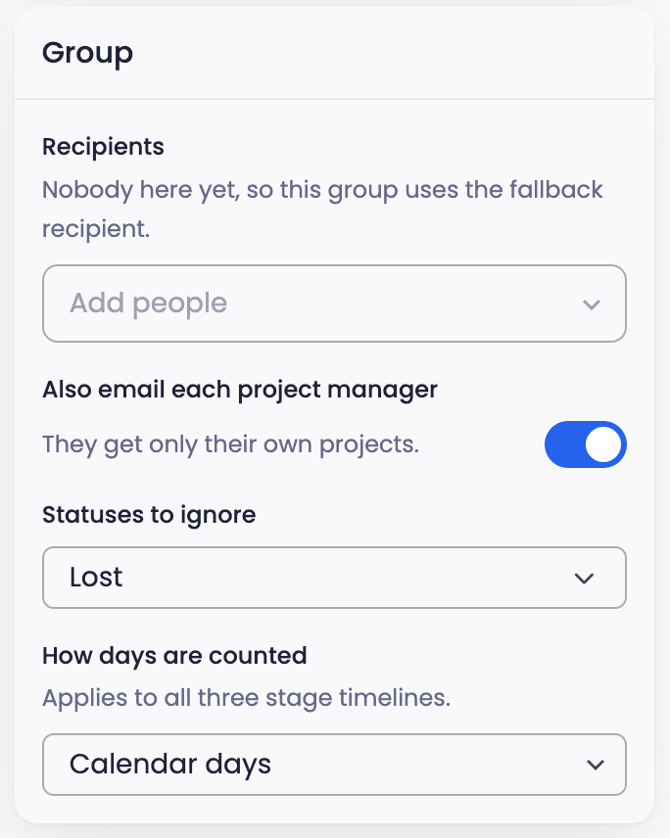
Each group also has its own settings in the panel on the right:
- Recipients: Who receives this group's report. If you leave it empty, the report goes to the agent's fallback recipient.
- Also email each project manager: When this is on, each project manager also gets a separate email that covers only their own projects. The group's recipients still get the full report.
- Statuses to ignore: Statuses whose projects this group skips.
- How days are counted: Calendar days or business days. This applies to all three stages in the group.
A few things to know about project manager emails:
- A project manager without an email address in Albi doesn't get an email. Their copy isn't sent to the fallback recipient instead.
- Projects without a project manager appear only in the group's full report.
- Test reports are never sent to project managers.
Step 3: Make sure the group is ready
A group runs only when all three of these are true:
- It has at least one project type.
- All three stages are set up.
- It has somewhere to send the report: either its own recipients, or a fallback recipient on the agent.
If anything is missing, the group's on/off switch is greyed out. Hover over it to see exactly what's missing. The page also shows how many groups are ready, for example "1 of 1 groups ready." Only fully set-up groups run.
How time in stage is counted
This section explains how the agent decides how long a project has been in its current stage.
- The clock starts the day the project entered its current status. It doesn't use the project's created date or work start date. Moving a project to a new status restarts the clock.
- The day it changed status counts as a full day. A project that changed status today shows as 1 day in stage. A project that changed status yesterday shows as 2 days.
- Calendar days counts every day. Business days counts Monday through Friday only. Holidays aren't excluded, so a public holiday on a weekday still counts as a business day.
- Hours is available for stages that move quickly, and it follows the same calendar or business day setting.
- The edges of each range count. With ranges of 0 to 2 and 3 to 5, day 2 is still On track, day 3 is At risk, and day 6 is Falling behind.
Leaving projects out of the report
There are three ways to keep projects out of the report:
- Project types to ignore (agent settings): Skips every project of that type, across your whole company.
- Labels to ignore (agent settings): Skips any project that has one of the labels you pick. Remove the label from the project and it's graded again.
- Statuses to ignore (group settings): Skips projects in that status for that group.
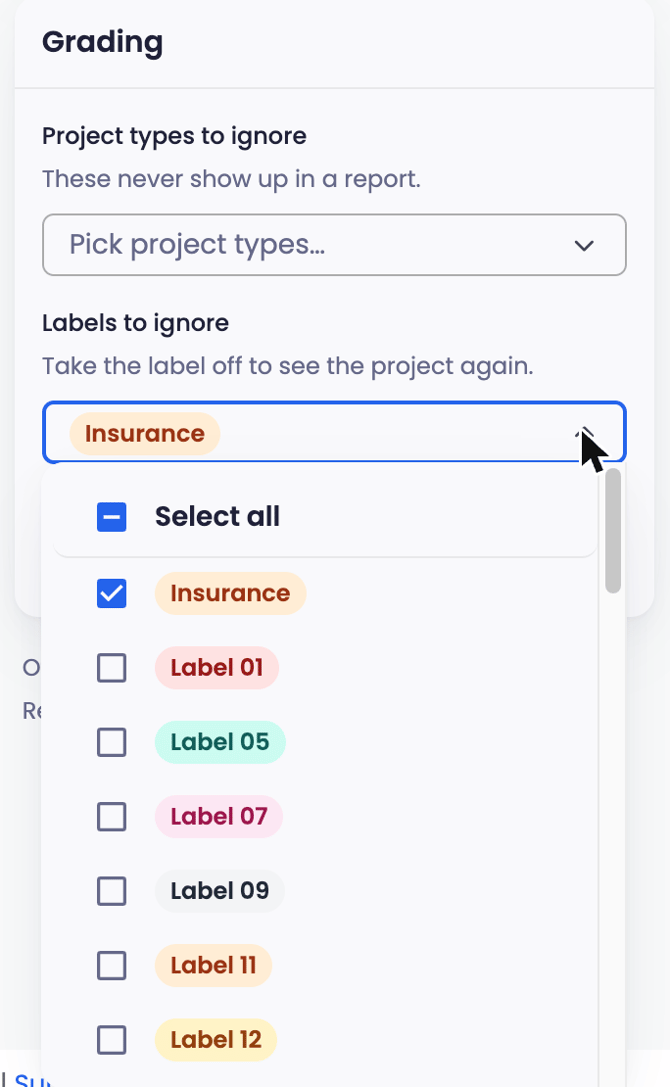
The Labels to ignore list shows your company's active project labels. Label changes can take a little while to reach the agent, so a label added or removed shortly before a run may only take effect on the next run.
Reading your report
The Last report card
The Last report card sits in the right-hand panel. On the agent page, it covers the whole agent. On a group's page, it covers just that group.
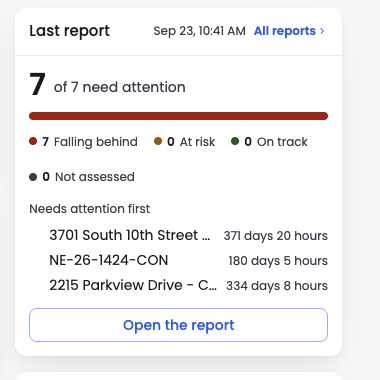
The card shows how many projects need attention out of how many were reviewed, then a count for each grade. Under Needs attention first, it lists the projects that need the most attention and how long each has been in its stage. Click Open the report to open the full report in a new tab.
Projects marked Not assessed count toward "need attention." If the agent couldn't grade a project, it's worth a look.
Past reports
Click View reports on the agent page, or All reports on a group's page, to see your report history.
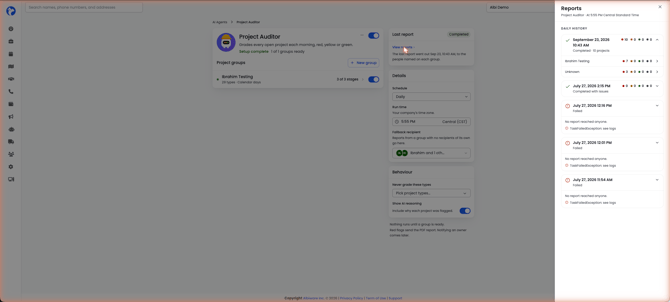
Each finished run has its own card, with the newest first. Expand a run to see each group it reported on, and click a group to open that report. Runs that didn't produce a report are still listed. A run that failed shows "No report reached anyone."
The report page
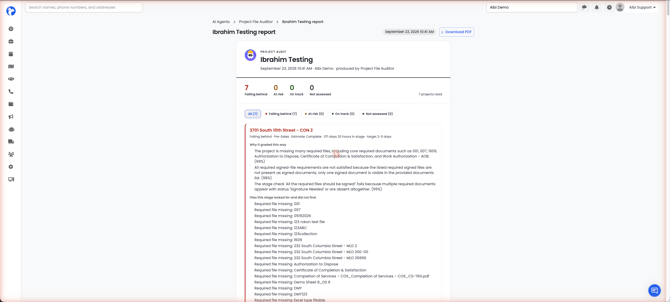
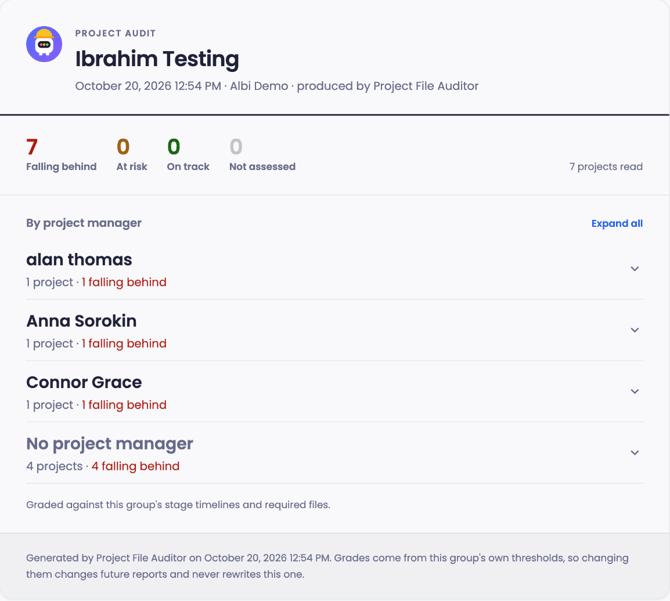
From top to bottom, the report shows:
- The run date and a Download PDF button. The PDF is the same document that was emailed.
- A count for each grade and the total number of projects reviewed.
- Filters for each grade.
- A section for each project with its grade, stage, current status, how long it's been in this stage, and the stage's target.
- Why it graded this way: The agent's reasons for the grade, each with a confidence percentage. This only appears when Show why it was flagged is on.
- Files this stage looked for and did not find: Any required files that are missing.
Projects are listed under By project manager, with one row per manager showing how many projects they have and how many are falling behind. Projects without a project manager are listed under No project manager. Click Expand all to open every section.
What each grade means
- Falling behind: Past the stage's time limit, or missing something the stage requires.
- At risk: In the middle time range for its stage.
- On track: Within the expected time, with nothing missing.
- Not assessed: The agent reviewed the project but couldn't grade it.
- One email per group, per run. A run that covers three groups sends three separate emails.
- Subject line: Project File Audit - (group name) - (date).
- Attachments: One PDF per grade, the same files you get from Download PDF on the report page.
- Recipients: The group's own recipients, or the fallback recipient if the group doesn't list any. The first recipient is in the To line and everyone else is BCC'd, so recipients can't see who else got the email.
- Sender: Reports are sent from Albi, not from your company's email address.
- No report, no email. If a group has nothing to report on a run, no email is sent for that group.
Frequently asked questions
I turned the agent on, but nothing happened. Check your groups. The agent only runs groups that are fully set up. Open the group and hover over its greyed-out switch to see what's missing: project types, one of the three stages, or a recipient.
Why is the group's switch greyed out? The group is missing project types, a stage, or somewhere to send the report. A group with every stage set up still can't run if it has no recipients and the agent has no fallback recipient.
Nobody got the email. Check the group's Recipients first, then the agent's Fallback recipient. If neither is set, the group isn't ready and won't run.
A project manager didn't get their email. Make sure Also email each project manager is on for that group and that the project manager has an email address in Albi. Test reports are never sent to project managers.
The report arrived at the wrong time. Run time uses your company's time zone. If you're in a different time zone, the report arrives at your local equivalent of that time.
Why is this project marked Falling behind? Open the report and read Why it graded this way. The project is either past its stage's time limit or missing a required file. If the time limits don't match how your team works, adjust them in the stage settings.
A project is missing from the report. The project is Closed or Lost, its project type isn't in any group, its type is in Project types to ignore, it has a label in Labels to ignore, or its status is in the group's Statuses to ignore.
It says 2 days, but I only moved the project yesterday. That's expected. The day the project changed status and today both count.
We count business days, but a holiday was counted. That's expected. Business days means Monday through Friday, and holidays aren't excluded.
Why did I get three emails? You get one email per group. A run that covers three groups sends three emails.
What happens if a run fails? The agent tries again at its next scheduled run.
Can I see older reports? Yes. Click View reports on the agent page or All reports on a group's page.
Can I use this on mobile? No. AI Agents are only available in the web app.