
How to Access Your Profile
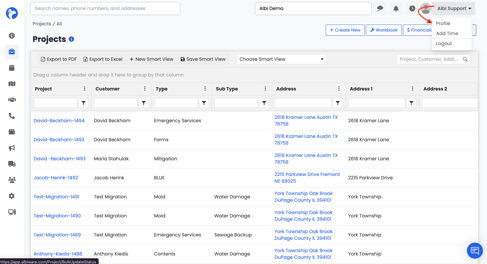
- Log in to Albi.
- In the top right corner of the page, click the dropdown next to your name (for example, Albi Support).
- Select Profile from the menu.
This will open the Manage Profile page, where you'll see four tabs along the top: Information, Timesheet, Preference, and Email.
Preference Tab
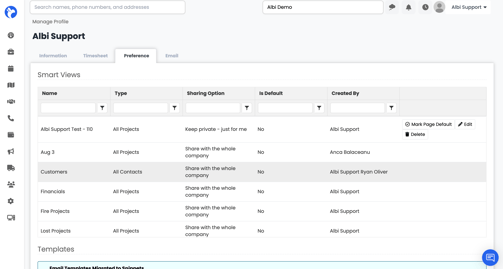
The Preference tab is where you manage your Smart Views and email templates. Smart Views are saved filters you can apply to lists across Albi (Projects, Contacts, etc.) so you can quickly find what you need.
Smart Views
This section lists every Smart View available to you, including:
- Smart Views you created yourself
- Smart Views your teammates shared with the whole company
- Smart Views shared with you specifically
Each row tells you the Name, Type (All Projects, All Contacts, etc.), Sharing Option, whether it's marked as your default, and who created it.
What You Can Do With Your Own Smart Views
For Smart Views you created, you'll see action buttons on the right:
- Mark Page Default - sets this Smart View as the one that loads automatically when you open that page
- Edit - update the name, change the sharing option (whole company, specific users, or private), or toggle the default setting
- Delete - permanently remove the Smart View
Sharing Options
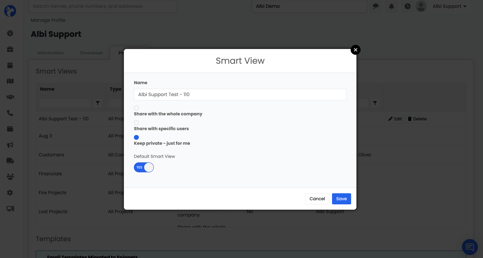
When you edit a Smart View, you can choose how it's shared:
- Share with the whole company - everyone in your Albi account can use it
- Share with specific users - only people you select can use it
- Keep private — just for me - only you can see and use it
You can also toggle the Default Smart View setting to YES to make it your default, then click Save.
Tip: You can only edit or delete Smart Views you created yourself. To change a Smart View someone else shared, ask the person who created it to update it.
Templates
Below Smart Views, you'll find a notice about Templates. Email templates have been migrated to Snippets for faster, reusable content. You can access your converted templates by clicking the snippet icon or by typing # when composing an email.
Frequently Asked Questions
I can't edit a Smart View — why?
You can only edit or delete Smart Views you created yourself. If a teammate created the Smart View, ask them to make the change or to share their smart view with you.
Will my password change apply to the mobile app?
The Change Password field updates your Albi web login. Your mobile PIN is separate — update it in the Change Mobile App Login Pin field.
Do I have to connect my email?
No. The email integration is optional. If you'd rather keep your email separate from Albi, you can skip this step. You can always come back and connect later.