
Initialize Connection Between Albi and NetSuite
-
Log into Albi and navigate to:
Settings → Integrations → NetSuite
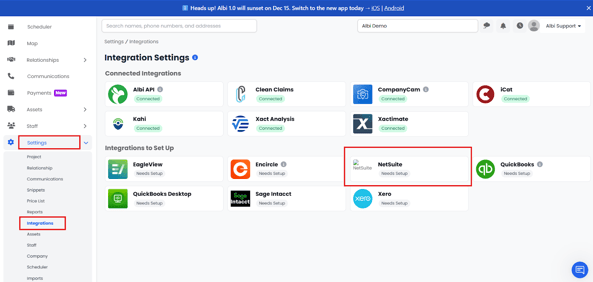
2. If the integration shows as Needs Setup, click into it.
Connect Albi to NetSuite (Customer Steps)
Before you start (what you’ll need)
You will need three values to complete the setup in Albi:
-
NetSuite Account ID
-
Client ID
-
Client Secret
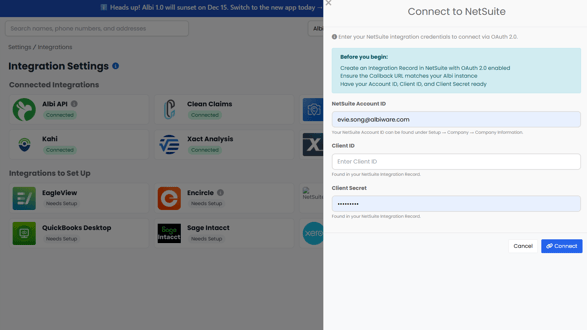
You’ll get the Account ID from your NetSuite URL, and you’ll generate the Client ID + Client Secret by creating an Integration Record in NetSuite.
Step 1: Find your NetSuite Account ID
-
Log in to NetSuite.
-
Look at the URL in your browser.
Example:
-
If your URL is: https://1234567.app.netsuite.com/
-
Your Account ID is: 1234567
Step 2: Create a NetSuite Integration Record (to get Client ID + Client Secret)
This is what generates the credentials Albi needs.
-
In NetSuite, go to:
Setup → Integration → Manage Integrations → New
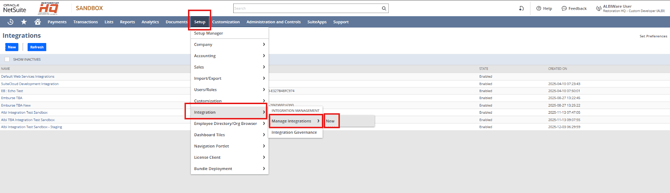
2. Fill out the Integration Record:
-
-
Name: something like Albi Integration
-
State: set to Enabled
-
4. Set OAuth 2.0 options:
-
-
✅ Authorization Code Grant
-
✅ Refresh Token Validity: 720 hours
-
5. Add the correct Redirect URI (choose the one you use):
6. Under Scope, select:
-
-
✅ REST Web Services
(Don’t select additional scopes.)
-
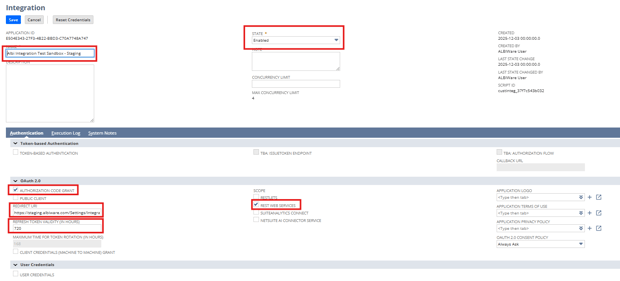
7. Click Save.
Important (don’t skip this)
After you click Save, NetSuite will show:
-
Client ID
-
Client Secret
Copy both immediately. NetSuite will only display the Client Secret once, and you won’t be able to retrieve it later.
Step 3: Enter credentials in Albi
-
Log into Albi
-
Go to:
Settings → Integrations → NetSuite
-
If the integration shows Needs Setup, click it.
-
Enter:
-
NetSuite Account ID
-
Client ID
-
Client Secret
-
-
Click Connect (or continue).
Step 4: Authorize in NetSuite (OAuth)
After you click Connect, Albi will redirect you to NetSuite’s authorization screen.
-
Log in to NetSuite (you may be asked for MFA).
-
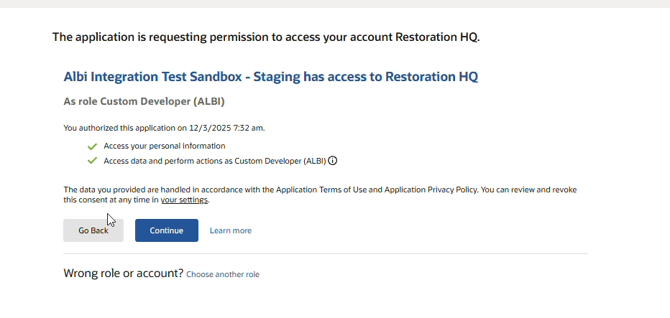
Review the consent screen and approve access.
-
Choose the NetSuite role you want Albi to use (this matters—pick the role that has the necessary permissions in your NetSuite environment).
-
Complete authorization to return to Albi.
You’re connected
Once authorization completes, you’ll be redirected back into Albi and the NetSuite integration should show as connected.