
1. Take a Break
What is the Break feature?
The Break feature allows you to pause your work time without fully clocking out.
How it works
- Tap Break
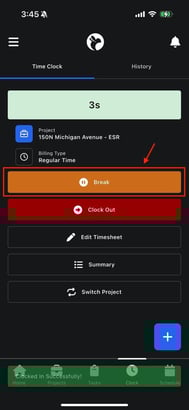
- A confirmation message appears explaining:
- The break lasts 30 minutes
- You cannot clock back in until the full 30 minutes are complete
Important to Know
- This is a timed break
- Once started, it cannot be ended early
- The app enforces the break automatically
This helps ensure compliance with labor and company break policies.
2. Clock Out
What does Clock Out do?
Clocking out ends your work session for that project.
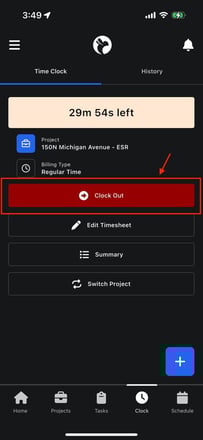
When should you clock out?
- When you are done working for the day
- When you are leaving the job site
- When your shift is over
Once you clock out:
- Time tracking stops
- The session is saved to your timesheet history
3. Switch Project
What is the Switch Project Button?
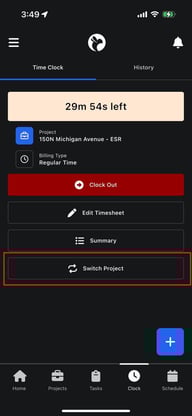
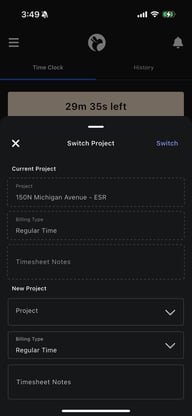
Switch Project allows you to move from one project to another without manually clocking out and back in.
 .
. 
How it works
- Tap Switch Project
- Select the new project
- Choose the billing type
- (Optional) Add timesheet notes
- Confirm the switch
The app will:
- Automatically clock you out of the current project
- Immediately clock you into the new project
Real-World Example
You are working in an apartment building and move from:
- Apartment 101 (Project A)
- To Apartment 102 (Project B)
Instead of clocking out and starting over:
- Use Switch Project
- Your time stays clean, accurate, and uninterrupted
This is especially useful for:
- Multi-unit properties
- Large job sites
- Back-to-back service calls
Note: Using the Switch Project button creates a separate timesheet in the web app.
4. Edit Timesheet
What does this do?
Allows you to update or correct your timesheet notes for the current session.
This is useful if:
- You forgot to add notes earlier
- You want to clarify what work was done
5. View Summary
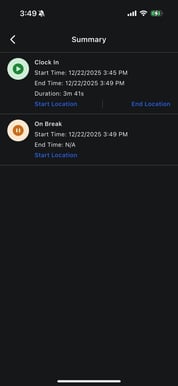
What is the Summary?
The Summary screen shows a detailed breakdown of your current session, including:
- Clock-in time
- Clock-out time (if applicable)
- Total duration
- Break times
- Start and end locations (if enabled)
This helps you review your work session before finishing or switching projects.