
Lead Taker answers your phone with an AI assistant. It talks with the caller, takes down the details of the job, opens a project from what they share, and passes the call to your team when the caller asks for a person or the situation is urgent. If the assistant can't answer for any reason, the call rings through the way it does today, so callers are never left hanging.
What Lead Taker does
On each call, Lead Taker will:
- Answer the call instead of ringing your team first
- Ask the caller what happened, where the job is, and how to reach them
- Open a project from those details when the caller shares enough to open one
- Transfer the call to a person when the caller asks for one, or when what they describe is urgent
- Save a full transcript of the conversation with the call
What Lead Taker doesn't do
- It doesn't make outbound calls. It only answers incoming ones.
- It doesn't replace your normal call routing. Any time it can't answer, the call goes wherever that number normally sends it.
- It doesn't answer every number. It only answers the numbers you set it up on.
- It doesn't open a project from every call. Some callers won't give an address or enough detail. The call and everything the caller did share are still saved, so you can open the project in one click later.
- It doesn't speak languages other than English. If a caller speaks another language, the assistant tells them it can't help in that language and offers to connect them with a person.
Before you start
Lead Taker needs four things in place before it will answer a call. If you've finished setup and the assistant still isn't picking up, one of these is usually the reason.
|
What's needed |
Who sets it |
What happens if it's missing |
|---|---|---|
|
Lead Taker included in your Albi plan |
Albi |
The assistant never answers, and setup won't show an error |
|
The Lead Taker agent turned on |
You, on the Lead Taker card |
Setup can look complete, but every call rings through normally |
|
A phone number that qualifies (see below) |
You, during setup |
Setup won't offer that number |
|
At least one transfer destination |
You, during setup |
Calls are answered, but a caller who asks for a person hears an apology and the call ends |
If you're not sure whether Lead Taker is included in your plan, reach out to Albi Support and we'll check for you.
Which numbers can use Lead Taker
Lead Taker works on marketing numbers that are not part of a call-tracking pool.
Call-tracking pools (sometimes called dynamic number insertion) swap numbers on your website or ads so you can see which ad or page brought in each call. A call answered by the assistant can't carry that tracking, so a number can't do both. Rather than quietly losing the tracking you're paying for, Albi keeps call-tracking numbers out of Lead Taker. They won't appear in the list during setup.
If you're looking for one of your tracking numbers and it isn't in the list, that's expected. Choose a different number, have Albi create a new one during setup, or remove the number from its call-tracking pool. Once it's out of the pool, it can be used with Lead Taker right away.
Step 1: Connect a phone number
You don't need to change your phone system to use Lead Taker. Setup gives you two ways to get a number answering with the assistant, and both end in the same place.
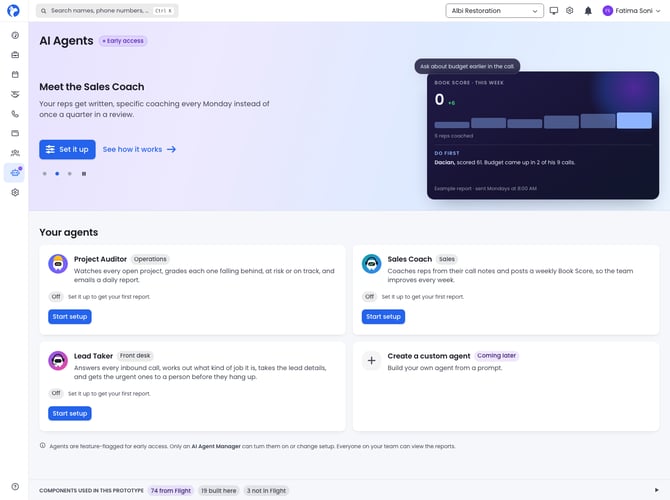
- Go to the AI Agents page.
- On the Lead Taker card, click Start setup. The card shows Off until setup is finished.
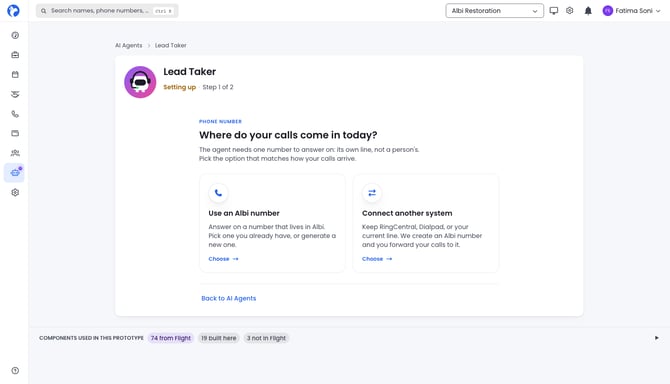
- On the first screen, Where do your calls come in today?, choose one of the two options below.
|
Use an Albi number |
Connect another system |
|
|---|---|---|
|
What you do |
Pick a number already in your Albi account, or take a new one Albi suggests |
Keep your current phone provider and forward calls to a new number Albi creates |
|
What callers dial |
The Albi number |
The same number they've always dialed |
|
Is a new number purchased? |
Only if you take a new one |
Yes, one new number |
|
Your phone system |
Not involved |
Stays exactly as it is, with one forwarding rule added |
This is the main decision in setup, so take a moment to pick the one that matches how calls reach you today.
Option A: Use an Albi number
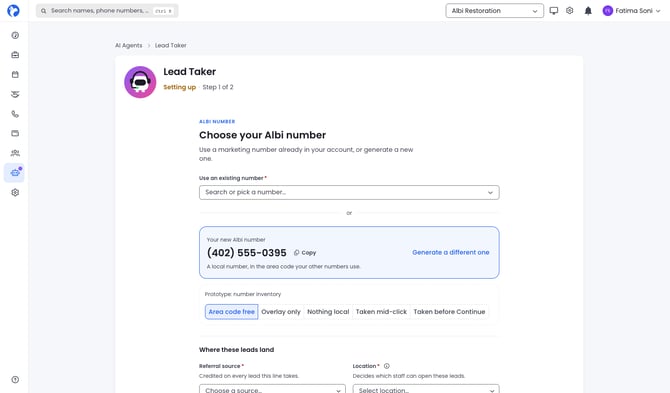
- Choose Use an Albi number.
- Pick a marketing number already in your account, or use the new number Albi suggests.
- Choose the Referral source and Location this number belongs to. Both are required, and Continue stays greyed out until they're filled in.
- Click Continue.
When Albi suggests a new number:
- It suggests a local number. The area code comes from your company's listed phone number. If there isn't one, Albi uses the most common area code among the numbers already in your account. If neither is available, it asks you.
- You can choose a toll-free number instead.
- Clicking Generate a different one gives you a new number and won't repeat one you've already seen.
- If no local numbers are available in your area code, Albi offers a nearby or national number and tells you so on screen.
Option B: Connect another system
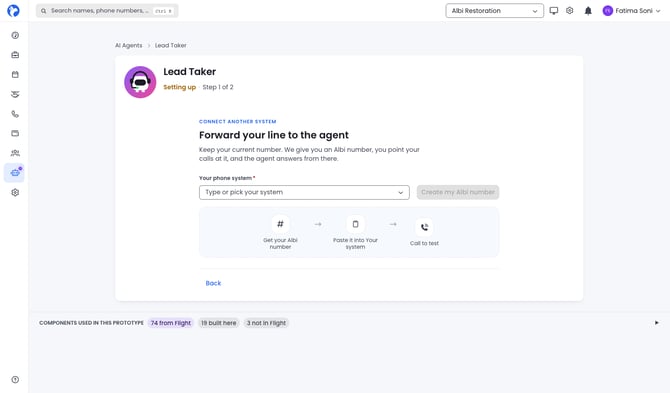
- Choose Connect another system.
- Select your phone provider from the list. If yours isn't listed, type its name in. Every provider works this way, listed or not.
- Albi creates a new number for you.
- Copy that number and add it as a forwarding destination in your phone provider's settings.
- Call your main number to test that it reaches the assistant.
Your own number and phone system stay exactly as they are. Callers keep dialing the number they already know.
You're not charged until the last step
Searching for and viewing numbers is free. A number is only purchased at the final step of setup, so if you stop partway through, you won't be left with a new charge.
Occasionally, the number you were shown gets taken by someone else before you finish. If that happens, Albi won't swap in a different number without asking. You'll be offered a replacement, and you can take it, try another area code, or switch to toll-free. This matters most for Option B: you'll always be charged for the exact number you see on screen and paste into your phone system.
Step 2: Set up how the assistant handles calls
Once a number is connected, you'll land on the Lead Taker configuration page. The setup steps run across the middle of the page, your answering hours sit on the right, and the agent's number and status are at the top.
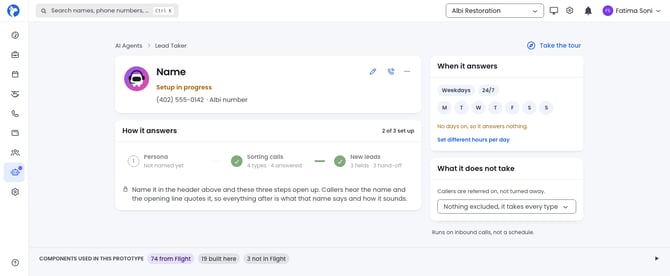
Persona
Choose the name the assistant uses for itself, the voice it speaks in, and the greeting callers hear first.
The default greeting tells callers they're speaking with an AI assistant and that the call may be recorded. Keep both in your greeting. Some states require that callers be told when they're speaking with AI, and the default wording covers that.
Sorting calls
Tell the assistant which kinds of callers to listen for, so it can route a vendor or a billing question without walking them through a full intake. The defaults cover new losses, existing jobs, vendors, and billing.
This is also where you set the conditions that make a call urgent. When a caller describes something that meets one of your urgent conditions, the assistant treats the call as an emergency from that point and transfers it to your team. Your team finds out the same way as any other transfer: the phone rings. A separate alert isn't sent during the call.
New leads
Set the questions the assistant asks a new lead, and the order it asks them in. The order matters, because the assistant follows it on the call. You can also add your own wording for a question so it sounds like your company.
Answering hours
Set the hours you want the assistant to answer calls. Hours are based on your company's time zone, not the caller's.
If your company has locations in more than one time zone, they all share one schedule, based on the time zone on your company record.
Answering hours are a weekly schedule: the day, the opening time, and the closing time. Holidays and one-off closures can't be scheduled ahead of time. To close for a day, change that day's hours, then set them back afterward.
Outside those hours, calls go to your number's normal routing. Nothing is wrong when this happens; it's how answering hours are designed to work.
If the number was set up just for Lead Taker and has no one else to ring, callers outside your hours hear a short closed message, and the call ends. Voicemail isn't available on these calls.
Turn the agent on
When you've finished setup, make sure the Lead Taker card on the AI Agents page is switched On. If it's off, setup can look complete while every call rings through normally.
Step 3: Choose who calls transfer to
When a caller asks for a person, the assistant works down your transfer list in order until someone answers. You can add four kinds of destinations.
|
Destination |
What rings |
Good to know |
|---|---|---|
|
Staff member |
That person's softphone in Albi, in their browser |
Only rings while they're signed in with Albi open. Staff who have been disabled or removed are skipped. |
|
Company line |
Everyone on that Albi line, all at once |
Uses whoever is on the line at the time of the call, so adding someone to the line adds them here automatically. A line with no active members is skipped. |
|
External number |
Any phone number you enter |
The most reliable option, because it doesn't depend on anyone being signed in to Albi. |
|
Backup number |
Your backup list |
Only used if the assistant itself runs into a problem. See below. |
How long each destination rings
Each destination rings for 20 seconds before the assistant moves on to the next one. You can change this for each destination, anywhere from 5 to 120 seconds.
When several people ring at once, like a company line or your backup list, everyone in that group rings for the longest time set in the group. There's also a limit on the total time a caller spends being transferred, so adding more destinations won't leave a caller listening to ringing for several minutes.
If no one answers
If every destination rings and no one picks up, the caller hears "I'm sorry, we couldn't reach anyone right now. Please try again later." Then the call ends. Voicemail isn't available.
How the backup list works
If the assistant runs into a problem partway through a call, Albi skips your regular transfer list and goes straight to your backup list. The caller has already waited through one hiccup, so this gets them to a person as quickly as possible.
You can add more than one backup number, so one person missing the call doesn't mean the caller reaches no one.
Always include at least one external number
If your transfer list only has staff members and everyone is signed out of Albi, no one will receive the transfer. A staff destination rings a browser tab, and at 9 p.m. on a Saturday there may not be one open anywhere. An emergency caller could reach no one.
Albi will flag this when you set up your list, but it will still let you save it. To make sure there's always someone to reach, add at least one external number, such as an on-call cell phone.
If no transfer destinations are set up at all, a caller who asks for a person will hear an apology and the call will end. They won't be left in silence.
Reviewing calls the assistant answered
Calls the assistant answers show up on the Calls page alongside all your other calls, marked so you can spot them at a glance. A row of Lead Taker figures at the top counts what the assistant handled. Below that, you can filter by urgency: Act now, Soon, Whenever, and calls that still need an outcome.
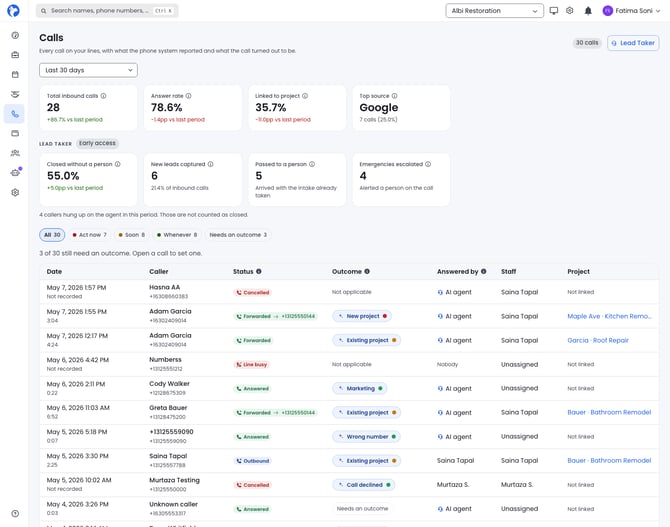
Each call the assistant answered includes:
- A sparkle icon on the outcome, showing the assistant handled the call
- An urgency color (red, amber, or green) based on the urgent conditions you set in Sorting calls
- Key moments from the conversation. Click one to play the recording from that exact point instead of scrubbing through it.
- The full transcript of the conversation, in order
- The project, if the caller shared enough detail to open one
When no project was opened
Some callers won't share an address or enough detail to open a project. That's their choice, and it isn't an error.
Everything the caller did share is still saved with the call. When you follow up, you can open the project from the Calls page in one click.
Troubleshooting
The assistant didn't answer a call
When the assistant can't answer, the call rings through to your normal routing. The caller still reaches you, so it can be hard to tell anything happened. Work through these checks in order. They're the same checks Albi runs on every call, so the first one that doesn't pass is your answer.
- Is the assistant turned on for that number? Check the settings for the number that was called.
- Is it a call-tracking number? Numbers in a call-tracking pool can't use Lead Taker. Use a different number instead.
- Is Lead Taker included in your plan? If you're not sure, contact Albi Support.
- Is the Lead Taker agent switched on? Check the Lead Taker card on the AI Agents page.
- Did the call come in during your answering hours? Remember that hours follow your company's time zone. Calls outside your hours ring through normally by design.
- Was it a very busy moment? Lead Taker can only answer so many calls at the same time. During a rush, an extra call rings through to your normal routing instead. If the assistant answered some calls but not others around the same time, this is usually why. Your setup is fine, and the caller still reached your team.
If everything above checks out and calls still aren't being answered, contact Albi Support.
A caller asked for a person but wasn't transferred
Check these in order:
- No transfer destinations are set up. The caller hears an apology and the call ends. This is the most common cause, so check your transfer list first.
- Every destination rang and nobody picked up. Your list is set up correctly, but no one answered.
- Your list only has staff members, and everyone was signed out of Albi. Each staff destination rang a browser tab that wasn't open. From your side this looks the same as #2, but the fix is different: add an external number to your list.
What the call notes mean
When something doesn't go as planned on a call, Albi adds a short note to the call record explaining what happened.
|
The call note says |
What it means |
What to do |
|---|---|---|
|
the caller needed a person and this line has nowhere to send them |
No transfer destinations are set up |
Add at least one destination to your transfer list |
|
every destination was rung and nobody answered |
Your list is set up, but no one picked up |
Consider adding an external number or more people to your list |
|
the caller did not give enough detail to open anything from |
The caller chose not to share enough information |
Nothing is wrong. Follow up and open the project from the call. |
|
the call ran past its time limit |
The call ran long and was passed to your team instead of being cut off |
Nothing to fix. Contact Albi Support if this happens often. |
|
the assistant could not be reached, so the call fell back to your normal handling |
The assistant was unavailable, and the caller rang through normally |
Contact Albi Support if this happens more than once |
|
too many calls were being answered at once, so this one fell back to your normal handling |
It was a busy moment, and the caller rang through normally |
Contact Albi Support if this happens more than once |
|
the assistant answered but never spoke, so the caller heard silence |
The assistant started but didn't speak |
Contact Albi Support |
|
the assistant stopped working part-way through the conversation |
The assistant ran into a problem and passed the call to your backup list |
Contact Albi Support |
|
the details could not be read back out of the conversation |
The call happened, but the caller's details couldn't be pulled from it |
Contact Albi Support |
|
the caller reached a person, but the details taken on the call were lost |
The caller was transferred, but their details didn't carry over |
Contact Albi Support |
When you contact Albi Support, include the date and time of the call, the number that was called, and the caller's number. This helps us find the call quickly.
Frequently asked questions
Do I have to change phone providers to use Lead Taker? No. Choose Connect another system during setup, and add one forwarding rule in your current phone provider. Callers keep dialing the number they already know.
Why isn't my tracking number in the list? Numbers in a call-tracking pool can't use Lead Taker, because a call answered by the assistant can't carry the tracking. Choose a different number, or have Albi create a new one.
Can I remove the part of the greeting that says it's an AI? We strongly recommend keeping it. Some states require callers to be told when they're speaking with AI. If you have questions about your greeting, contact Albi Support.
Will I get an alert during an urgent call? An urgent call is handled as an emergency and transferred to your team right away, so your phone rings. A separate alert isn't sent while the call is in progress.
The assistant didn't answer last night. Is something broken? Most likely not. Check your answering hours, and remember they follow your company's time zone. Outside those hours, calls ring through to your normal routing.
Why did a call not turn into a project? The caller probably didn't share an address or enough detail. Everything they did share is saved with the call, so you can open the project from the Calls page in one click.
Will I be charged if I start setup and don't finish? No. A new number is only purchased at the final step of setup.
Can Lead Taker answer calls in Spanish or other languages? No. Lead Taker speaks English only. If a caller speaks another language, the assistant tells them it can't help in that language and offers to connect them with a person.
What happens when an existing customer calls? If they're calling about an existing job from a phone number on their contact record, the assistant recognizes them and logs the call on that project instead of opening a new one. If they call from a number Albi doesn't recognize, like a blocked or new number, the call is handled as a new lead.
Can callers leave a voicemail? Not through Lead Taker. If no one answers a transfer, or a call comes in after hours on a number set up only for Lead Taker, the caller hears a short message and the call ends.
Can I set holiday hours? Not ahead of time. Answering hours are a weekly schedule. To close for a holiday, change that day's hours, then set them back afterward.
How do I stop paying for a number I bought during setup? Delete the number in Albi. This releases it back to the phone carrier and ends the recurring charge. Deleting is permanent and the number can't be recovered, so don't delete a number your customers still call.