
What Is an Event?
An Event is anything that happens at a specific date and time. Examples include:
- Site inspections
- Client meetings
- Follow-up visits
- Equipment checks
- Scheduled calls
- Job walkthroughs
Events help ensure everyone knows what is happening, when it’s happening, and where it’s happening.
Viewing Scheduled Events
When you open the Scheduler, you will see a list or calendar view of all your scheduled events.
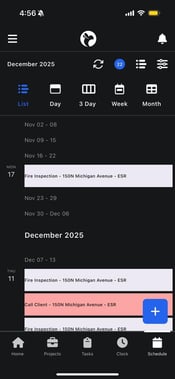
What You’ll See
- Event name
- Date and time
- Associated project (if linked)
- Event status
This allows you to quickly understand your schedule at a glance.
Changing How You View the Schedule
The Scheduler is flexible and lets you choose how you want to view your events based on your preference or workload.
Available Views
You can switch between different calendar views, such as:
- List View – A simple list of upcoming events
- Day View – Shows all events for a single day
- 3-Day View – Displays events across three days
- Week View – Shows your full weekly schedule
- Month View – Gives a high-level view of the entire month
This is useful depending on whether you need:
- A quick overview of today
- A short-term plan
- A long-term schedule outlook