
What You Can See in History
The History tab shows all your past time entries.
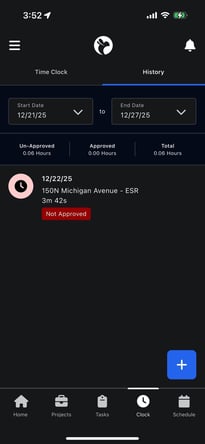
- Date range filter
- Select a start and end date to view activity for a specific period. The filter requires a range that fully encompasses the dates you want to see.
- For example, to view activity from January 2–6, select January 1–7 as the date range.
- Approved Hours
- Time entries that have been reviewed and approved
- Unapproved Hours
- Time entries still awaiting approval
- Total Hours
- Combined total of approved and unapproved time for the selected date range
Individual Entries Show
- Project name
- Date worked
- Duration
- Approval status (Approved / Not Approved)
This section is useful for:
- Reviewing your hours
- Catching mistakes early
- Verifying payroll accuracy