
What copies automatically
These details always carry over to the new project, so you do not need to re-enter them:
- Basic information — client name, property address, property type, referral source, and year built
- Date of loss
- Project relationships — any projects already linked to the original carry over to the duplicate
What starts fresh
These reset on the new project regardless of the original:
- Status — always resets to the beginning of the workflow, no matter where the original project is in its workflow
- Financial data — workbook, estimates, and payments
- Timeline and dates — scheduled dates and milestones
What you can configure when duplicating
When you open the duplicate form, you can review and adjust the following before confirming:
| Field | Default | Notes |
|---|---|---|
| Project type | None (required) | You must always choose a type. The Duplicate project button stays inactive until you do. The type code is added to the project name automatically (for example, -FIR or -WAT). |
| Project sub-type | Copied from the original | Can be changed in the form. |
| Location | Copied from the original | Can be changed in the form. |
| Use same project unique number | On (when the original has a unique number) | Keeps the middle number segment of the project name (for example, 1138 in Mustafa-1138-FIR). This option is disabled, with an explanation, if the original project has no unique number. |
| Link to original project | On | Creates a two-way relationship between the original and the new project. Uncheck this if the duplicate is unrelated to the original. |
| Assigned staff | Copied from the original | You can add or remove staff and assign project roles before confirming. Staff can also be added after the project is created. |
| Notes | Off | When turned on, notes are copied as a one-time snapshot. Changes made to notes on either project after duplication do not sync. |
| Photos | Off | When turned on, photos are copied as a one-time snapshot. They may take a few moments to appear on the new project. |
| File manager folder structure | Off | When turned on, only the folder tree is copied — the files inside the folders are not. The folders may take a few moments to appear. |
How the new project name is generated
Project naming formats vary from one account to another, so your project names may not look like the example below. Rather than following a single fixed formula, the duplicate form shows a live preview of the new project name that updates as you make your selections. This preview is the best way to confirm exactly how the name will appear before you create the project.
Two choices in the form affect the new name:
- Project type — the type you select for the duplicate is reflected in the new name.
- Use same project unique number — when on, the duplicate keeps the original's unique number; when off, a new number is assigned (shown as
###in the preview until the project is created).
Example: For an account that names projects in a [Client prefix]-[Unique number]-[Type code] format, duplicating Mustafa-1138-ESR as a Water project — with the unique number kept — would preview as Mustafa-1138-WAT. The type codes in this example are illustrative, and your account's naming format and codes may differ:
- Fire →
FIR - Water →
WAT - Mold →
MLD - Storm →
STM - Wind →
WND - Bio →
BIO - Contents →
CNT - Reconstruction →
REC
The name preview updates live in the form as you select the project type and toggle the unique number option.
Duplicate a project on the web app
- Open the project you want to duplicate.
- Click the Actions button in the top-right of the project header.
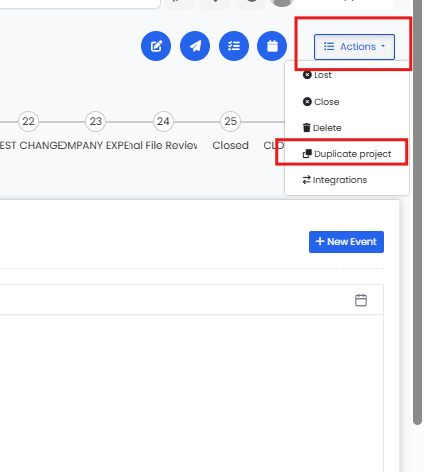
- Select Duplicate project from the dropdown.
- In the modal, complete the form:
- Select a Project type (required).
- Adjust the sub-type and location if needed.
- Review the computed New project name.
- Toggle Use same project unique number if appropriate.
- Toggle Link to original project (on by default).
- Add or remove Assigned staff and their project roles. This is recommended if you have different staff assigned to the new project, or have automations built off of the assigned staff.
- Check any optional items to include — Notes, Photos, or File manager folders.
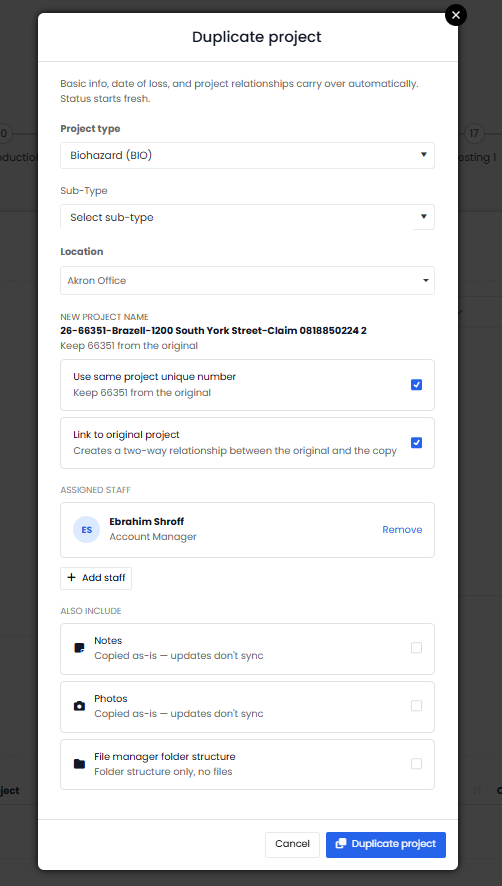
- Click Duplicate project.
- In the success modal, choose Open new project to go to it right away, or Stay here to remain on the original.
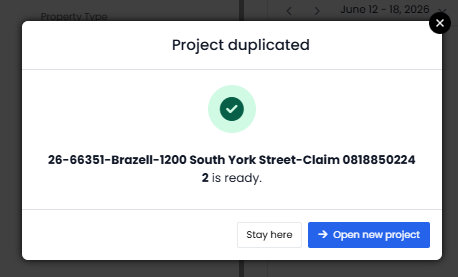
If you selected Photos or File manager folders, a notice confirms that they may take a few moments to appear on the new project.
Common use cases
| Scenario | Recommended settings |
|---|---|
| Same client, second project of a different type (most common) | Select the new type, keep Use same project unique number on, keep Link to original project on, and copy staff over. |
| Re-open a closed project as a new job | Select the same or a new type, turn off Use same project unique number to get a fresh number, and unlink from the original. |
| Use a project as a template starting point | Copy the folder structure, remove all staff, and unlink from the original. |
| Reassign to a different office location | Change the location in the form and adjust staff accordingly. |
Frequently asked questions
I don't see a "Clone" option anymore — where did it go?
Clone was renamed to Duplicate project. It is in the same place as before: open the project, click Actions in the top-right, and choose Duplicate project. The feature works the same way.
The "Duplicate project" button isn't doing anything when I click it.
Select a Project type first. The Duplicate project button stays inactive until a type is chosen — once you select one, the button becomes available.
Why did the sub-type clear when I changed the project type?
This is expected. Sub-types are tied to specific project types, so when you change the Project type, the sub-type list refreshes and you may need to select the sub-type again. If the type you choose has no sub-types set up, the sub-type field is hidden. If the original project already had a sub-type, it populates automatically when the form opens.
Does a duplicated project count as a separate project on my account?
Yes. The duplicate creates a new, independent project.
Can I rename the new project after duplicating?
Yes. Project names can be edited from the project's Basic info tab after creation, the same as any other project.
Can I duplicate the same project more than once?
Yes. Each duplication is independent, so you can duplicate the same project multiple times — for example, once for fire and once for water.
Why is the "Use same project unique number" option disabled?
This option looks at the original project's name. If that name doesn't include a unique number, there is nothing to carry over, so the option stays disabled and the duplicate is given a new unique number when it's created.
This is also why the option can be disabled even when your account's naming convention uses unique numbers now: if the original project was created before that convention was added, its name has no number to reuse. The duplicate will still receive a new unique number under your current naming convention.
If I copy photos or notes to the duplicate, are they removed from the original project?
No. Photos, notes, and folders are copied, not moved — the original project keeps everything it had. The copies are a point-in-time snapshot, so anything added to the original after you duplicate will not appear on the new project, and the reverse is also true.