
How to Create an Event
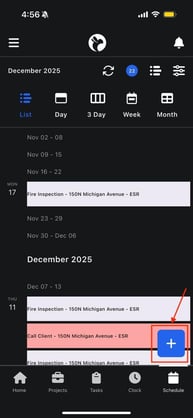
- Tap the + Add button in the Scheduler
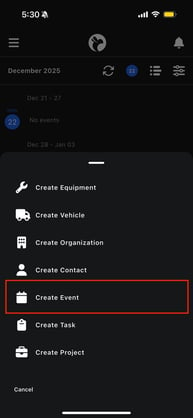
- Select Create Event
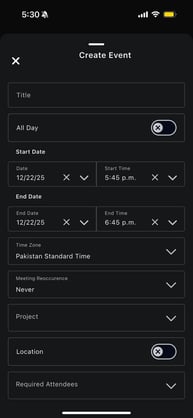
- The event creation form will open
Filling Out the Event Form
You will be required to enter certain information to create an event.
Required Information
- Event Title
A clear name describing what the event is (example: “Initial Inspection”) - Date and Time
- Start date and time
- End date and time
- You can also mark the event as All Day if applicable
Optional but Common Fields
- Project – Link the event to a specific project
- Location – Add an address if the event happens on-site
- Notes – Add extra details or instructions
- Category – Helps organize events
- Tags – Makes events easier to search and filter
- Attendees – Assign staff or invite participants
Once all required fields are filled out:
- Tap Save
- The event is added to your schedule
Opening an Event
To view more details about an event:
- Tap on the event from the scheduler
Inside the event, you can see:
- Full event details
- Date and time
- Linked project (if applicable)
- Notes
- Attendees or participants
This ensures you have all the information you need before attending the event.