
1. Main Calendar View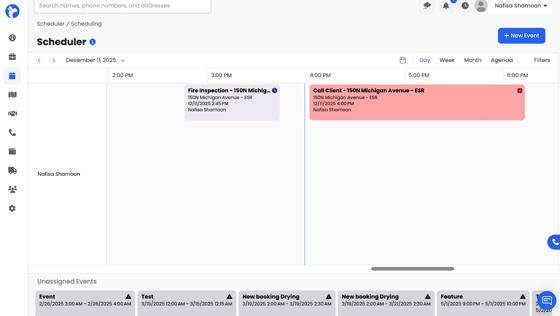
- Displays events scheduled for each staff member (organized vertically by user).
- You can switch between:
- Day View
- Week View
- Month View
- Agenda View
- Day View
- Events appear as colored blocks on the grid, based on their event category color.
2. Unassigned Events (Bottom of Screen)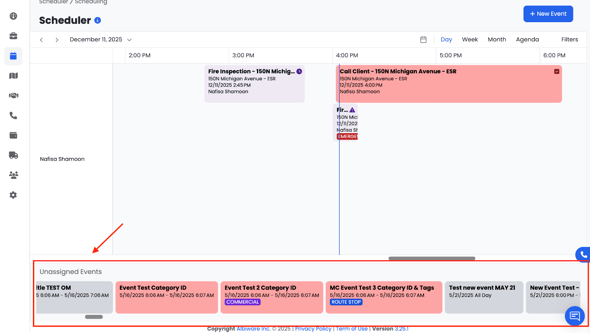
At the bottom of the calendar, you will see the Unassigned Events panel.
This section contains:
- Events that have been created without assigning a required staff member.
- Events that still need to be dragged and scheduled on the calendar.
- You can double-click on an event card in the Scheduler to quickly open it and make edits without needing to use the Edit button.
You can drag an unassigned event onto a staff member's schedule to assign it.