
Starting a Signature Request
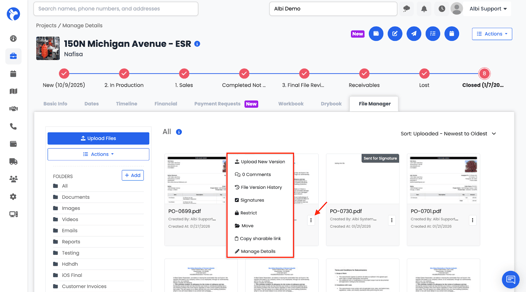
- Click the file’s ⋯ menu
- Select Signatures
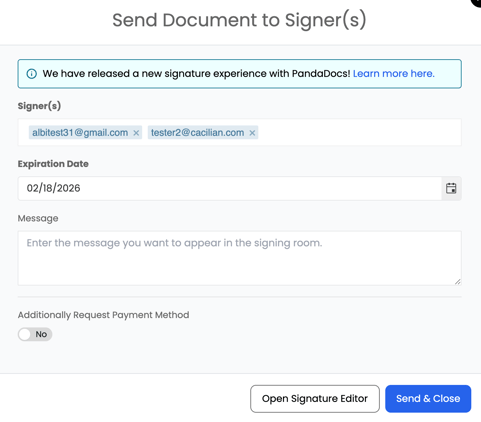
- Enter a valid email address for each signer
- Names alone will not work
- Add one or more signers
- All recipients must be signers (no view-only access)
- Set an expiration date (required)
- Defaults to 90 days
- (Optional) Add a message
- Choose:
- Send and Close, or
- Open Signature Editor (to place signature fields)
Signature Editor
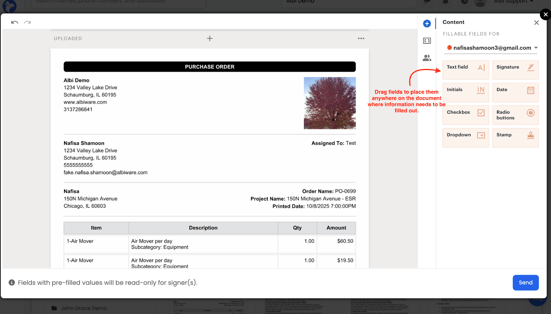
The Signature Editor allows you to prepare the document before sending.
You can add:
- Signature fields
- Text fields (required by default)
- Initials
- Date fields
- Checkboxes
- Radio buttons
- Dropdowns
- Stamps
Drag fields onto the document wherever information needs to be completed.
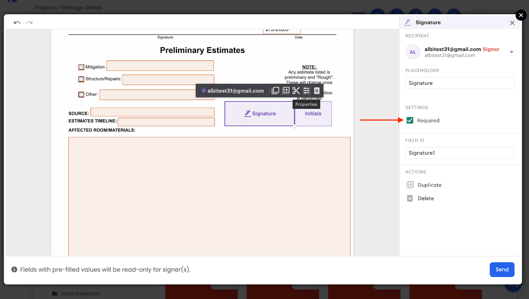
Fields can be marked as Required to ensure they must be filled out before the document can be submitted.
Note: Only signature fields are required by default. Any other fields must be manually marked as Required.
Assigning Fields to Signers
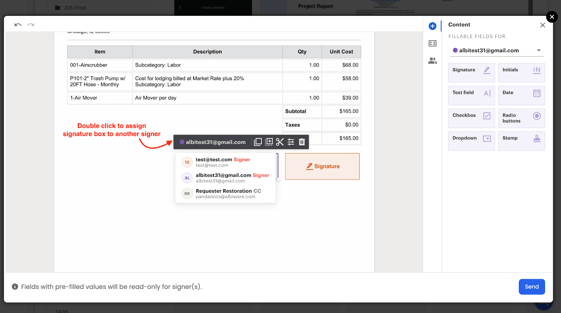
- Fields are assigned to the first signer listed by default
- Double click and use the dropdown to assign fields to other signers
- Every signer must have at least one signature field assigned
- If multiple signers exist, signature boxes must be placed for each signer
Assign and Manage Signature Fields
- Signature fields are automatically assigned to the first signer by default.
- To change the assigned signer:
- Double-click the signature field on the document.
- Select a different signer from the list or start typing a name/email.
- If the signer is not listed, you can create a new recipient directly.
For any signature field, you can:
- Copy
- Duplicate
- Cut
- Edit properties
- Delete the field
Signer details for a specific signature field can also be updated by selecting the signer through the People icon.
Using the People Icon
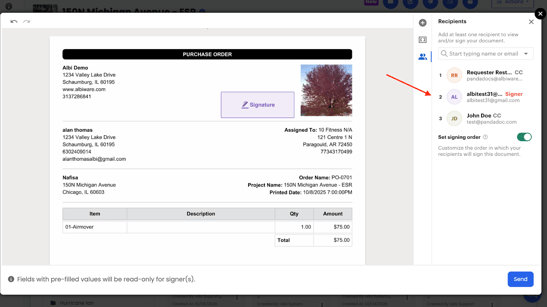
The People icon allows you to manage signers, recipients, and the signing order for a document.
View All Signers
To view all signers on a document:
- Click the People icon.
- A list of all current signers and recipients will appear.
Edit Signer Details
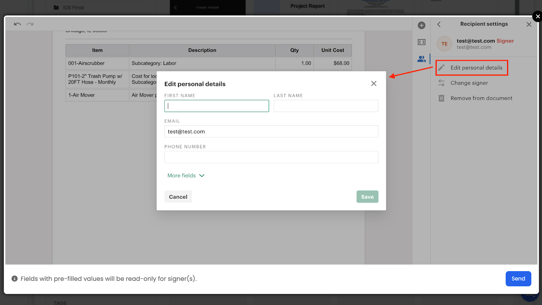
To edit a signer’s information:
- Click the People icon.
- Double-click the signer’s name.
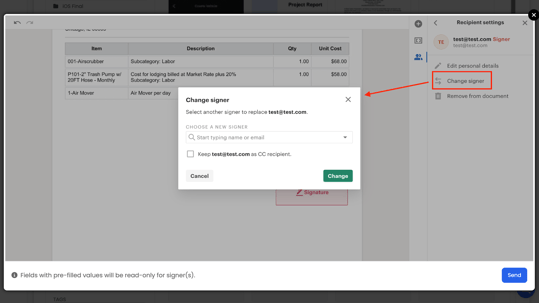
- Choose to:
- Edit personal information (name, email, phone number, etc.)
- Change Signer
- Remove the signer from the document
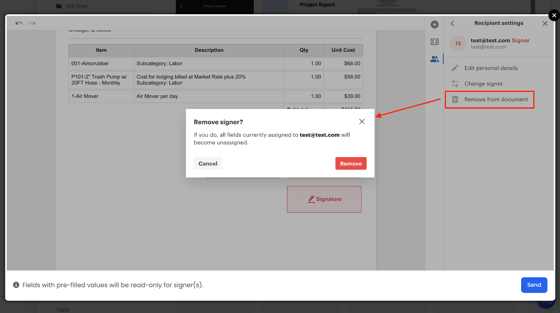
Any changes made here will update the signer details across the document.