
Timesheets
The Timesheets tab allows you to define and manage your timesheet categories and how time is tracked for staff.
You can add a new timesheet type from the Add (+) button in the top-right corner.
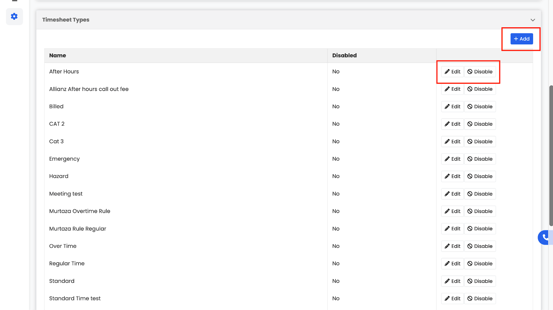
Within the form, you can define the pricing items, time units (hours, days, after-hours, etc.), and select from categories such as:
- Regular Hours
- Overtime
- After Hours
- Emergency
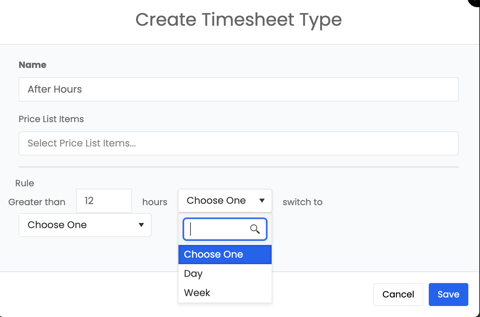
This setup ensures accurate tracking of staff time and labor costs across projects.
Timesheet Settings
The Timesheet Settings tab provides options to configure how timesheets behave across projects.
You can:
- Automatically record all hours associated with deleted projects.
- Enable break tracking and set default break durations (e.g., 15 or 30 minutes).
- Configure auto-end breaks after a set duration.
- Enable geofencing notifications to monitor where staff are clocking in and out.
- This does not prevent users from clocking in or out.
- Instead, if a staff member clocks in or out outside the geofenced area, Albi will send a notification to users who have the Edit Timesheet permission so they can review the entry.
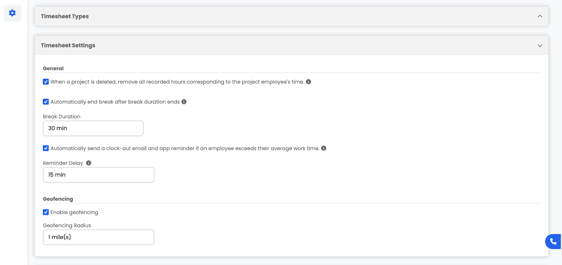
These settings help maintain accuracy and compliance in employee time tracking.