
How to Access Report Settings
- Go to Settings from the left-hand menu.
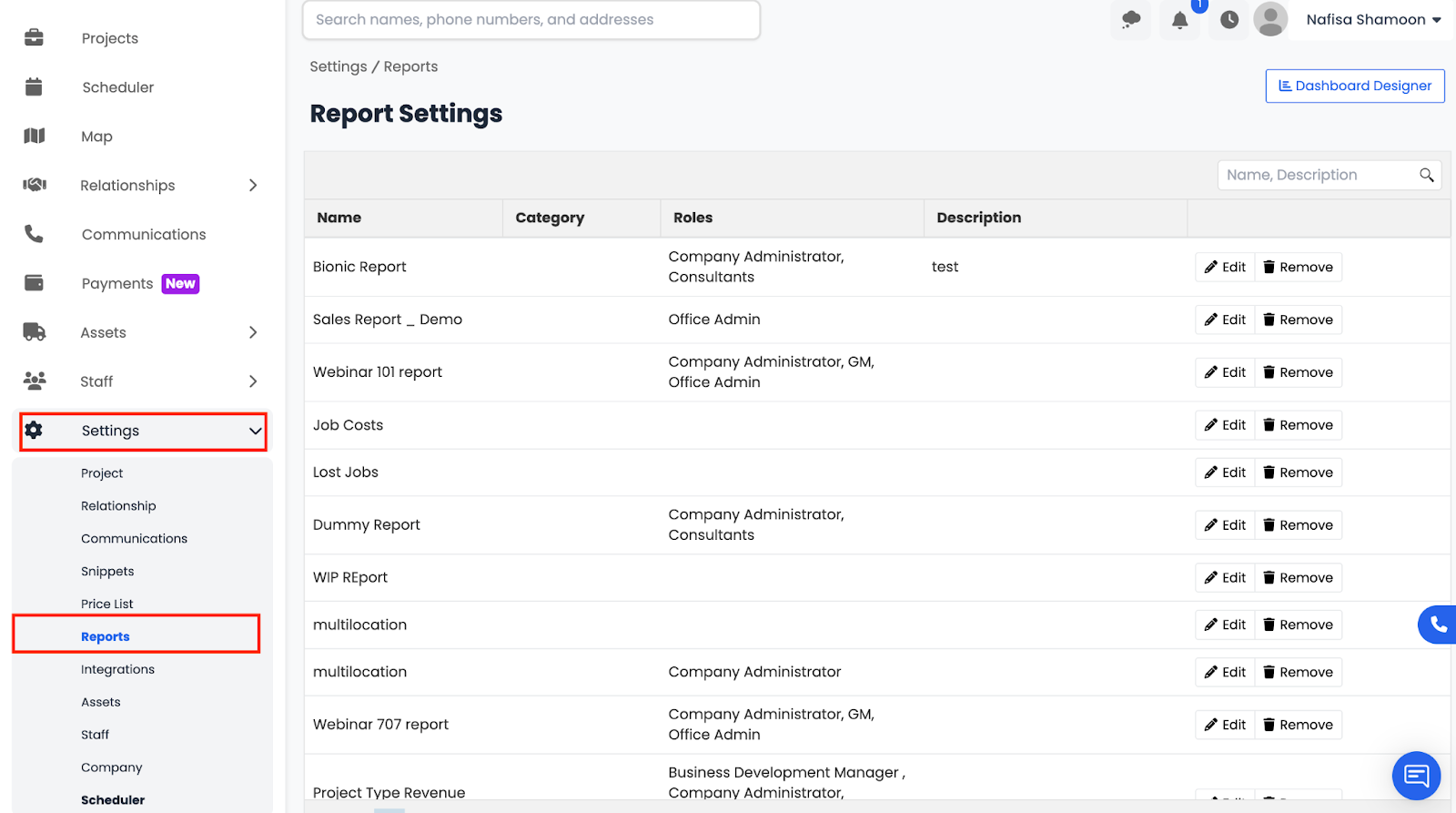
- Select Reports.
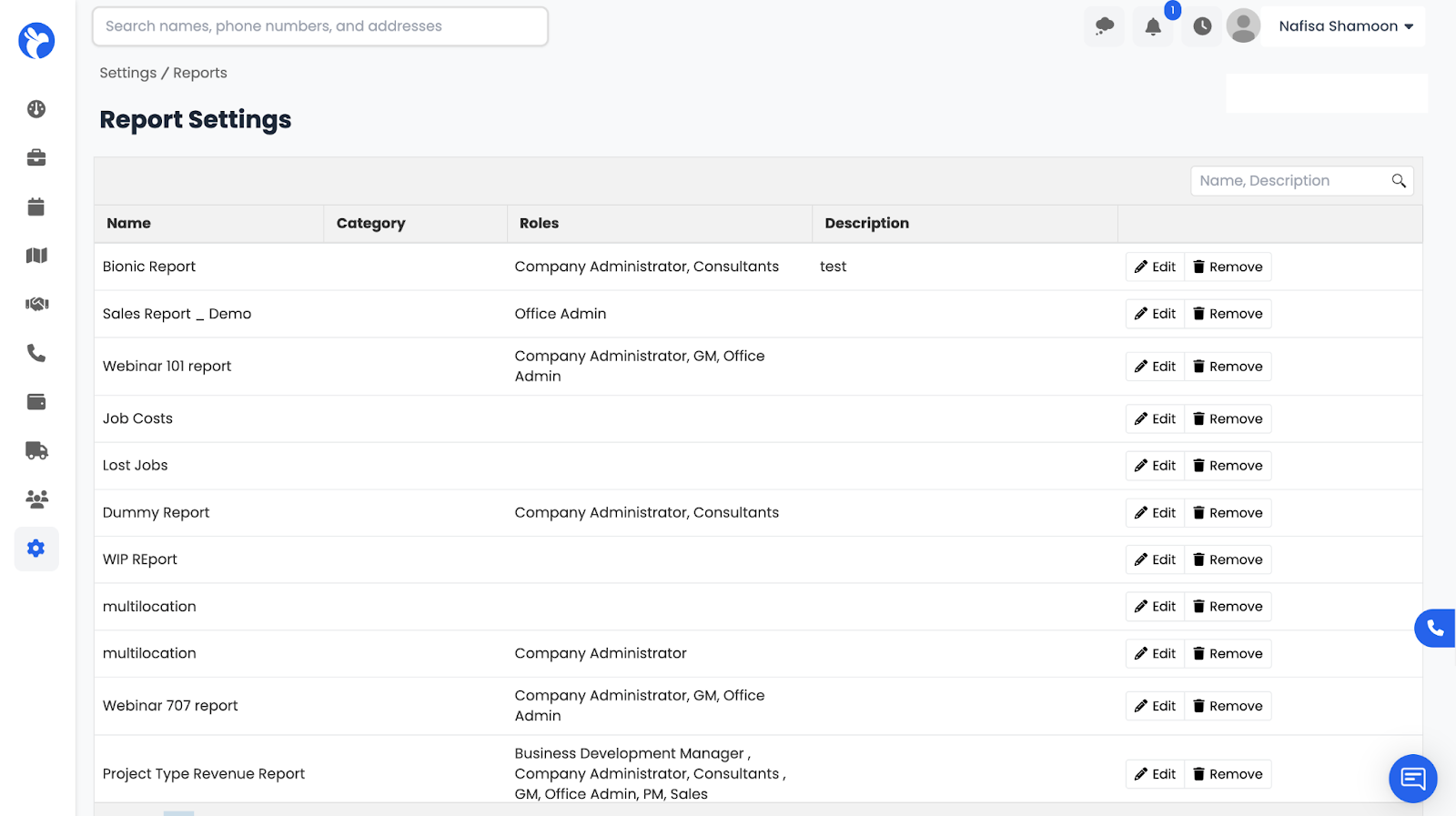
- Your Report Settings Dashboard will open, showing all custom analytics reports created for your company.
How Reports Work in Albi
- Reports cannot be created by regular users.
- All reports are built by Albi’s internal data and analytics team using your company’s job data, financial data, workflow information, and custom needs.
- Each report will show:
- Name
- Roles with access
- Description
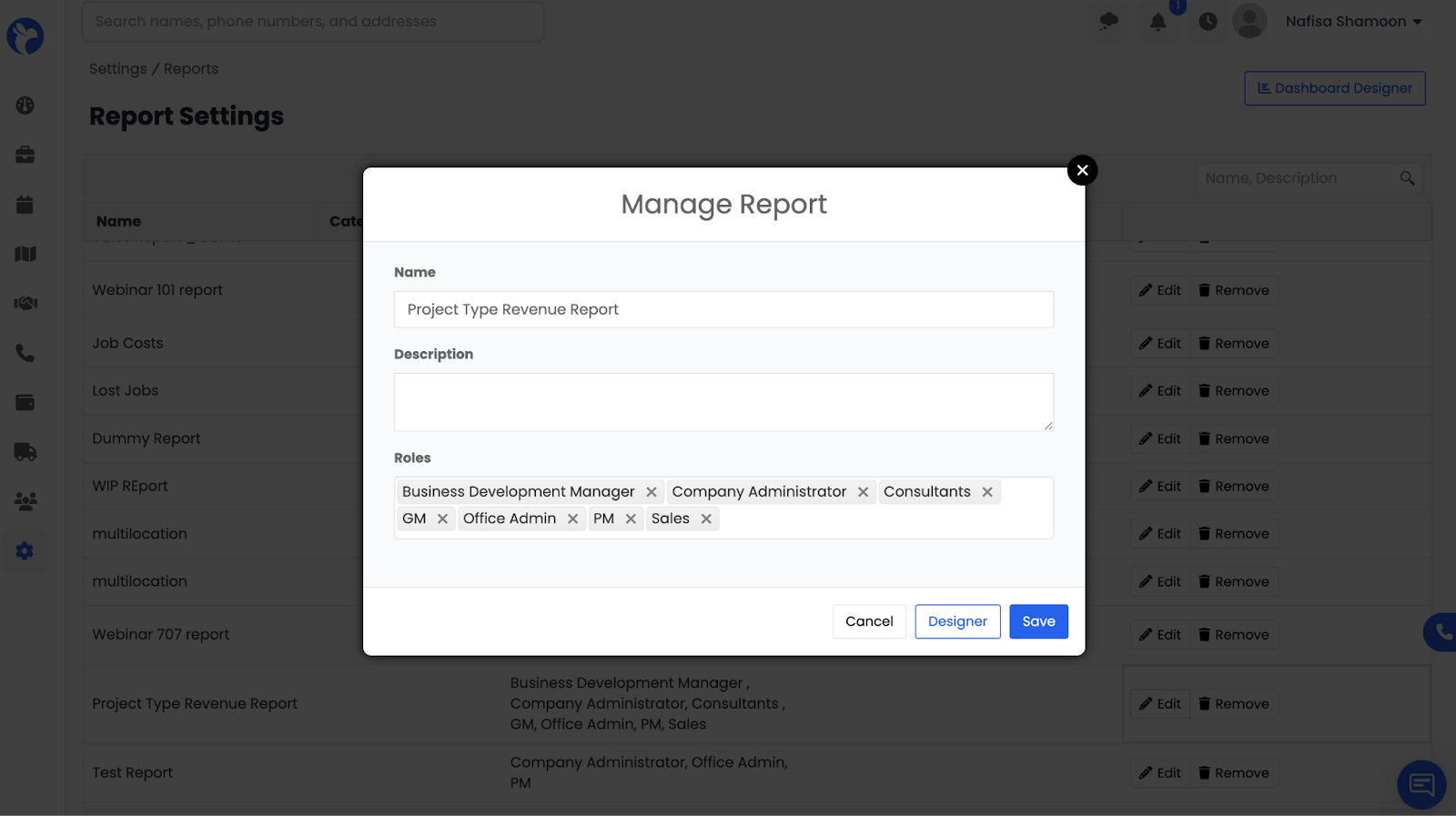
- Your organization can request new custom reports from Albi if your analytics package includes it.
You may use the Edit option to rename a report or adjust visibility (if allowed), and the Remove option to delete access to a report.
Where to Access Reports Dashboard
To access your company’s reports:
- Go to the Dashboard from the left-hand menu.
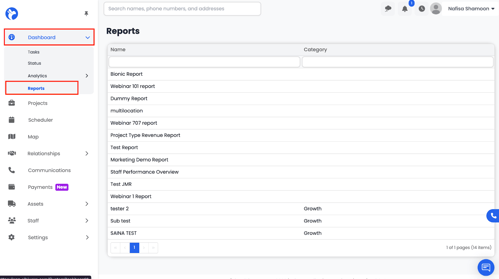
- Click on Reports.
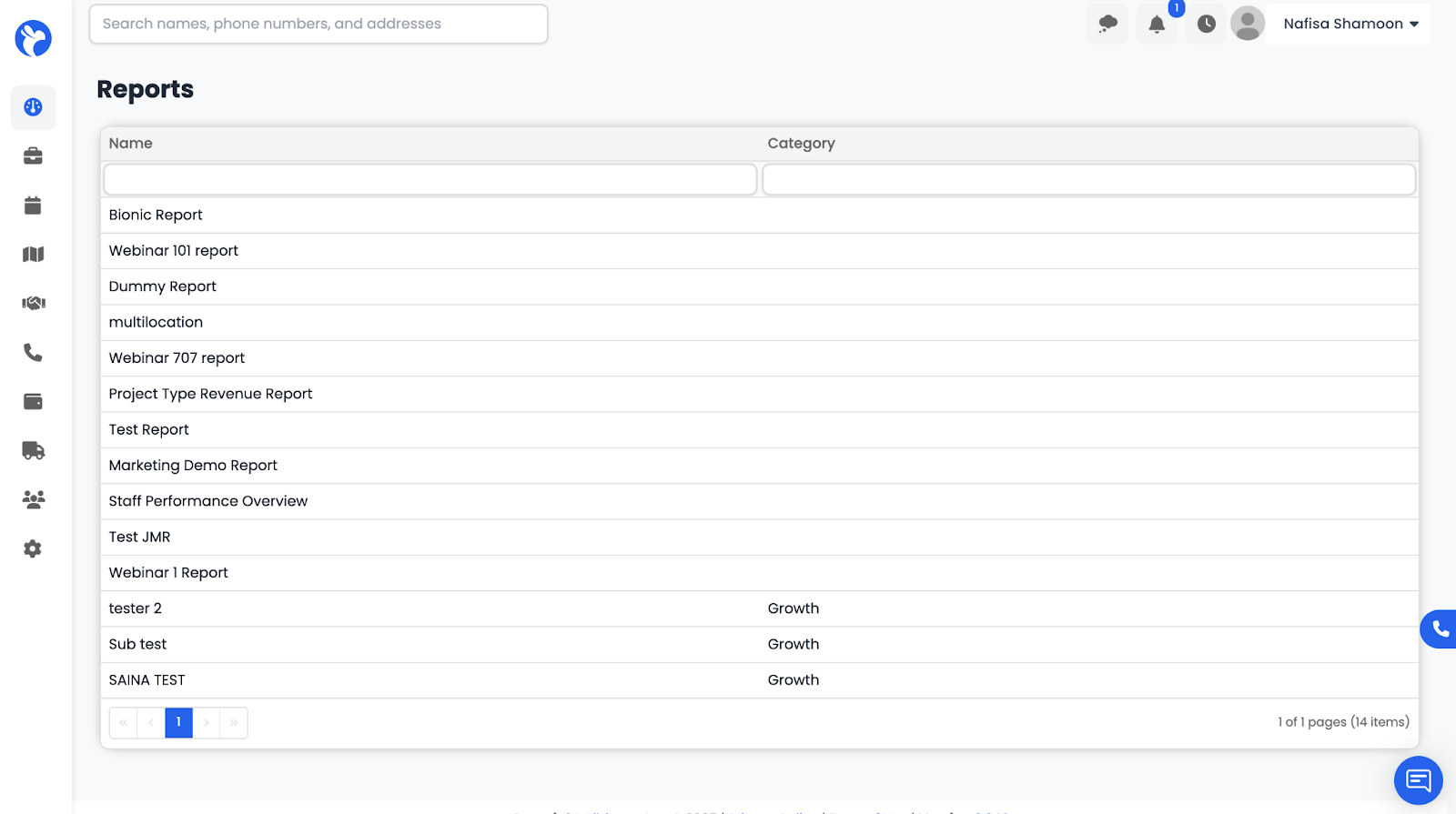
From here, you can open, review, or interact with any reports that Albi’s analytics team has created for your organization.
📘 Note:
Access to the Reports section requires the Albi Analytics package. All reports shown here are custom-built by the Albi team specifically for your company and are tailored to your workflows, data, and reporting needs. If your company has the Albi Analytics package, you may request custom reports through the Albi team. Report availability and access may vary by role, ensuring the right information is visible to the right users.