
Statuses
The Statuses tab under Project Settings lets you create and manage different project status categories and set up time-based thresholds that show how long a project has been in a specific stage using the top right Add button.
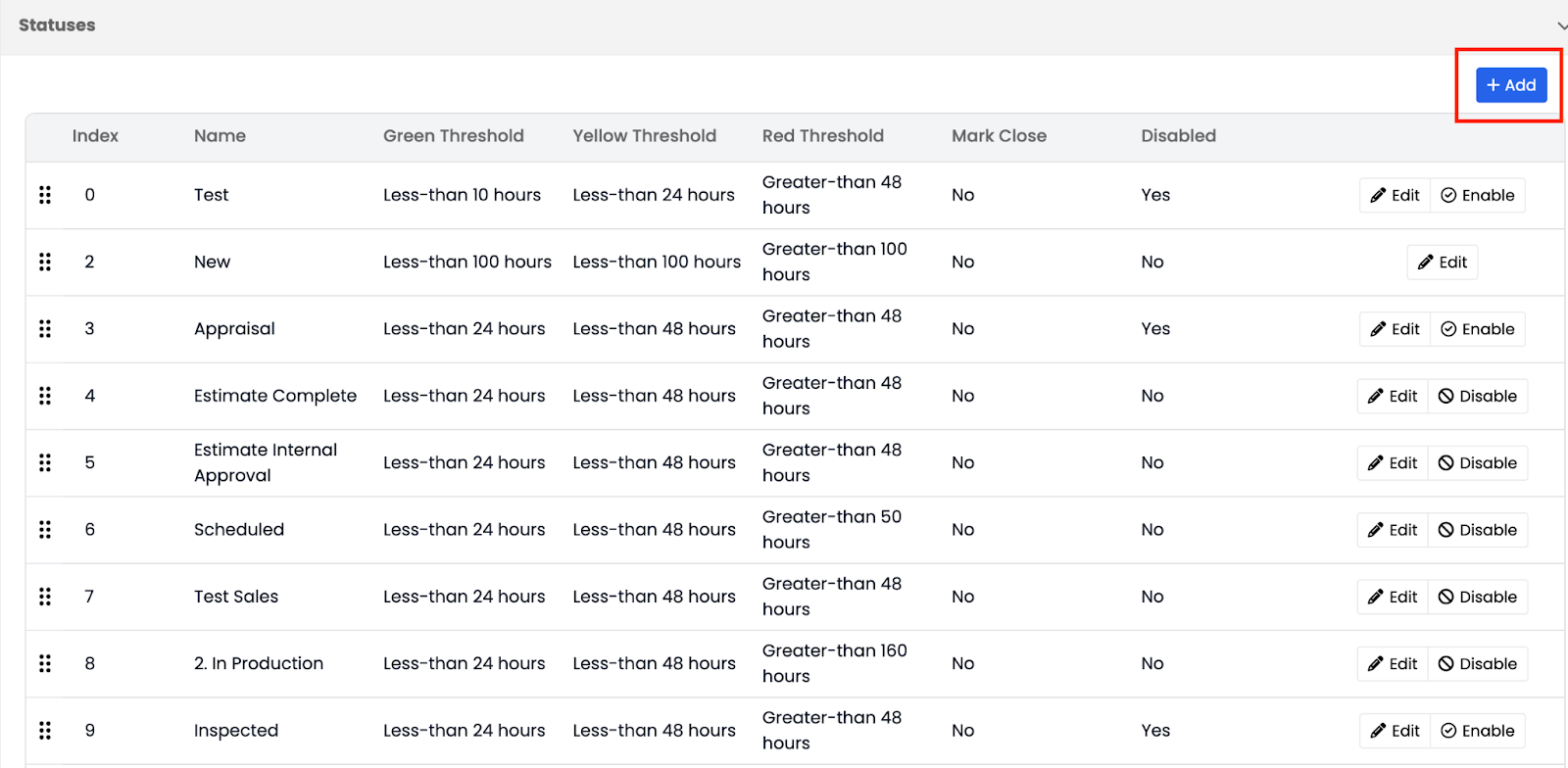
Each status helps you track project progress — for example, Estimate Complete, In Production, Invoiced, etc. You can assign specific time limits to each status, so Albi automatically updates the project’s status color based on how much time has passed.
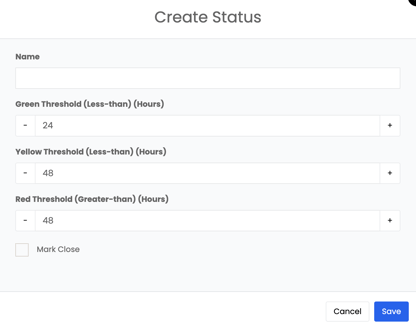
Here’s how the thresholds work:
- Green Threshold – When a project first comes in, it starts in the green stage. This usually means you’re within the ideal timeframe (for example, within 24 hours of receiving the project).
- Yellow Threshold – Indicates that a certain amount of time has passed without action. It serves as a warning that attention is needed soon.
- Red Threshold – Means the project has been delayed for too long and needs immediate attention.
You can name your status categories for example, Appraisal, Estimate Complete, etc to define how long each one should stay active before moving to the next threshold, and fully customize these timelines to match your company’s internal workflow.
Note: If the “Mark Close” checkbox is selected for a particular status, then when a project reaches that status, Albi will automatically mark the project as Closed.
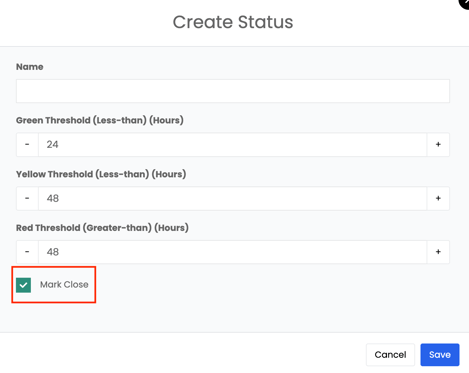
This helps streamline workflows and ensures projects are closed consistently based on your defined status progression.