
Dates
The Dates tab under Project Settings allows you to manage and customize the key milestone dates used throughout your projects. These dates help you track progress and ensure important steps in each project are completed on time.
You can define and name different types of important project dates, such as:
- First Contacted
- Inspection Date
- Arrival on Site
- Work Completed
- Estimate Approved
- Invoiced
- Date of Loss
Each date type can be configured to automatically update based on project activity. For example, when a specific action is completed in one section, the related date can automatically update in another — keeping your project timeline accurate and consistent.
Dates can also update automatically when documents are signed, and if that date is configured to trigger a status update, Albi will update the project status as well. Dates can also be set to trigger status changes on their own, even without a document being signed.
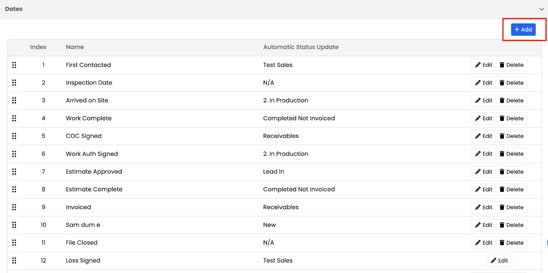
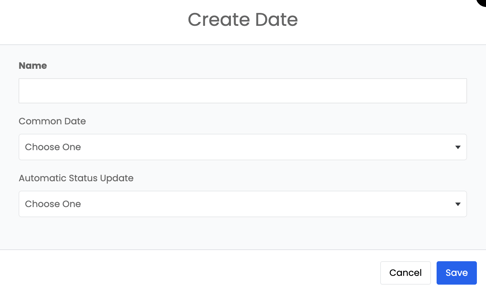
To create a new date, click the Add button in the top-right corner. From there, you can:
- Enter a Date Name (e.g., Estimate Approved).
- Select a Common Date, which uses a preset option from the Albi system.
- Configure an Automatic Status Update to link the date to a specific part of the project, so the date updates automatically when that step is completed.
By setting up and automating your project dates, you ensure accurate tracking and smooth progress visibility across your entire workflow.