
Dates
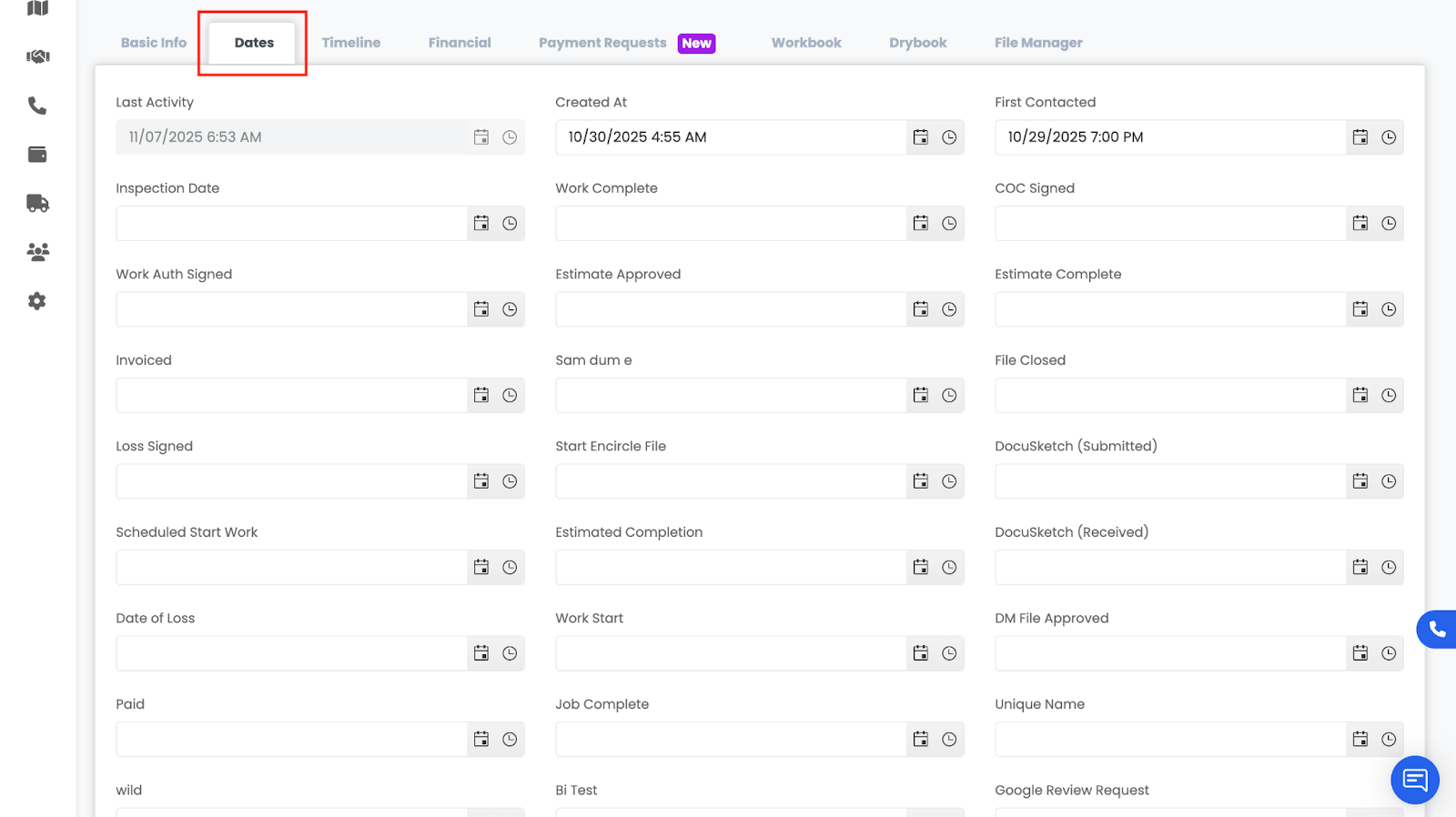
The Dates tab in a project tracks all key milestones and timeline events throughout the job. This section allows you to view, add, and update important project dates such as first contact, inspection date, arrival on site, work completed, estimate created, invoice sent, and more. Dates help keep your project timeline accurate and ensure all team members are aligned on what has been done and what is coming next.
How to Use the Dates Tab
When you open the Dates tab inside a project, you will see a list of date fields such as:
- First Contact
- Inspection Date
- Arrival on Site
- Work Started
- Work Completed
- Estimate Approved
- Invoice Sent
- Date of Loss
- DryBook Completion Date
- Completion Certificate Signed
(Exact fields depend on what your company has configured in Project Settings → Dates.)
Updating a Date
- Click into the date field you want to update.
- Choose a new date from the calendar pop-up.
- Your change will save automatically.
You can update as many dates as needed. All changes are logged and instantly visible to the rest of your team.
Automatic Date Updates
Some dates may automatically populate based on project activity.
For example:
- When a document is signed, a configured date (like “Work Completed” or “Estimate Approved”) can automatically update.
- When an estimate is created or a task is completed, linked dates may also adjust depending on how your settings are configured.
This ensures your timeline stays accurate without requiring manual updates for every event.
Dates That Trigger Status Updates
Depending on your Project Settings:
- A date can be set to automatically trigger a project status change.
- For example:
- When “Work Completed” is filled, the project could automatically move into “Waiting for Invoice” or “Pending Final Inspection.”
- When “Completion Certificate Signed,” the project could automatically move to “Ready to Close.”
- When “Work Completed” is filled, the project could automatically move into “Waiting for Invoice” or “Pending Final Inspection.”
Important to Note:
- Dates can be updated by user input OR by document signatures.
- If a date is configured to trigger a status update, Albi will automatically update the project status when that date is filled.
- Some dates may trigger status changes even without a document being signed.
This automation helps keep your workflow consistent and reduces the need for manual corrections.