
Items
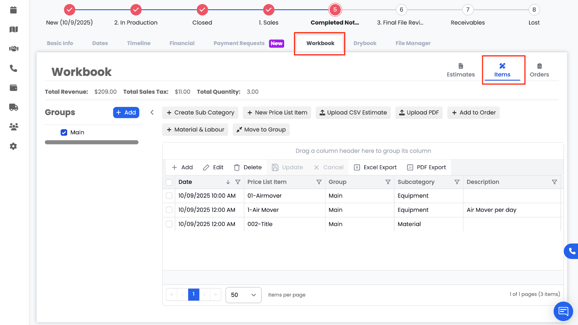
The Items tab contains all the individual components that make up the project. This is where you can organize groups, add items, and build out materials, labor, equipment, and time entries.
Groups
Groups are used to organize estimate and item line entries in a clear, structured way. They help break down work by area, phase, or category so estimates and project items are easier to review and manage.
You can use groups such as:
- Main groups
- Subgroups (for example: Kitchen, Chicago Apartment, Bathroom, Basement)
- Room-based groupings
- Phase-based groupings (Demo, Drying, Reconstruction, etc.)
How Groups Are Created
- Groups are automatically imported from any estimates that are created or pulled into Albi (including Xactimate estimates and uploaded estimate files).
- Groups can also be manually created directly within Albi if additional organization is needed.
This flexibility allows your team to maintain the original structure of imported estimates while still adding or adjusting groups as the project evolves.
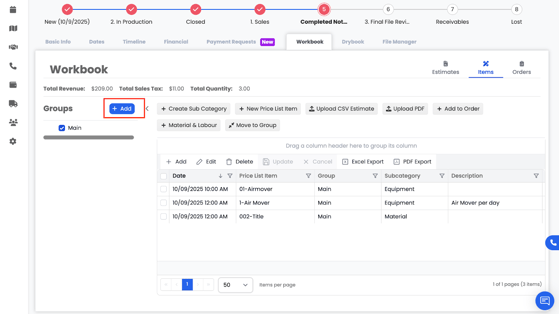
Groups help keep items organized and easy to navigate.
Note: Groups are automatically imported from any estimates that are created or imported into Albi. This includes estimates pulled in from Xactimate, uploaded PDFs or CSV files, and manually created estimates. Imported groups help preserve the original estimate structure and make it easier to review, organize, and invoice line items accurately.
Subcategories
Click Create Subcategory to add a new subcategory.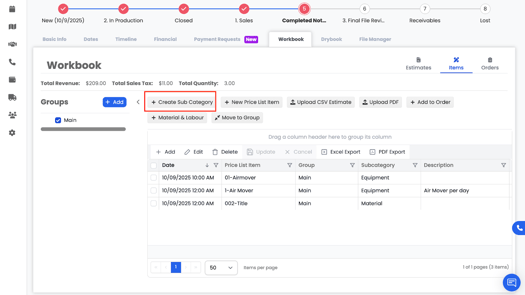
Name it and save it.
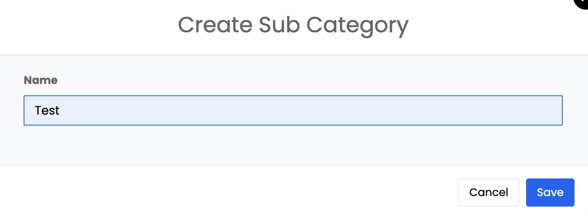
Subcategories help further divide your items into logical sections.
Create New Price List Item
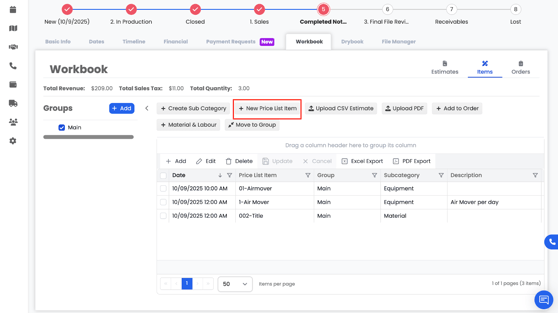
Within the Items tab, you can also create new price list items:
- Code (required)
- Item Name / Title (required)
- Price List selection
- Component Type (Labor, Material, Equipment)
- Unit
- Unit Price
- Description
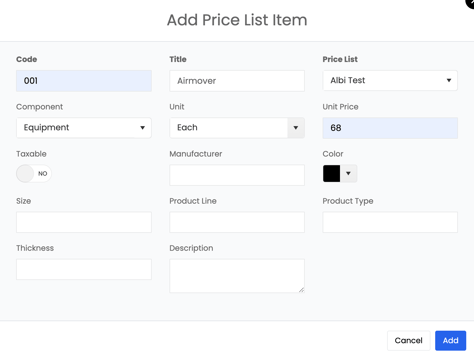
These get added directly into your company’s Price List and can be used across all projects.
Materials& Labor (Equipment and Timesheet)
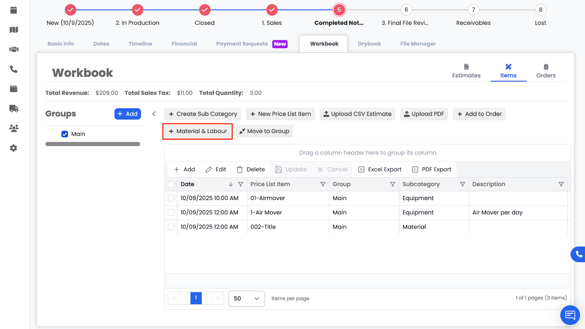
You can add:
- Equipment
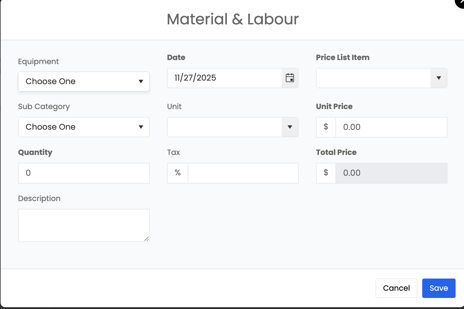
- Timesheet entries
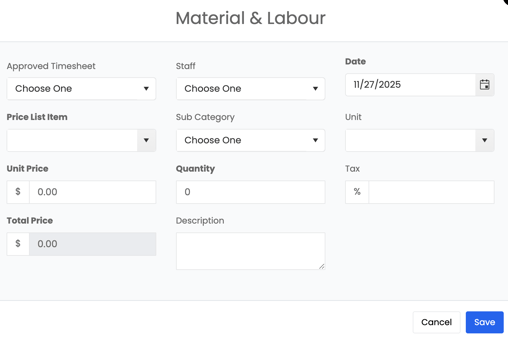
When you click one of the two options, a form will open where you can fill in required fields.
Once saved, the item appears in your Items list.
Editing, Moving & Exporting
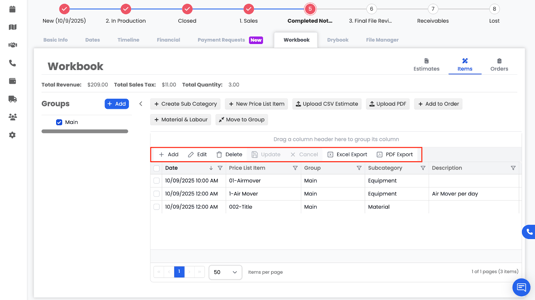
In the slider column, you can:
- Add new items manually
- Edit an item
- Delete an item
- Move items into different groups
- Export to Excel or PDF