
Event Cards: Viewing & Editing an Event
When you click on any event inside the scheduler:
- A pop-up Event Card opens.
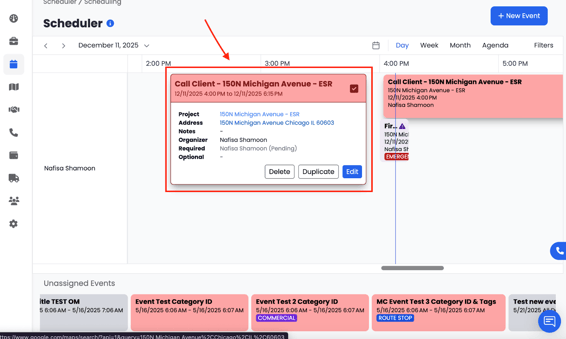
- This card shows:
- Event title
-
- Time & date
-
- Project link
-
- Address
-
- Notes
-
- Required and optional staff
-
- Tags and category badges
- Tags and category badges
From the event card, you can also:
- Edit the event
- Delete the event
- Duplicate the event
This gives you quick access to make updates without opening the full event form.
How Events Display on the Calendar
- Events are displayed for each staff member on their own row.
- The color of the event is determined by the Event Category you assigned during creation.
- Tags display as small coloured labels inside the event block (e.g., Emergency, Commercial).
- Clicking an event opens its detailed card.
- Events automatically align within the calendar based on start and end time.