
Manage Organizations
The Manage Organization page is designed to act as the “hub” for each organization, pulling together information, communication, and financial records in one place. You can access the Manage Company page by either clicking directly on a company’s name in the Organizations list, or by scrolling to the far right of the dashboard and selecting the Manage Company button.
This will open the company “card”, which gives you a full view of that organization.
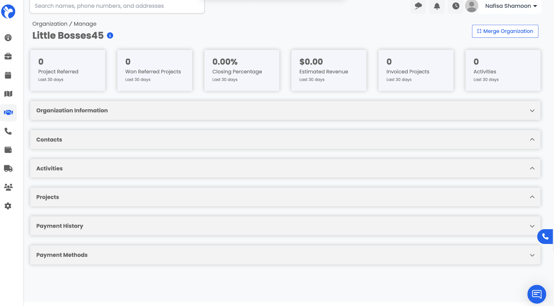
The company card is organized into several tabs:
-
Organization Information – Basic information entered when the organization was created.
-
Contacts – Add new contacts or link existing ones, including names, phone numbers, addresses, emails, and roles.
-
Activities – A timeline of notes and emails tied to the organization, with the option to create new activities.
-
Projects – Displays all projects linked to that organization.
-
Payment History – Shows all past payments related to the organization.
Payment History is specifically connected to Albi Pay. If your company is not set up with Albi Pay, this section will appear blank.
-
Payment Methods – Lists the saved ways this organization pays (credit card, etc.).
The Payment Methods tab shows the organization’s saved payment options used through Albi Pay. If no methods appear, the company isn’t connected to Albi Pay yet.
Organization Information
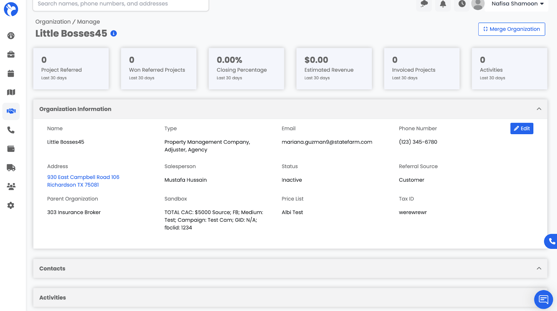
Here you’ll see all the details you entered when the organization was created. This is the central reference point for the company’s information.
It includes:
- Name, Type, and Contact Details (address, email, phone number).
- Parent Organization (if linked to another company).
- Salesperson and Referral Source (who brought the lead in).
- Status and Price List (helpful for sales tracking).
- Sandbox and Tax ID (extra data fields, often used for testing, notes or compliance).
You can click Edit to update any of these details at any time.
Contacts
The Contacts tab stores all the contacts associated with the organization—like customers, referrers,vendors etc.
You can Edit or Remove contacts directly from this list.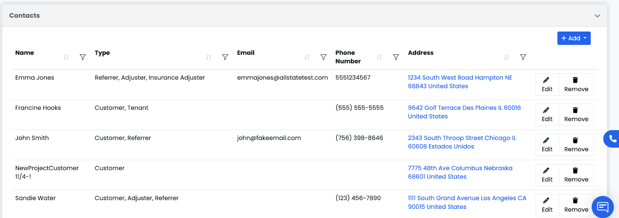
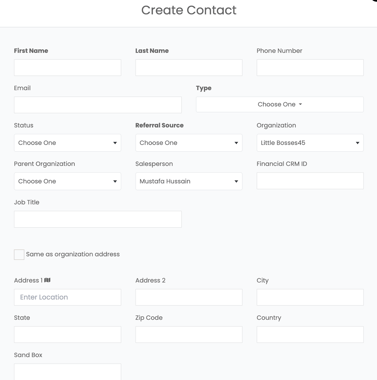
Use the Add button to either create a new contact or associate an existing contact with the:
- Create a new contact (entering name, phone, email, address, and type)
- Associate an existing contact already in the system.
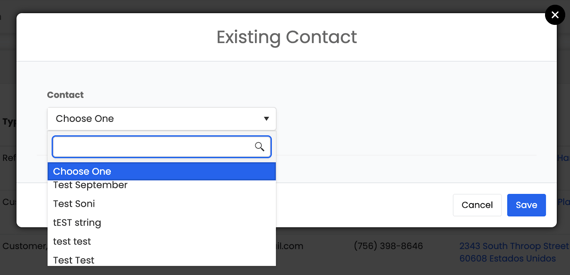
This ensures all key people connected to the organization are tracked in one place.
Activities
The Activities tab tracks all activities logged under the organization and activities logged under any contacts associated with the organization. It can include notes, reminders, sent emails, or follow-ups. (For more details, see the Create Activity section.)
- Each activity shows the date, type, notes, contact, and who created it.
- You can add new activities here with the Add button, and they’ll log automatically.
- Activities keep your communication history organized so nothing gets lost.
Step 1: Click “Add”
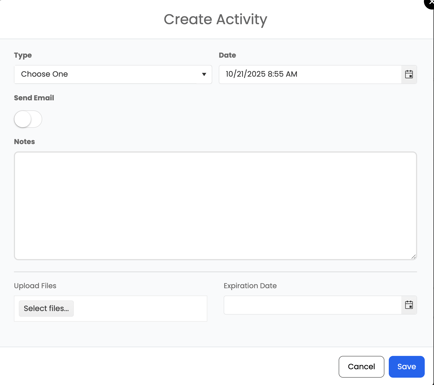
Go to the Activities tab under the organization and click the Add button. This will open the Create Activity form.

Step 2: Fill in the Details
Enter all the necessary information:
- Notes – add comments, updates, or reminders.
- Type – choose what kind of activity it is (e.g., call, meeting, site visit).
- Date – set when the activity happened or will happen.
- Upload Files – attach any supporting documents or images.
Step 3: Send as an Email (Optional)
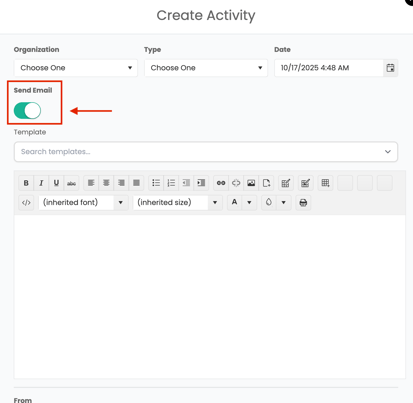
If you’d like the note to also go out as an email, switch the Send Email toggle on.
- Templates: You can pick a pre-made template to save time and keep communication consistent.
- Email Editor: A built-in text editor allows you to format the email (bold, bullet points, images, links, etc.), just like a normal email tool.
- Recipients: The “To” drop-down will include:
- All Albi staff emails (always shown).
- Any contacts linked to the organization that have a valid email address saved in their contact information.
📌If contact associated with the organization does not have an email address associated with their contact information, the contact will not show up in the email list drop down.
- From Field: Shows who the email will be sent from, ensuring clear communication.
This means you can write an activity note and instantly share it via email without leaving Albi. Both the note and the email record will then show up in the Activities section of the organization.
Once sent, the email will be saved as part of the activity log for that organization.
Step 4: Save the Activity
Click Save to add the activity. It will now appear in the organization’s activity history along with the date, type, and author.
Projects
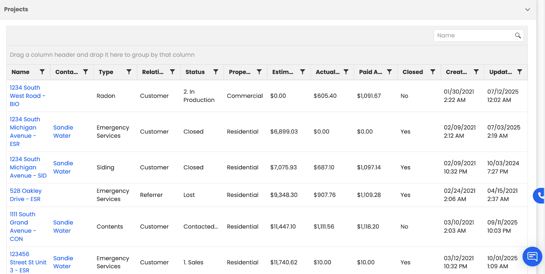
In the Projects tab, you’ll find all projects linked to that organization. This makes it easy to see what work has been or is being done for them.
Each project record includes:
- Name and Contact – which person and company it’s tied to.
- Type of Work – e.g., siding, contents, emergency services.
- Relationship - shows how the company or contact is connected to the project (for example, homeowner, property manager, adjuster, subcontractor, etc.).
- Status – whether the project is in production, closed, or lost.
- Property Type – commercial or residential.
- Financial Details – estimated vs. actual cost, amounts paid, invoiced totals.
- Dates – when the project was created, updated, and closed.
Payment History
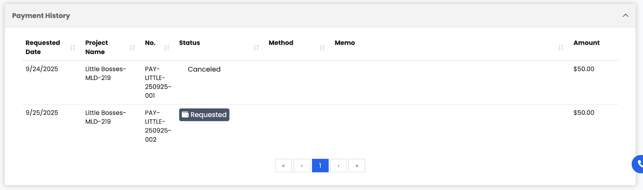
The Payment History tab shows all past payments related to the organization. It’s the record of what has been billed and paid over time.
Each row includes:
- Requested Date – when the payment was logged.
- Project Name – which project the payment belongs to.
- Number – unique payment record ID.
- Status – whether it was requested, completed, or cancelled.
- Method & Memo – how the payment was made and any notes.
- Amount – total payment value.
This tab acts as a financial record that helps you track what’s been billed or collected.
📘Note: Payment History is specifically connected to Albi Pay. If your company is not set up with Albi Pay, this section will appear blank.
Payment Methods
The Payment Methods tab displays the organization’s saved payment options, such as credit cards, bank accounts, or other linked payment types. These methods are used to process payments through Albi Pay.
If no payment methods are listed, it means the company is not currently connected to Albi Pay. Once Albi Pay is enabled, all available payment methods will be displayed here for easier billing and faster transaction processing.

KPI Overview
At the top of the Manage Organization page, you’ll see a series of KPI (Key Performance Indicator) cards. These cards give a quick snapshot of the organization’s performance and activity within Albi. Each KPI automatically pulls live data from projects, invoices, and activities linked to that organization.
The KPI’s help you quickly understand how much work the organization has referred, how many of those projects have been converted, the revenue generated, and the overall engagement level.
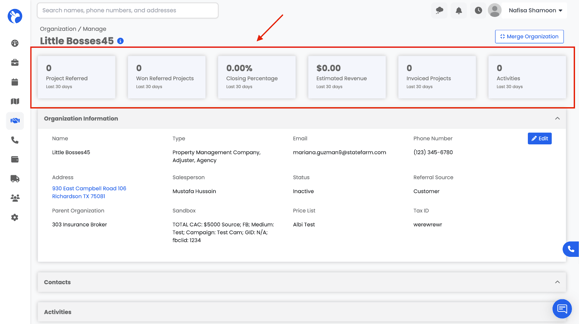
Below is a breakdown of what each KPI card represents:
- Projects Referred - Number of projects where the organization is added as a project relationship with the type of 'Referrer' assigned.
- Won Referred Projects - Number of projects from the 'Projects Referred' total where the accrual revenue of the project is greater than 0.
- Closing Percentage - When 'Projects Referred' count is greater than 0, then the 'Won Referred Projects' amount is divided by 'Projects Referred' amount. If 'Projects Referred' count is 0 then the 'Closing Percentage' card will read 0.
- Estimated Revenue - Sum of the estimated revenue from the 'Projects Referred'.
- Invoiced Projects - If the company is not connected with QBO then the 'Invoiced Projects' will match the 'Won Referred Projects' card. If the company is connected to QBO, then the card will reflect the number of invoices added to any projects that the organization is listed on as the customer.
- Activities - Count of all relationship activities for that organization as well as any contact that is listed as a contact under the organization.