
The Home screen in the Albi mobile app is your main dashboard. It gives you quick access to the things you use most often, such as clocking in, viewing assigned projects, checking nearby or recent projects, and managing your tasks for the day.
This screen is designed to help you start work quickly and stay organized throughout the day.
Note: The Time Clock section may not appear at the top of the Home screen. You can use Manage Home Screen to choose the order in which Quick Start sections appear.
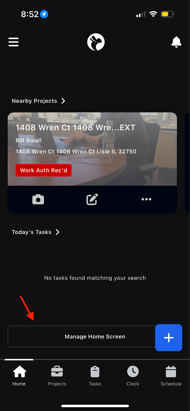
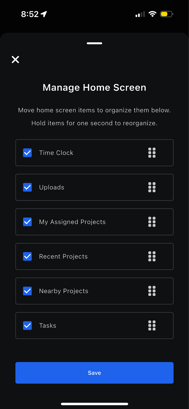
Time Clock
What is the Time Clock?
The Time Clock allows you to clock in to projects you are assigned to directly from the Home screen. This is how Albi tracks when you start working, which project you’re working on, and what type of hours you’re logging.
How to use the Time Clock
- Open the Albi mobile app
- On the Home screen, locate the Time Clock section at the top
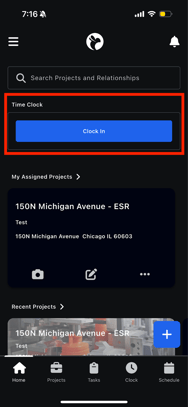
3. Tap Clock In
4. Select the project you want to clock into
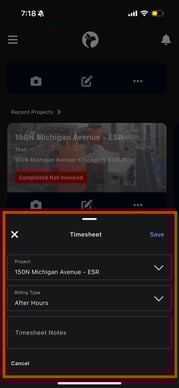
-
- For example:
- Regular Hours
- After Hours
- Emergency Hours (if applicable)
- For example:
6. Confirm to clock in
Once you complete these steps, your time is tracked under the selected project and the selected hour type.
Why selecting the hour type is important?
Selecting the correct hour type ensures:
- Your time is logged accurately
- Billing and reporting are correct
- Management can properly track regular vs. after-hours work
Always make sure you choose the option that best matches the work you are doing.
When should you use the Time Clock?
- When you arrive on-site
- When you begin working on a project
- When switching between projects
- When starting work that falls under a different hour type (for example, moving from regular hours to after-hours work)
My Assigned Projects
What are Assigned Projects?
The Assigned Projects section shows all projects that have been assigned to you. These are the projects you are expected to work on.
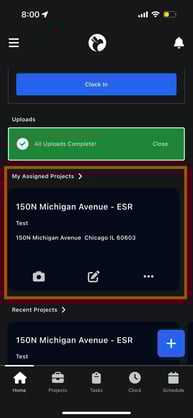
Each project card shows:
- Project name
- Address
- Project status (for example: Completed Not Invoiced, Receivables, etc.)
Opening a Project
- Tap on a project card to open the project details
Project Action Icons
Each project card includes three important action icons that let you perform quick actions without opening the full project.
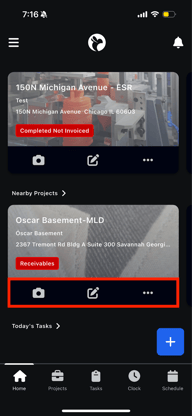
Camera Icon 📷
- Allows you to take photos or videos and attach them directly to the project
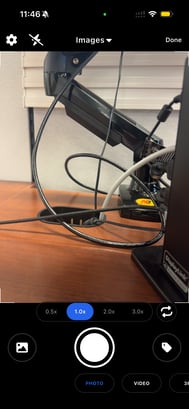
- Useful for documenting site conditions, progress, or completed work
Create Note Icon ✏️
- Allows you to create a note for the project
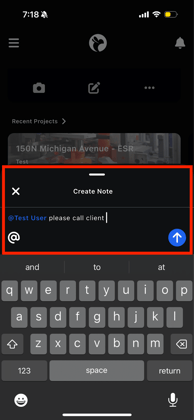
- You can type updates, reminders, or instructions
- You can @mention other users in a note
- Mentioned users will receive a notification
Example:
“@Test User please call client”
Once saved, the note is added to the project and notifications are sent.
Three-Dot Menu (More Options)
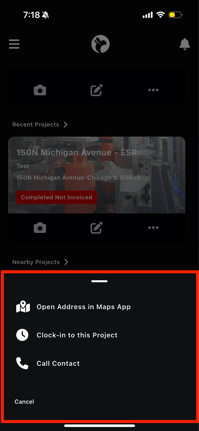
Tapping the three-dot icon opens additional project actions:
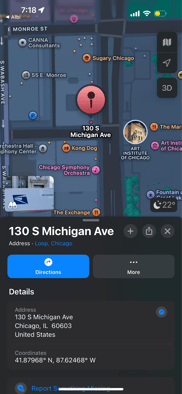
- Open Address in Maps App
Opens the project location in your phone’s maps app for navigation
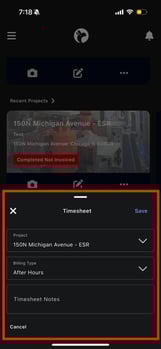
- Clock In to This Project
Quickly clock into the selected project
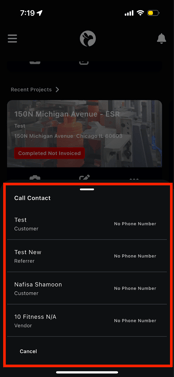
- Call Contact
Displays a list of project contacts (customer, referrer, vendor, etc.)
You can tap a contact to call them (if a phone number is available)
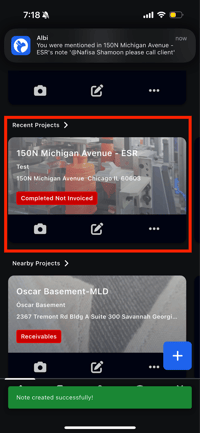
Recent Projects
What are Recent Projects?
The Recent Projects section shows projects you have worked on recently. This makes it easy to return to a project without searching for it again.
When is this helpful?
- If you are working on the same project over multiple days
- If you need to quickly add notes, photos, or updates to a recent job
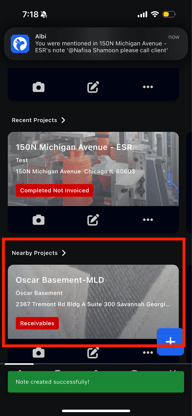
Nearby Projects
What are Nearby Projects?
The Nearby Projects section shows projects that are close to your current location.
Why use this?
- Helps field staff quickly find nearby jobs
- Useful when working in the field or traveling between sites
Today’s Tasks
What is Today’s Tasks?
The Today’s Tasks section displays all tasks assigned to you that are scheduled for the current day.
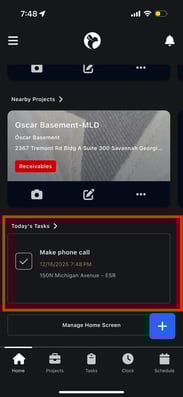
Each task shows:
- Task name
- Associated project
- Current status
Managing Task Status
You can update the status of a task directly from the Home screen:
- Tap the checkmark (✓) next to a task
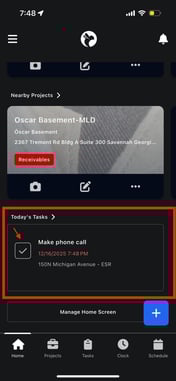
2. The task will move from To-Do to In Progress
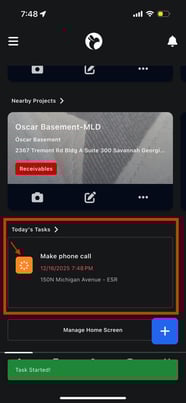
3. Tap the checkmark again once the task is finished
4. The task will be marked as Done
This helps keep your work organized and lets others know the progress of your tasks.