
What Are Project Labels?
Project types and statuses describe what a project is and where it is in your pipeline. Labels cover everything else — a lightweight, at-a-glance marker for things like insurance vs. self-pay, VIP customers, jobs on legal hold, or priority work.
A label is a short, colored tag your company defines once in Settings and applies to individual projects. It shows on the project header and in project pickers, so anyone opening the project sees the flag right away without reading notes.
Labels also appear as a Label column on the project grids and in the Project Status Dashboard, and you can filter by them in both places.
A few things to know up front:
- Labels are per company. Your company manages its own set — there are no global or Albi-provided labels.
- One label per project. In this release, selecting a different label replaces the current one. Multi-label support is planned for a future version.
- Web and mobile share the same rules. The mobile app is being built in parallel, so behavior will match across platforms as it rolls out.
Where to Find Labels
Managing labels (admins): Go to Settings → Project Settings → Labels. The grid lists every label with its color, project-type scope, status, and how many projects it is applied to. From here you can create, edit, activate/deactivate, merge, and delete — including bulk actions using the row checkboxes.
Applying labels (anyone working projects): An optional label picker appears in:
- The New Project form
- Project → Basic Info (edit)
- The Project header — apply, replace, or remove without opening a form
- The Answered Call flow, when creating a project from a call
- Duplicate Project — the form pre-fills the source project's label, which you can change or clear before creating the copy
Seeing and filtering labels (anyone working projects): Labels show as a colored chip in the Label column on the Projects, Staff → Projects, Contact → Projects, and Organization → Projects grids, and in the tile detail pane on the Project Status Dashboard. Both the grids and the dashboard can filter by label. See Labels on Project Grids and Labels on the Project Status Dashboard below.
Creating a Label- Go to Settings → Project Settings → Labels
- Select Create Label
- Enter the label details:
- Name — required, up to 12 characters (spaces around it are trimmed automatically). Names must be unique across your whole company, including inactive labels.
- Color — choose one of 9 preset colors: Red, Orange, Amber, Green, Teal, Blue, Violet, Pink, or Gray. Two labels can share a color; only the name must be unique.
- Project type scope — apply the label to all project types or a handpicked set.
- Save
Tip on scope: "All types" automatically includes any project types you create later. A hand-picked set — even if it happens to include every type today — stays pinned to exactly those types, so new types won't be covered automatically.
Applying a Label to a Project
The picker on any project only shows labels that are active and in scope for that project's type. Here is how each action behaves:
- Apply a label to an unlabeled project — the label is applied and the project timeline records "label applied".
- Pick a different label — the old label is replaced (one label per project); the timeline records the change showing both names.
- Clear the label — the label is removed and the timeline records the removal. Clearing an already-unlabeled project does nothing.
- Re-apply the label the project already has — nothing changes; no duplicate and no timeline noise.
Good to know: a project can display a label that no longer appears in the picker. This happens when the label was deactivated, or its type scope was narrowed, after it was applied. Existing projects keep the label — it simply can't be newly applied. This is by design.
Labels on Project Grids
The Label column
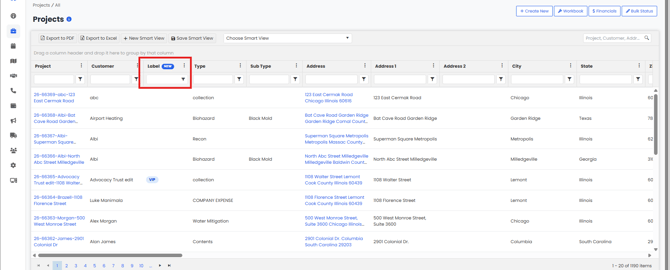
A Label column — marked with a New pill in its header — appears on all four grids that list projects:
- Projects (the main project list)
- Staff → Projects — the projects on a staff member's record
- Contact → Projects
- Organization → Projects
The cell shows the label as a colored chip, the same chip used on the project header. A project with no label shows an empty cell. If a project ever carries more than one label, the first chip shows and the rest fold into a +N pill — hovering the cell lists every name.
The column sorts and groups like any other column. Grouping by Label puts the unlabeled projects under a "No label set" header instead of a blank one.
Filtering by label
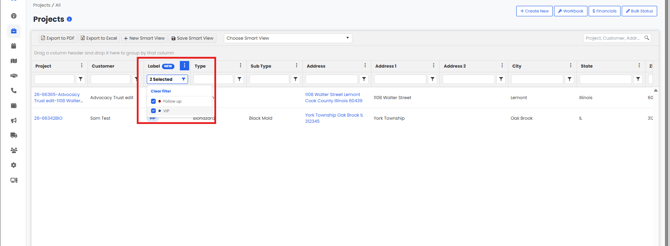
The Label column filter is a multi-select dropdown, not a single-value box. Tick as many labels as you need and the grid returns projects carrying any of them — OR, not AND. So "Insurance + VIP" means insurance jobs or VIP jobs, not jobs that are both.
- Unticking everything — or Clear filter in the dropdown — goes back to all projects.
- The dropdown lists inactive labels too, deliberately. Projects keep an inactive label, so you still need to be able to filter for it. This is the one place inactive labels do appear in a dropdown — pickers on a project still hide them.
- It combines with the other column filters as usual: label AND type AND status, and so on.
- The Label column's ⋮ menu keeps Sort and Columns but no longer offers Filter. The dropdown in the filter row is this column's filter; a second one would fight it.
Labels on the Project Status Dashboard
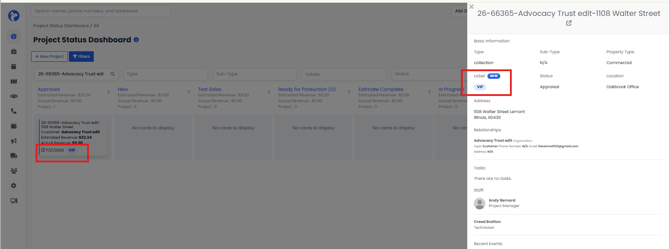
- Labels filter in the filter bar, right after Sub-Type. Same multi-select and same "any of these" behavior as the grids. It applies when you hit Refresh, along with the rest of the bar, and it is kept with the rest of your saved filter selection.
- Labels in the tile detail pane. Double-clicking a project tile opens the side pane; Label now sits in Basic Information, just before Status. It shows up to two chips plus a +N pill (hover for the full list), or "No label set".
The pane is read-only by design. Labels are applied on the project itself — project header, Basic Info, or the New Project form — not from the dashboard.
Good to know: still one label per project. The grid cell and the dashboard pane are built to display several chips because multi-label support is coming, but this release does not change the rule — picking a new label still replaces the old one.
Activating and Deactivating a Label
Deactivating is the "retire it gently" option — use it when you want a label out of circulation but don't want it stripped off existing projects.
- Deactivating never removes the label from any project. Every project that carries it keeps showing it. It only disappears from pickers, so it can't be applied to new projects.
- Reactivating instantly puts it back in the pickers — nothing else changes.
- The Status pill in the Settings grid is clickable; a single click toggles active/inactive. Bulk Activate/Deactivate is available from the selection bar, and labels already in the requested state are simply skipped.
- An inactive label still holds its name, so you can't create a new label with the same name until the old one is deleted or renamed. Inactive labels can still be edited, merged, and deleted.
- Inactive labels still appear in the Label filter on project grids and in the Status Dashboard's Labels filter, so projects carrying them stay easy to find.
Deleting a Label
- Deleting a label removes it from every project it was applied to. Each affected project gets a timeline entry noting the label was removed because it was deleted, so the history is preserved.
- The confirmation dialog shows what is about to happen; a bulk delete confirms once for the whole selection.
- The deleted label's name becomes reusable immediately.
Recommendation: if you might want a label back later, deactivate it instead of deleting it. There is no self-serve undo for a delete in the app.
Merging Labels
Merging folds one or more source labels into a target label: every project carrying a source label gets the target label instead, and the source labels are deleted. This is the tool for cleaning up duplicates like "Insurance", "Insurance", and "INS".
To merge:
- Single merge — open a label's editor, then choose the ⋯ menu → Merge.
- Bulk merge — select multiple labels in the grid, then choose Merge in the selection bar. All selected labels become sources.
You'll pick the target from a searchable list (sources are excluded, since a label can't merge into itself), then confirm a summary of the change before anything happens.
What happens on merge:
- A project with only the source label now shows the target label, with a "merged into…" timeline entry.
- A project that already has the target label is unchanged — no duplicate, no timeline entry.
- If the source and target have different type scopes, the target's scope becomes the union of both. If either side was "all types", the merged label becomes "all types". This widening is permanent unless you edit the label afterward.
- After the merge, the source labels are deleted and their names become reusable.
Heads up: merging is not reversible from the app. If you merge the wrong labels, you'll need to recreate the source label and re-apply it manually — the affected projects' timelines show the "merged into" entries so you can find them.
Seeing Where a Label Is Used
- The Projects applied column counts projects that currently carry the label (deleted projects are excluded). "Not applied" means zero.
- Hovering the count shows the first 5 projects; View all opens a side panel with the full list. Clicking a project there opens it in a new tab.
- Every label event on a project — applied, replaced, removed, removed by delete, or merged — is written to that project's timeline with the label name(s). The project timeline is the source of truth for who changed a label and when.
- For an ad-hoc look at everything carrying a label, filter the Label column on the Projects grid or use the Labels filter on the Project Status Dashboard.
Frequently Asked Questions
I created a label but my team can't select it on a project.
Check three things, in order: (1) Is the label Active? (2) Does its project-type scope include that project's type? (3) Was it deleted? The picker only shows active, in-scope labels.
A project shows a label that no longer appears in Settings' pickers.
The label was deactivated, or its scope was narrowed, after it was applied. The project keeps it on purpose. To remove it from that project, clear or replace it from the project header or Basic Info. That project is still easy to find — the grid's Label filter and the dashboard's Labels filter both list inactive labels.
It says the name already exists, but I don't see it in the list.
The grid may be filtered — clear the Status and Type filters and search again. An inactive label with that name still reserves it. Names are unique company-wide (12-character max), regardless of type scope. Only deleting the old label frees the name.
We created a new project type. Why do only some labels show up for it?
Labels scoped to "all types" cover new types automatically. Labels with a hand-picked type list do not — even if that list included every type at the time. Edit those labels and add the new type, or switch them to "all types".
Can a project have two labels?
Not in this release — one label per project, and picking a new one replaces the old. Multi-label support is planned for a future version. The grid cell and the dashboard detail pane are built to show several chips plus a +N pill because multi-label is coming, but the one-label rule still applies today.
Why did a label start appearing for project types it wasn't meant for?
Almost always a merge: the surviving label's scope becomes the union of both labels' scopes, and if either was "all types", the result is "all types". You can edit the label and re-narrow the scope — existing assignments aren't affected by narrowing.
A bulk action showed an error — did anything happen?
Possibly. Bulk actions process labels one at a time, so any labels before the failure already went through. The grid refreshes to the true state after the error — check the list and retry whatever is left.
I ticked two labels in the grid filter and got more projects than I expected.
The Label filter is "any of these", not "all of these". Ticking Insurance and VIP returns every project carrying either one. Tick a single label to narrow it, and combine with the other column filters — type, status, and so on — to cut the list down further.
Why does an inactive label still show up in the Label filter?
On purpose. Deactivating a label never strips it from projects, so people still need a way to find those projects. The filter dropdowns on the grids and the Status Dashboard are the one place inactive labels appear — the pickers on a project still hide them, so an inactive label can be filtered for but not newly applied.
The Label column's ⋮ menu doesn't have a Filter option.
That's expected. The dropdown in the grid's filter row is that column's filter, so a second entry point isn't offered. Sort and Columns are still in the ⋮ menu.
Can I change a project's label from the Status Dashboard?
No — the tile detail pane is read-only by design. Apply, replace, or clear a label on the project itself: the project header, Project → Basic Info, or the New Project form.
Is this available on mobile?
Mobile support is being built in parallel and shares the same rules, so everything in this guide applies there too. Check the release notes for which mobile version includes it — until then, managing labels stays in web Settings. The Label column on grids and the Status Dashboard Labels filter shipped in the web app.
I deleted or merged a label by accident — can I get it back?
There's no undo in the app, but the data isn't physically erased. Contact Albi Support with your company and the label name and we can look into restoring it. Note that the name may have been reused in the meantime, so whenever you think you might need a label later, deactivate it instead of deleting.