
What is Payments?
The Payments feature in the Albiware mobile app allows you to request money directly from a project. Instead of sending payment requests outside the system, Albiware lets you create and send a payment request that stays linked to the correct project, customer, and invoice.
This helps ensure:
- Payments are tracked correctly
- The right person is billed
- There is a clear record of what was requested and why
Payments are commonly used for:
- Customer deposits
- Partial payments
- Final invoice payments
- On-demand payment requests
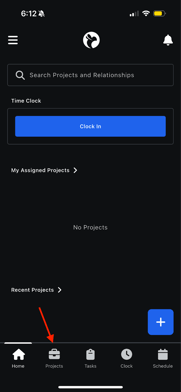
How to Request a Payment
Step 1: Open the Add (+) Button
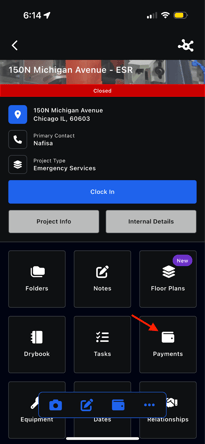
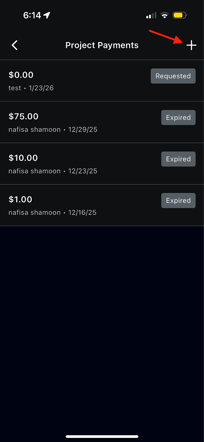
- Open the project you want to request payment for
- Tap Payments
- Tap the Add (+) button
- Select Request Payment
This opens the Request Payment form, where you will enter all required payment details.
Step 2: Choose or Add a Recipient
What is a Recipient?
A recipient is the person or organization who will receive the payment request. This is usually:
- A customer
- A vendor
- A referrer (if applicable)
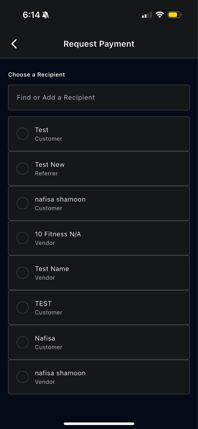
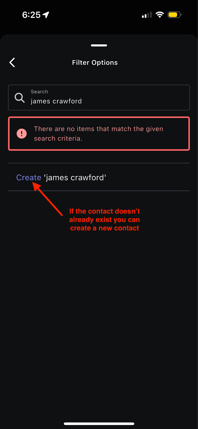
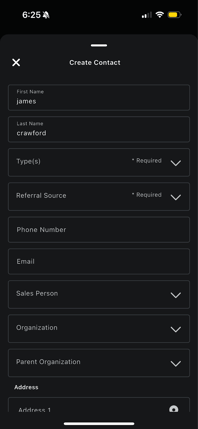
How to Select a Recipient
- In the Find or Add a Recipient field:
- Search for an existing contact or organization, or
- Add a new recipient if they do not already exist in Albi
- Tap the correct recipient to select them
Once selected, the payment request will be associated with that person or organization.
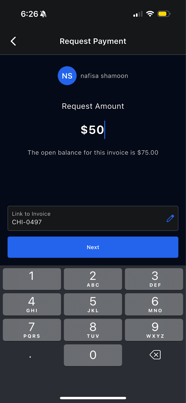
Step 3: Enter the Payment Amount
After selecting a recipient:
- Enter the payment amount
- This amount represents how much you are requesting from the recipient
Make sure the amount matches:
- The agreed payment
- The invoice total (if applicable)
- Any partial or deposit amount being requested
Step 4: Link an Invoice (Optional but Recommended)
What Does Linking an Invoice Do?
Linking an invoice connects the payment request to a specific invoice, making it clear:
- What the payment is for
- Which charges the payment applies to
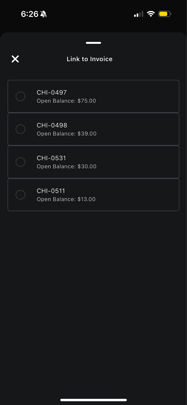
How to Link an Invoice
- Select an invoice from the available list
- The payment will now be tied to that invoice
If an invoice is not linked, the payment can still be requested, but linking an invoice improves tracking and clarity.
Step 5: Enter the Recipient’s Email Address
- Enter the email address where the payment request should be sent
- This is the email the recipient will use to:
- View the payment request
- Complete the payment
Always double-check the email address before sending.
Step 6: Select Payment Settings
What are Payment Settings?
Payment settings control how the payment request behaves, such as:
- Payment method options Credit Card or ACH (if applicable)
- Choose who pays the processing fee - Customer or Company
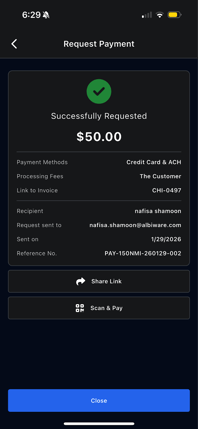
These settings ensure the payment request follows your company’s billing rules.
Step 7: Send the Payment Request
- Review all entered information:
- Recipient
- Amount
- Invoice (if linked)
- Email address
- Payment settings
- Tap Send Request
The recipient will receive the payment request and can complete payment using the provided instructions.