
How to Process a Check
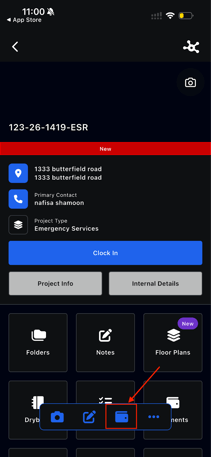
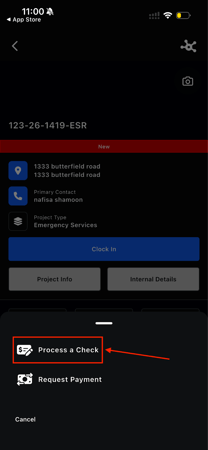
Option 1: Start from a Project
- Open a project
- Tap Wallet icon at the bottom of the screen
- Select Process a Check
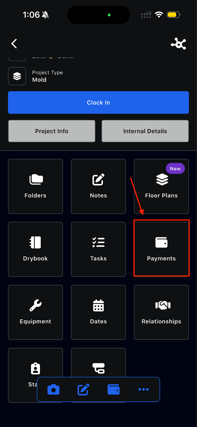
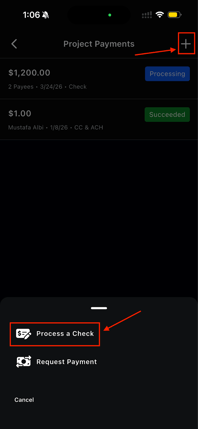
Option 2:From Payments
- Go to the Payments module
- Tap the + button
- Select Process a Check
Scan the Check
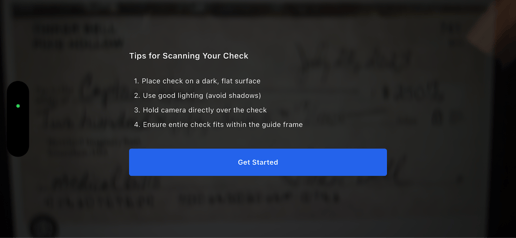
Step 1: Capture the Front
- Tap Front of Check
- Follow the on-screen tips:
- Place the check on a dark, flat surface
- Use good lighting
- Keep the check fully inside the frame
Step 2: Capture the Back
- Tap Back of Check
- Take a clear photo
Important: Do not write on the back of the check before scanning.
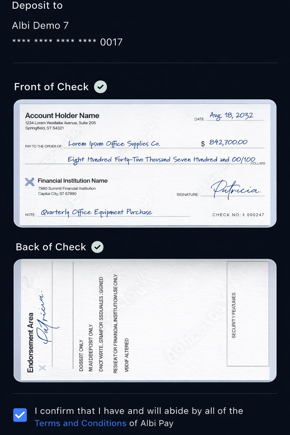
Review Images
After each capture:
- Tap Use to accept
- Or Retake if needed
Confirm Check Details
Once both sides are scanned:
- Amount is auto-filled (you can edit if needed)
- Check number is auto-detected (editable)
Optional actions:
- Link the check to an invoice
- Add payees if signatures are required
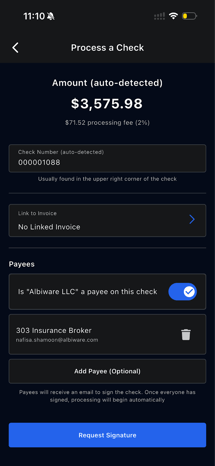
Add Additional Payees
If others need to sign the check before it’s deposited:
- Tap Add Payee
- Select contacts
- Make sure each payee has an email address
- Request a signature
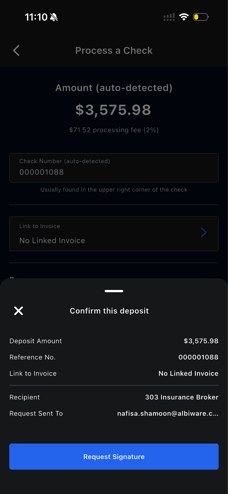
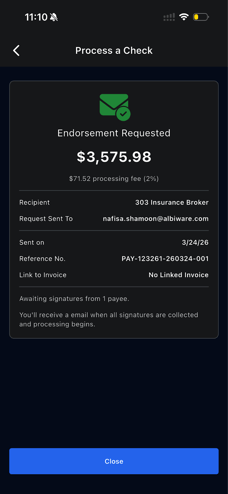
- Those payees will receive an email to :
- Review the check
- Verify their identity
- Add their signature
- Processing begins after all signatures are completed
Identity Verification (For Payees)
When a payee opens the request, they will:
1. Initiate Endorsement
- Tap Review & Endorse Check
- Tap Initiate Endorsement
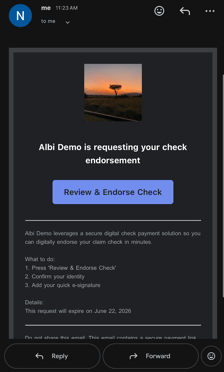
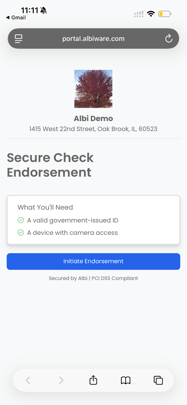
Note: Endorsement and signature request expiry shows at the bottom of the email
2. Verify Identity (Persona)
Note: Individual technicians and project managers do not need to go through Persona identity verification to process checks on mobile.
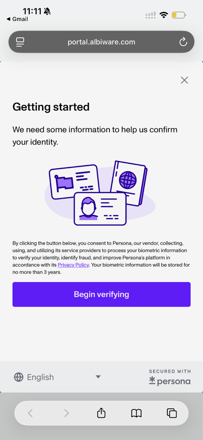
To prevent fraud, payees must:
- Upload a government-issued ID (drivers license, passport, Permanent Resident Card / Green Card, visa etc)
- Visa or Work Permit
- Complete a live face scan (selfie)
Tips for Success
- Ensure ID is clear and unexpired
- Avoid glare or shadows
- Keep face centered and visible
- Follow on-screen prompts
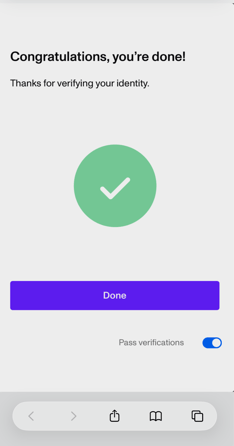
After verification:
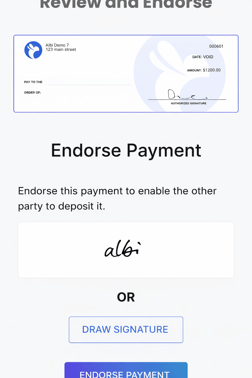
- Payees review the check
- Add their electronic signature
Accept Terms
Before submitting, you must confirm the terms for the transaction.
This ensures:
- The check is valid
- The information provided is accurate
Submit the Check
The final action depends on your setup:
- No payees added: Tap Initiate Deposit
- Payees added: Tap Request Signatures
You’ll see a confirmation screen before submission.
What Happens Next
If No Signatures Are Needed
- Status: Deposit Initiated
- Funds arrive in 3–6 business days
If Signatures Are Required
- Status: Signatures Requested
- Processing begins after all payees sign
FAQ
- Can I process a check without the internet?
Check scanning requires the internet for image validation via CheckSnap and for submitting the deposit. - Do I need to capture both the front and back of the check?
Both images are required for processing. - What if OCR gets the amount or check number wrong?
Both fields are editable on the confirmation screen. Tap the field to correct it manually. - Should the policyholder sign the back of the check before I scan it?
The back should be blank when scanned. If the check fails and needs reprocessing, a pre-signed check can't be retried digitally. - Do technicians need to verify their identity (Persona) to process checks?
Identity verification happens at the company level during onboarding. Individual technicians and project managers do not need to go through Persona. However, they must accept the terms confirmation for each deposit they initiate. - Why do I have to accept terms every time I deposit a check?
The per-transaction terms confirmation is a risk management requirement from Checkbook. It ensures the person initiating the deposit affirms the check details and payee information are accurate. This creates an audit trail and helps prevent misrepresentation. - What does "Requested" status mean?
Signature requests have been sent to payees but not everyone has signed yet. Use "Remind All Pending" to send a reminder. - Can I cancel a signature request after sending it?
Open the payment detail and tap "Cancel Request." This cancels for all recipients. - What's the processing fee?
2% of the check amount. - Q) What are the check limits?
$100,000 per check.