
Previewing the Purchase Order
Click Preview Document to view the Purchase Order exactly as it will appear to the recipient.
The preview reflects:
- Selected section layout
- Item order and grouping
- Section totals (if enabled)
- Overall totals
Sending a Purchase Order for Signature
To send the Purchase Order for signature:
- Click Preview Document & add any Edits
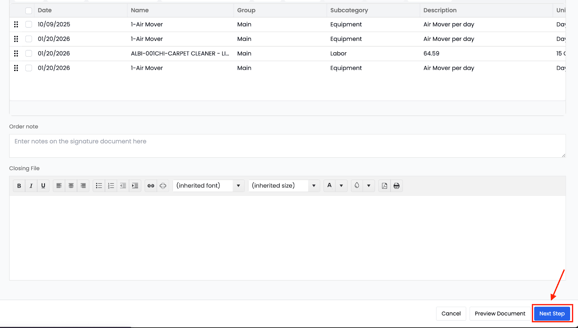
- Add Intro and Closing Files if needed
- Click Next Step → Send for Signature
- Enter the sender’s email (required)
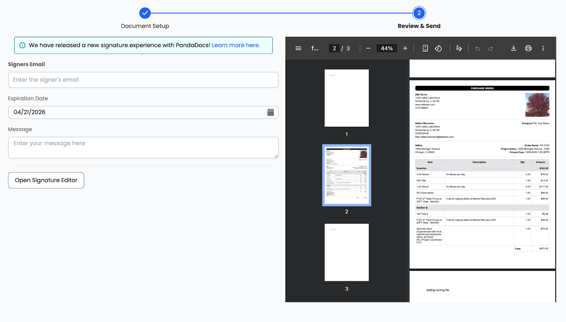
6. Set an expiration date (optional)
7. Add a message (optional)
8. Send
Once sent:
- The Purchase Order is marked Sent for Signature
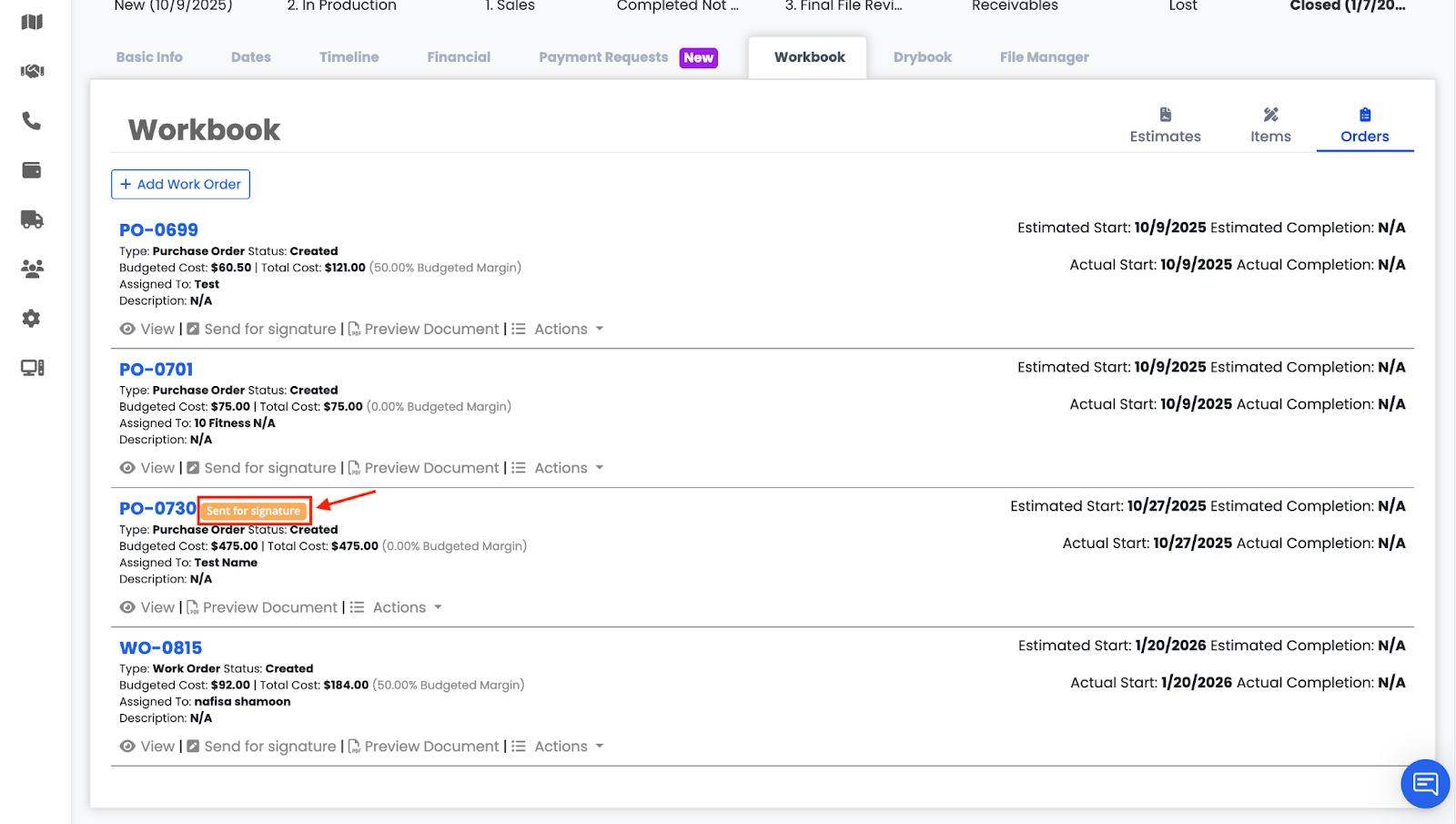
- The document layout and items are locked
- The signed version will reflect the same structure shown in preview