
Projects in the Albi mobile app represent the jobs your team is working on. This could include emergency services, mitigation, mold remediation, rebuilds, or other job types.
The Projects section allows you to:
- View all projects
- Check project statuses
- Open and manage project details
- Add notes, tasks, equipment, contacts, staff
- Upload and manage documents, photos, and videos
- Communicate and track project activity
Accessing Projects
Opening the Projects Screen
Tap Projects from the bottom navigation bar.
When the Projects screen opens, you will see two main viewing options at the top:
- List
- Status Dashboard
List View
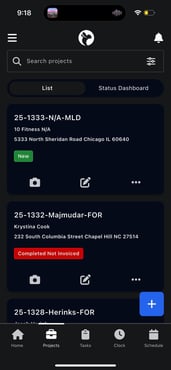
The List view shows all projects in a vertical list. Each project card displays:
- Project name
- Customer or organization name
- Project address
- Current project status
- Last updated date
You can tap on any project card to open the project.
Status Dashboard View
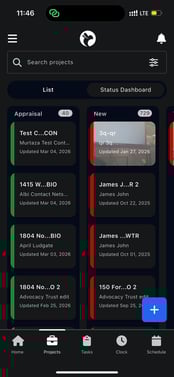
The Status Dashboard organizes projects by their current status.
How it works:
- Each column represents a different project status (for example: New, In Progress, Completed Not Invoiced, etc.)
- Projects appear under the column that matches their current status
Navigating the Status Dashboard:
- Scroll left or right to see different status columns
- Scroll up or down within a column to see all projects in that status
- Tap a project card to open it
This view is helpful if you want a quick visual overview of where projects stand.
Sorting and Filtering Projects
Sorting Projects
You can sort projects by tapping the filter/sort icon near the search bar.
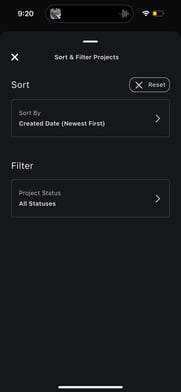
Available sorting options include:
- Created Date (Newest First)
- Created Date (Oldest First)
This helps you quickly find recently created or older projects.
Filtering Projects by Status
You can also filter projects to only show specific statuses.
For example:
- Show only “New” projects
- Show only “Completed Not Invoiced” projects
This makes it easier to focus on the projects that are most relevant to you.
Opening a Project
When you tap on a project, the project overview screen opens.
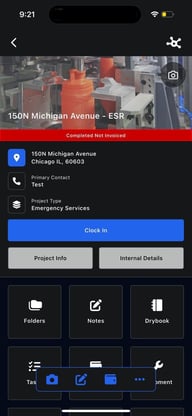
At the top of the project, you will see:
- Front Loss Image: Displays the first image uploaded to the project. This image is used as the primary visual reference for the loss
- Project Address: Displays the project address.
- Clicking the address will open it in your device’s default maps application, allowing for quick navigation.
- Primary Contact: Displays the primary contact associated with the project.
- Clicking the contact will initiate a phone call on supported devices.
- Project Type: Shows the type of project (for example: mitigation, reconstruction, etc.), helping identify the nature of the job at a glance.
- Current Project Status: Displays the project’s current status, providing immediate visibility into where the project is in its workflow.
From this screen, you can:
- Clock in to the project
- View project information
- Access all project-related tools and sections
Clocking In From a Project
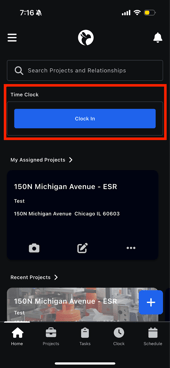
You can clock in directly from the project by tapping Clock In.
 .
. 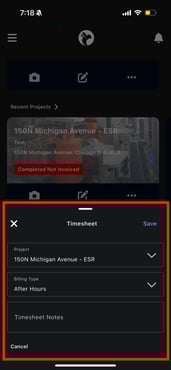
This ensures your time is tracked under the correct project.