
Uploading Files
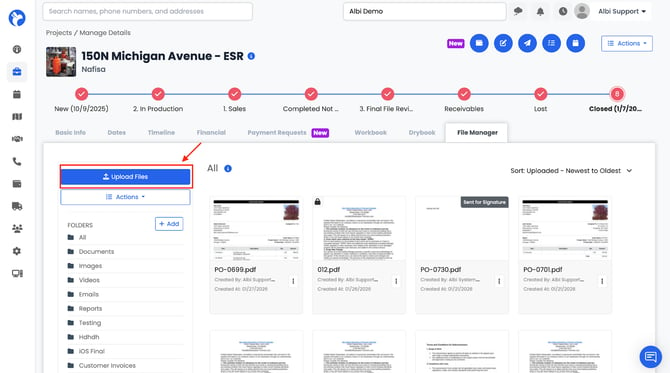
How to Upload Files
- Click Upload Files.
- Select a folder (required).
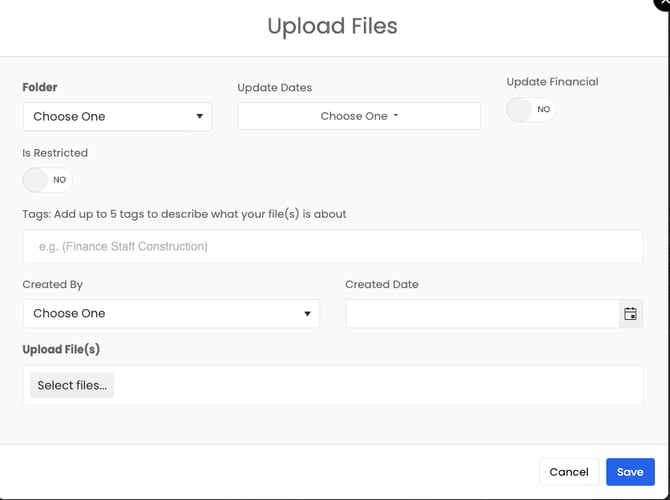
4. Fill out additional details (optional):
-
- Tags (up to 5)
- Created by
- Created date
- Restrict file access
- Update financials (if available)
5. Click Save.
Once saved:
- The file appears under All.
- The file also appears in the selected folder.
- The file is saved only to the current project and will not appear in other projects.
Note: If you want fields on your documents to be automatically populated—such as project basic information or signature fields—we recommend having Albi digitize the document for you. Once a document is digitized by Albi, our team will upload it and apply it to the appropriate project types on your behalf. After that, your team simply needs to stamp the document to project files using the Actions button. This ensures consistent formatting, accurate data population, and a smoother workflow across all projects.
Updating Financials When Uploading
If the Update Financials toggle is available, you can update:
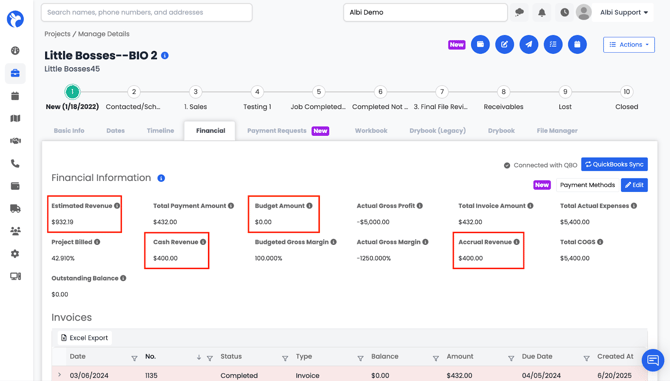
- Estimated revenue
- Budgeted amount
- Accrued revenue
- Cash amount
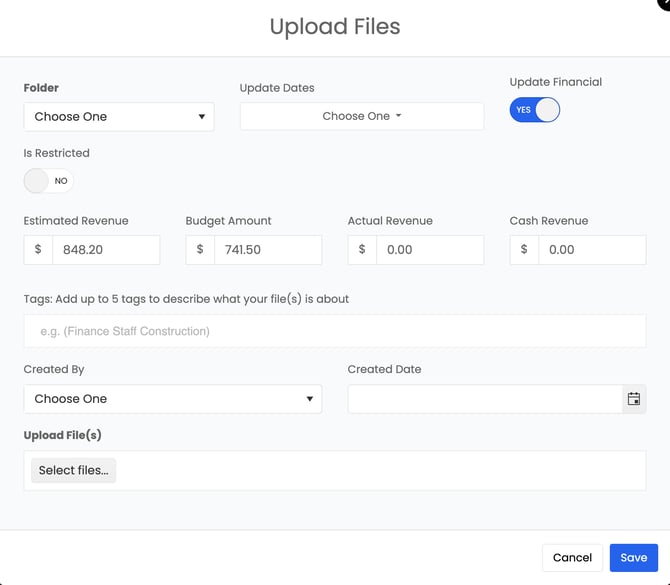
These values are saved with the file and reflected in project financials.
Duplicate File Uploads
Albi helps keep your project files clean by preventing an exact duplicate of a file from being uploaded to the same project. This section explains what Albi treats as a duplicate, what you'll see when one is detected, and how to resolve it.
What counts as a duplicate?
Albi only blocks a file as a duplicate when it is an identical copy of a file that already exists in the same project. All of the following must be true:
- Same project. Albi checks across the entire project—every folder, not just the folder you're uploading into.
- Same file name, including the extension (for example, Signed Contract.pdf). Capitalization doesn't matter—Report.PDF and report.pdf count as the same name.
- Same contents. The files must be identical, not just share a name.
- The existing file hasn't been deleted. A file you deleted earlier won't block you from re-uploading it.
The key rule: A duplicate is the same name and the same contents, anywhere in the project. If the name matches but the contents are different, it isn't a duplicate—it will upload normally, even into the same folder.
What you'll see
The message you see depends on where the identical file already lives.
If the file already exists in the same folder:
You'll see a message explaining that the project can only have one file with this name (for example, that Signed Contract.pdf already exists in Client Contracts), and prompting you to rename your file or delete the existing one. Select Got it to close the message. Nothing is uploaded. You can rename your copy, or delete the existing file, and then upload again.
If the file already exists in a different folder:
You'll see a message that the file already exists elsewhere in the project (for example, that Signed Contract.pdf already exists in Client Contracts and can't be uploaded to Documents), with two options:
- Move to [folder] — Moves the file that already exists into the folder you were uploading to. No new file is created; the existing one simply relocates, and a confirmation message appears.
- Cancel — Closes the message. Nothing is uploaded and nothing is moved; the file stays where it already was.
Uploading several files at once: If you upload multiple files and only one is a duplicate, the rest upload normally. Only the identical file is held back—a single duplicate won't block the whole batch.
Allowed vs. blocked at a glance
| You upload… | Result | What happens |
|---|---|---|
| The exact same file into the folder it's already in | Blocked | "File already in this folder" message |
| The exact same file into a different folder of the same project | Blocked | "File already in this project" message, with the option to move |
| A file with the same name but different contents | Uploads | Two same-named files can exist together |
| A file with the same base name but a different extension (Report.pdf vs. Report.docx) | Uploads | Treated as a different file |
| A file whose identical copy was deleted earlier | Uploads | Deleted files don't block uploads |
| The exact same file into a different project | Uploads | The check is per-project |
Common question: "It says the file is already in the project, but I don't see it in this folder." That means the identical file lives in another folder. Use Move to [folder] in the message, or check your project's other folders.
Where this applies
- Web file manager: Full experience, including both messages and the Move option (Project > File Manager > Upload).
- Mobile app: Uses the same duplicate rule, so identical files are handled consistently across devices. (NEEDS VERIFICATION: the exact on-screen experience on mobile depends on the app version—confirm current mobile behavior before publishing.)
- Integrations (Encircle, CompanyCam, email-in): These use a separate upload path and will skip identical files automatically, so you won't see these messages for files that arrive through an integration.
Known limitations
- Some photo formats (HEIC/HEIF, WebP): These are converted to JPEG when uploaded, which changes the file, so an identical re-upload may not always show the duplicate message. PDFs, Office documents, and standard images (JPG, PNG) work fully. (NEEDS VERIFICATION: confirm current HEIC/WebP behavior before publishing.)
- Same name, different contents is allowed: Because only identical files are blocked, you can have two files sharing a name in one folder if their contents differ. This is intentional.
- No "replace" option: These messages don't overwrite an existing file. To resolve a same-folder conflict, rename or delete the file—replacing a file in place isn't currently available.
Frequently asked questions
I uploaded a file and saw a success message, but I can't find it in the file manager.
Albi recently improved how it handles identical uploads. On the current version you'll now see a message explaining that the file already exists, rather than the file quietly not appearing. The file wasn't lost—an identical copy already exists somewhere in the project. Check your project's other folders.
Does "Move" upload my file or make a copy?
Neither. It moves the file that already exists into the folder you were uploading to. Your local file isn't uploaded, and no duplicate is created.
How do I have two files with the same name in one folder?
Their contents are different. Only files that match in both name and contents are blocked; the same name with different contents is allowed.
I renamed my file slightly and it uploaded—why?
A different name (or different contents) means it's no longer the same file, so it uploads. Renaming is one of the suggested fixes.
Same name but a different file type (.pdf vs. .docx)—is that blocked?
No. The extension is part of the name, so Report.pdf and Report.docx are treated as different files.
Is the check per folder or the whole project?
The whole project—Albi scans every folder. That's why there's a separate "already in this project" message with a Move option when the copy is in a different folder.
I deleted the file, then re-uploaded it—will it be blocked?
No. Deleted files don't count toward the check, so re-uploading after a delete works normally.