
Manually Create an Estimate (Add Estimate)
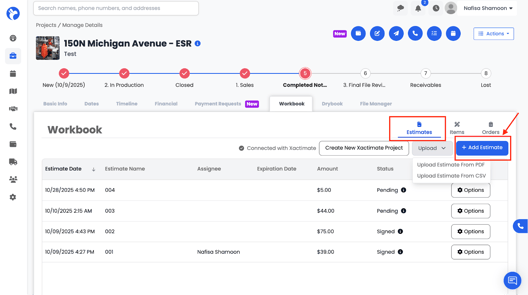
This option allows you to build an estimate directly inside Albi without using an external system.
When you click Add Estimate, you can manually enter all estimate details, including:
Estimate Details
- Estimate Name
- Estimate Date
- Optional Expiration Date
A form will open with required (bolded) fields.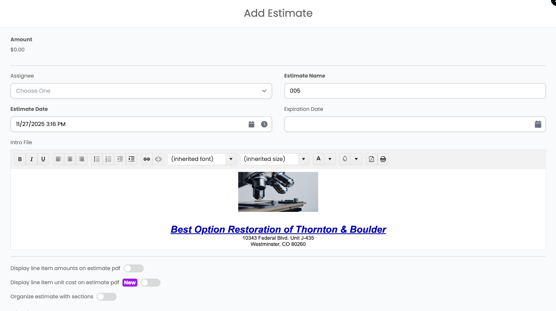
Intro File
- Select an Intro File to display at the beginning of the estimate document. Intro Files are pulled from the Intro File templates configured in Settings → Company → Templates. These templates are company-wide and automatically populate at the start of the estimate PDF, ensuring consistent formatting and messaging across all estimates.
- If no Intro File is selected, the estimate will generate without an introduction section.
Line Items
Click Add Line Item, which opens your company’s Price List.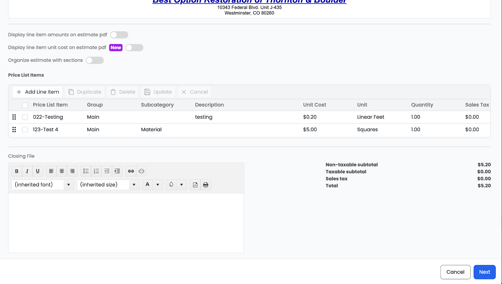
You can:
- Select a price list item from the dropdown (e.g., Air Mover, Dehumidifier, Demo Work, Labor, etc.), or manually enter a custom line item if it is not included in your Price List. Manually entered line items allow you to add one-off charges or custom services while still assigning quantities, unit costs, and descriptions as needed.
- Add the item to a Group if needed (e.g., Kitchen, Basement, Main Level)
- Adjust:
- Unit cost
-
- Quantity
-
- Unit (each, sq ft, day, hour, etc.)
-
- Description
- Description
The total cost will be calculated automatically.
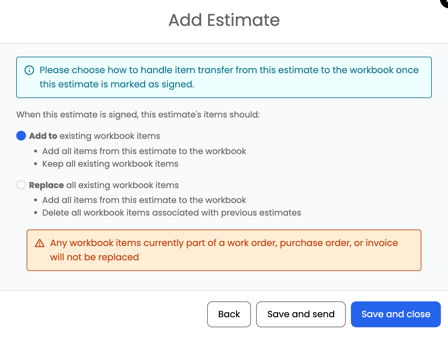
- After clicking Next, a confirmation form will appear. Once completed, the estimate will be added to your Estimates list.
Closing File
- Select a Closing File to display at the end of the estimate document. The Closing File is pulled directly from your Closing File templates in Settings and helps ensure consistent formatting, messaging, and branding across all estimates.
Once completed, you can save the estimate, and it will be added to the project’s Workbook and available for review, editing, and invoicing.